
Participant
December 5, 2019
Answered

Character panel error - fonts too large, can't activate new fonts on Illustrator

  • December 5, 2019
  • 3 replies
  • 6158 views

Hi all,


Hoping you can help me with an issue I'm having. It's very similar to the below issue, however it wasn't always like this, to begin with it was ok - granted that was only a few days ago....


https://community.adobe.com/t5/illustrator/font-preview-is-too-large/m-p/10132420#M112725


I'm able to get this back by using the windows display settings to 100% size in apps and other items, but it messes with my desktop outside of the app (it's a good workaround but not the ideal sitation). Unfortunately the in-app font preview size option isn't there anymore as that may have solved the problem.


Any help would be much appreciated.
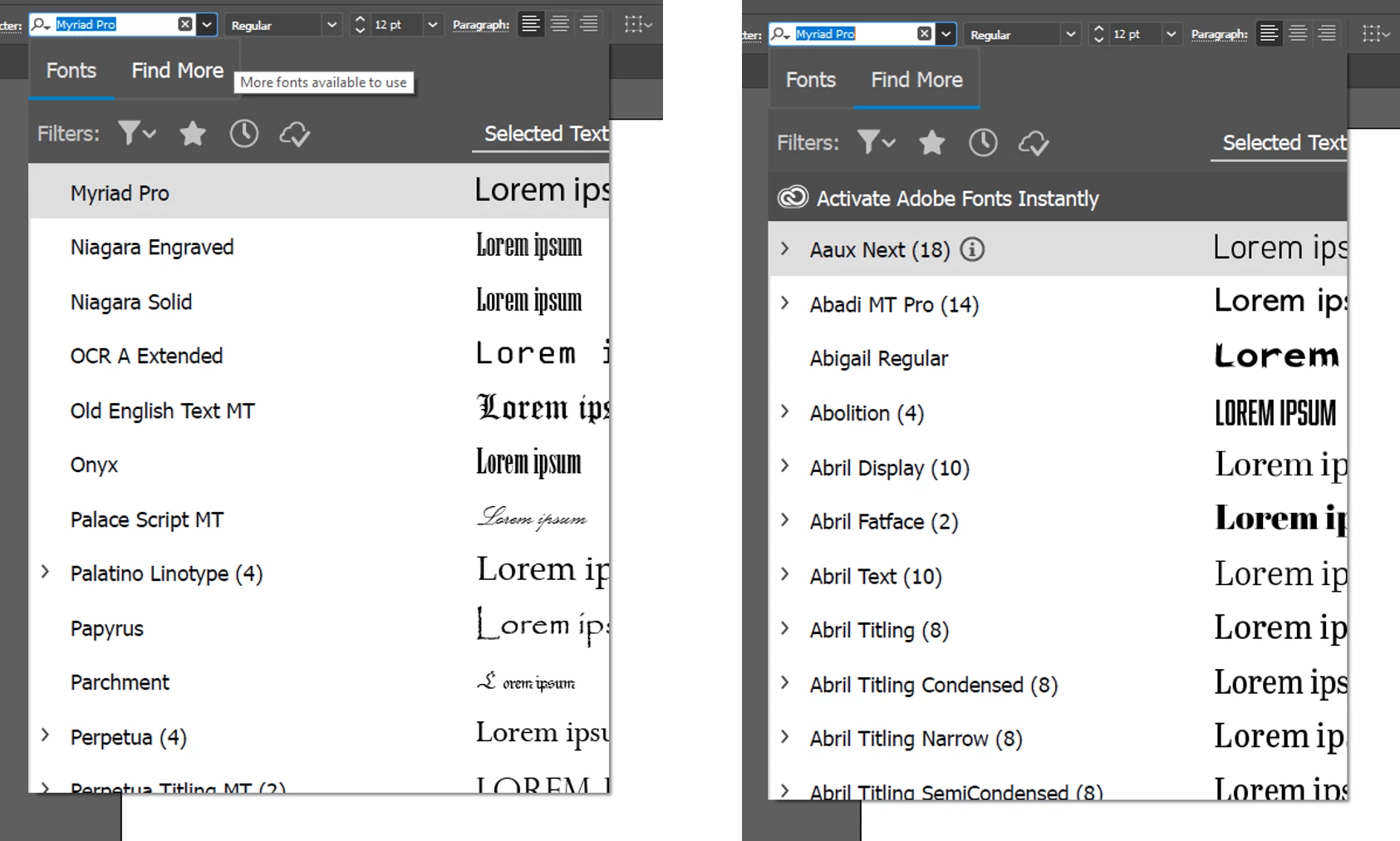


{Renamed By MOD}

This topic has been closed for replies.
Correct answer Emery Gutnik

Hey! I've been having the same issue, but I managed to get a solution.


This is what I've done:

Right click on the .exe file for the app, Go to Compatibility > Settings > Change high DPI Settings > Change Program DPI Settings and set High DPI Scaling override to 'System'. In my case, I clicked 'System (Enhanced)'.

Good luck!

3 replies

Emery Gutnik
Emery GutnikCorrect answer
Participant
May 4, 2021

Hey! I've been having the same issue, but I managed to get a solution.


This is what I've done:

Right click on the .exe file for the app, Go to Compatibility > Settings > Change high DPI Settings > Change Program DPI Settings and set High DPI Scaling override to 'System'. In my case, I clicked 'System (Enhanced)'.

Good luck!

Participant
May 9, 2021

this 100% works, using v25.2.3

Gil-Cortez
Participating Frequently
April 14, 2021

The only fix for this I've discovered is this:
Open Illustrator and confirm the font preview is too large. I left the selection window open and then went to Windows 10 display settings. I have a very large 4k monitor so I keep the scaling here at 150%. I dropped it to 100%. Went back to Illustrator and tested the font preview. It is now a proper size and I can finally scroll. I then went back to my 4k monitor and set the scaling to 150%. This is such a crap work around. It boggles my mind that I have zero issues in Photoshop, but Illustrator does not handle the scaling issue. To clarify, I'm NOT using Illustrator on my 4k monitor. I have a 22HD Cintiq that I use Illustrator on and that monitor has 100% scaling and is set to the recommended resolution for the 22HD Cintiq. It's also the same monitor I use Photoshop on. Hopefully this will work for you. I feel your frustration.


SoaringDragons
Participating Frequently
April 14, 2021

I just tried this work around, and it didn't work.


I set the scaling to 100 and it didn't let me scroll, if anything it made the text previews worse and I don't use large text size previews either. Don't have the issue in photoshop or any other adobe program, just illustrator (Even tried uninstallng and reinstalling it)

Gil-Cortez
Participating Frequently
April 14, 2021

Do you have a multi-monitor setup? Have you tried the UI scaling in Illustrator? Also, windows 10 has the advanced settings.  You could try turning on "make things less fuzzy" within those extra settings.

Rishabh_Tiwari
Legend
December 5, 2019

Hi there,


Sorry to hear about the trouble you are facing with Illustrator. Could you please try scaling the UI of the Illustrator by navigating to Edit > Preferences > UI > UI Scaling. The UI Scaling option will be available when the system resolution is set at 100%. You can refer to the screenshot attached.


Let us know if this helps or if you need any further assistance.


Regards

Rishabh

SoaringDragons
Participating Frequently
November 25, 2020

Hello


I am having this same issue. Just started acting up today. Upgraded to the 2021 version and still no fix.


The above solution provided by @Rishabh_Tiwari did not work.