Participant
February 16, 2025
Answered

Circle in 3rd's with different colours

  • February 16, 2025
  • 3 replies
  • 358 views

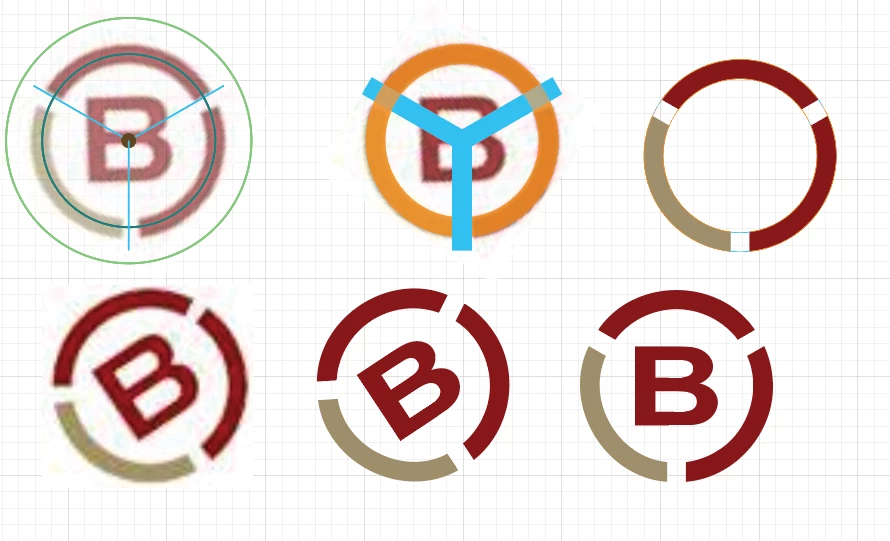
Hello, I am trying to recreate this logo (the circle bit) but I am not sure how to do it. I have tried with a dashed line but I cant then change the colour of the lower left third. What would be the best way to do this, Thanks Josh

=


Correct answer kphotopage

As always, there are many ways of doing things with Adobe.


Here is what I did

1pt stokes:

Here I first drew a large circle. Another inside circle. Then a center line. Align.

The tri lines are rotated from center. Angle 120. I used Effects>Transform.


Increased stroke weights. Outline Strokes.

Did Transform.

Expand Transform.

Live Paint.

Expand live paint.

Center live Text.

Group.Rotate


Hope that helps. Took me maybe 15 minutes.

K

3 replies

kphotopage
kphotopageCorrect answer
Legend
February 16, 2025

As always, there are many ways of doing things with Adobe.


Here is what I did

1pt stokes:

Here I first drew a large circle. Another inside circle. Then a center line. Align.

The tri lines are rotated from center. Angle 120. I used Effects>Transform.


Increased stroke weights. Outline Strokes.

Did Transform.

Expand Transform.

Live Paint.

Expand live paint.

Center live Text.

Group.Rotate


Hope that helps. Took me maybe 15 minutes.

K

Anna_Lander
Community Expert
Community Expert
February 16, 2025

if you only need to redraw this third-divided circle with slightly (controllable) spreading gaps, you can do it quite fast.

1. Draw the circle, set the needed width.

2. Draw the line, set the width and profile, adjust the details with the Width tool

3. Select both, use Object > Path > Outline Stroke

4. Select top shape (former line), take the Rotate tool, set the rotating center at its smaller edge keeping Alt (Opt) down; When releasing the mouse button, you will get the Rotation Settings window. Set the angle to 120°. Click Copy.

5. Click Ctrl+D (Cmd+D) to repeat the transforming.

6. Select all and use "Minus Front" button on Pathfinder panel

7. Ungroup the result.

Here you are. You can now fill each segment as you want, rotate the circle as you need etc.


Monika Gause
Community Expert
Community Expert
February 16, 2025

You could also make a brush.

But if you want to do it with a dashed line, you could do this:

https://youtube.com/shorts/beIymNy0fus

You need the Appearance panel.