
Answered
Class of 2017 T-Shirt! HELP!
Hi there,
Is there a "quick" and "unpainful" way of accomplishing this design?
Picture: http://files.ctctcdn.com/550e261c001/7d3673c3-d7b8-411d-a287-629510cf270c.jpg
Thanks,
David
Hi there,
Is there a "quick" and "unpainful" way of accomplishing this design?
Picture: http://files.ctctcdn.com/550e261c001/7d3673c3-d7b8-411d-a287-629510cf270c.jpg
Thanks,
David
To put type inside 2017, select the text with the black Selection tool. Then choose Type > Create Outlines.
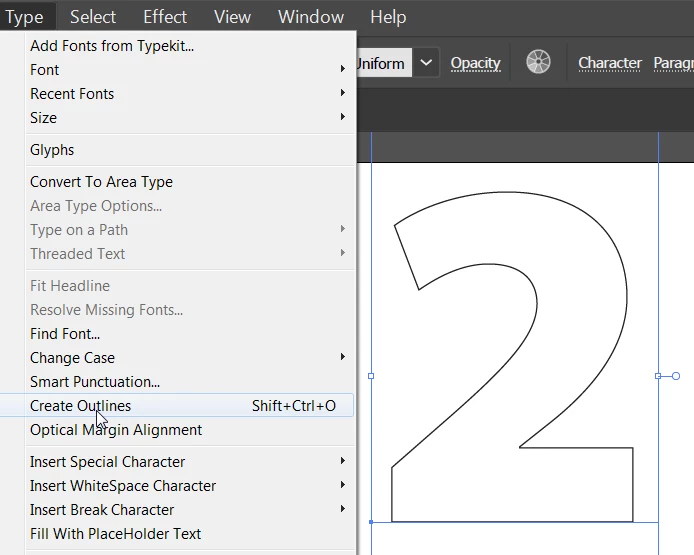
Choose Object > Compound Path > Release.
Ungroup the numbers.
Select the Area Type tool from the toolbar.
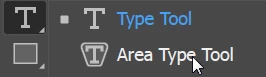
Click on the first number with the Area Type Tool. The number should loose any stroke or fill color that it had.
Type the text you want to appear inside the number. Of course, it will look best with small type that is justified.
The "0" will present a problem, because area type doesn't work on a compound path. What I would suggest is to select the "0".
Choose the Knife tool.
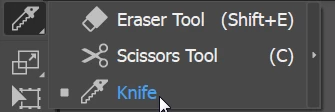
Hold down Alt or Option as you drag from the inside of the 0 through to the outside at the bottom of the number.
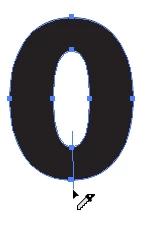
Now you will be able to fill the area using the Area Type tool.
Already have an account? Login
Enter your E-mail address. We'll send you an e-mail with instructions to reset your password.
 AdChoices