
Participant
March 23, 2023
Answered

Clipping mask help i feel stupid

  • March 23, 2023
  • 3 replies
  • 526 views

So I'm trying to get a simple clipping mask to work in illustrator so I have a file in a vector format. It's simply putting 2 lines over text. I can easily do it in photoshop but I can't seem to figure it out in illustrator i've looked at a few tutorials and it's still stumping me... Here are some images and also some information Both f's are are compounded and as well as both of the red lines
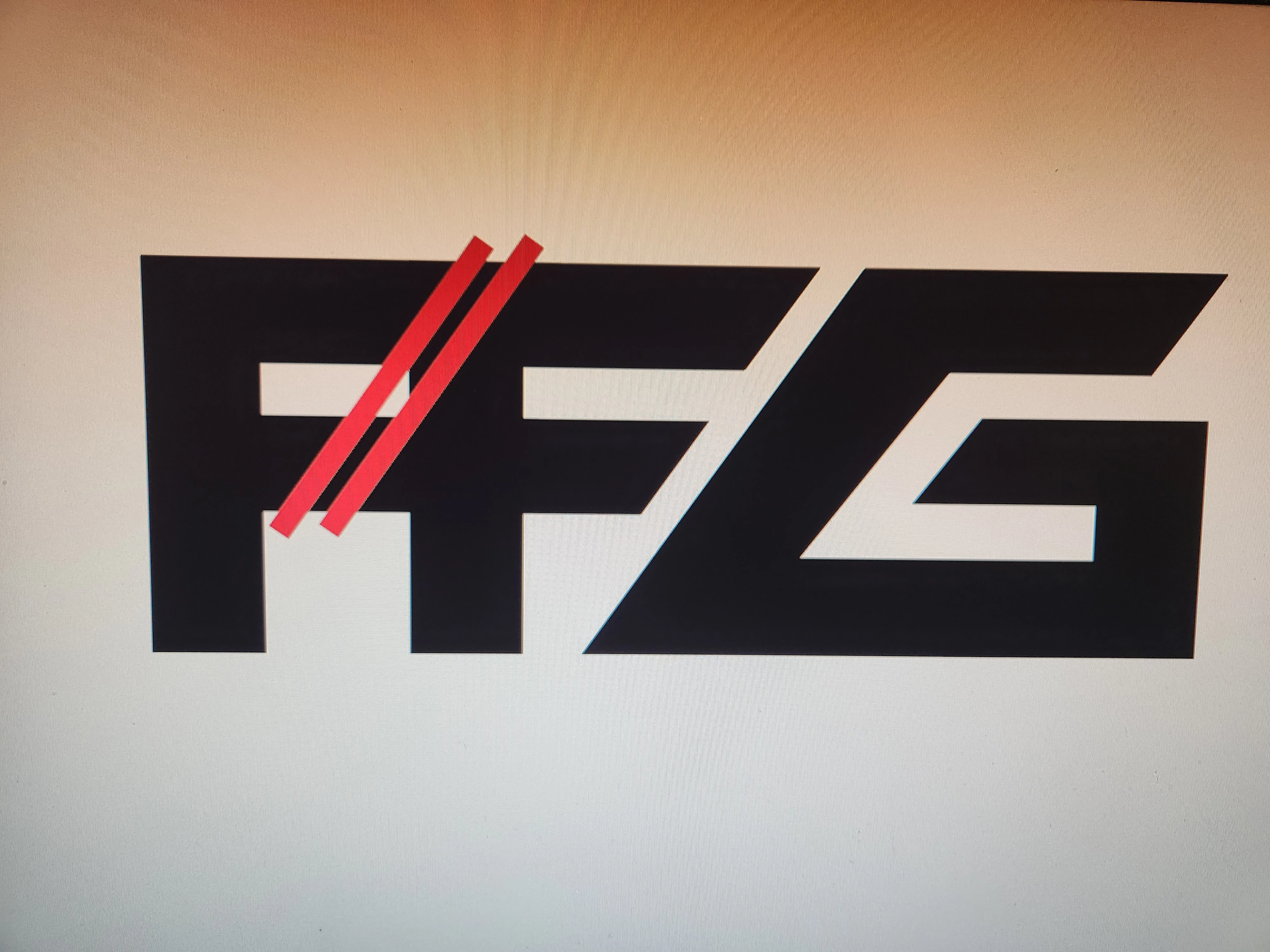
 and this is how I want it to look 
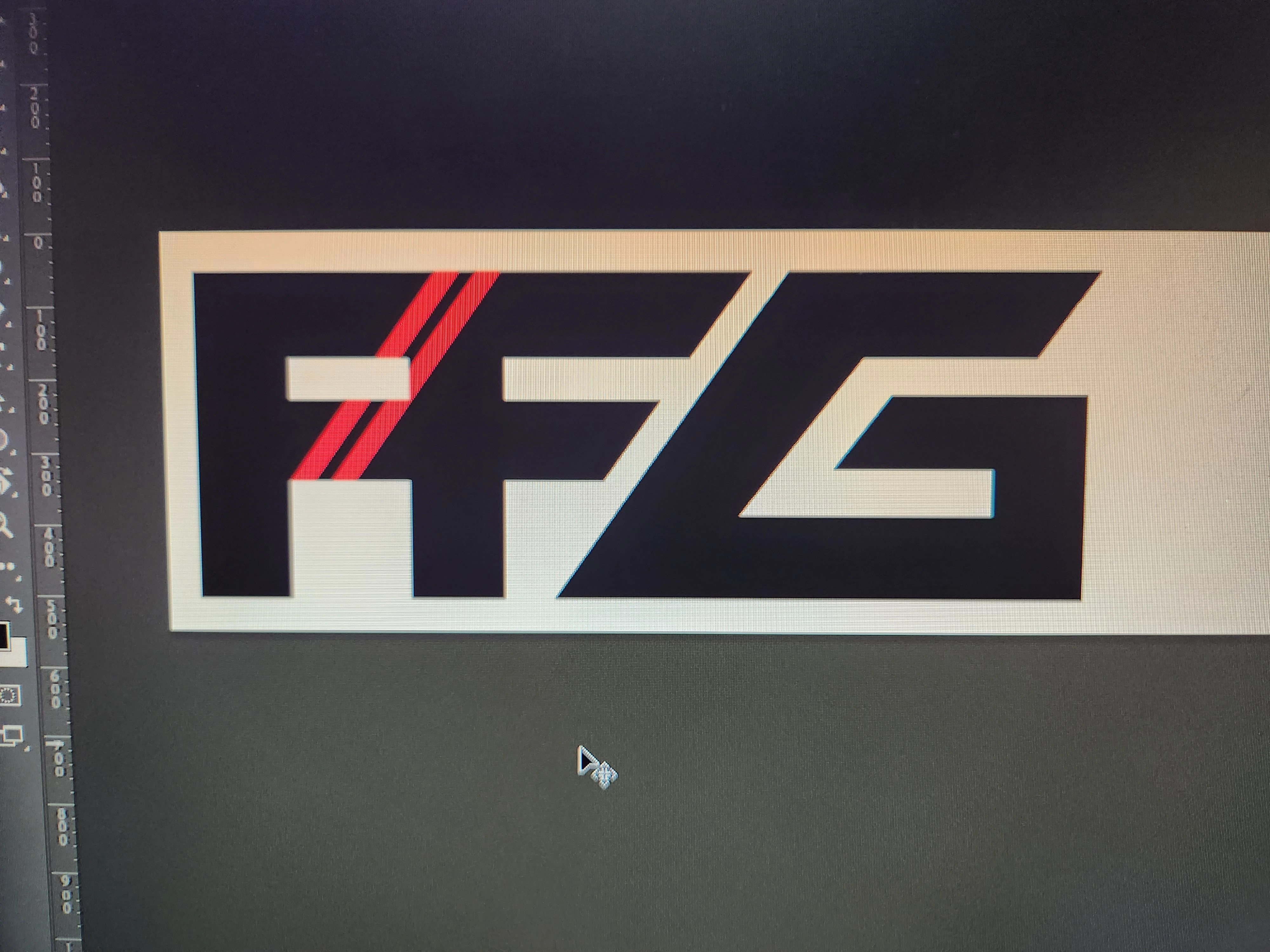
This topic has been closed for replies.
Correct answer JFoxy

Not sure if this is more complicated but I couldn't figure it out the way that both of you had mentioned to do it. I needed up outlining both the f's and turning them to shapes combining them with the shape combined tool putting the lines below the image and then. Dividing them and then removing the segments I didn't want

3 replies

JFoxyAuthorCorrect answer
Participant
March 23, 2023

Not sure if this is more complicated but I couldn't figure it out the way that both of you had mentioned to do it. I needed up outlining both the f's and turning them to shapes combining them with the shape combined tool putting the lines below the image and then. Dividing them and then removing the segments I didn't want

Ton Frederiks
Community Expert
Community Expert
March 23, 2023

Sounds good too! There are always many ways to accomplish what you want.

Ton Frederiks
Community Expert
Community Expert
March 23, 2023

You could Cut the 2 red lines.

Click the black FF.

Click the Draw Inside button at the bottom of your Toolbar.

Choose Edit > Pate in Place.

And click the Draw Normal button.


Ton Frederiks
Community Expert
Community Expert
March 23, 2023

Or what Monika said.

Monika Gause
Community Expert
Community Expert
March 23, 2023

Those letters need to be a compound path.

Select the red lines and cut them

Select the letters and go into Draw inside mode (press SHift +D 2 times)

Edit > Paste in Place

Double click outside to leave the Draw inside mode


https://www.youtube.com/watch?v=e0ChvqrmHOQ