jordant81900302
Participating Frequently
May 2, 2019
Answered

Clipping mask keeps color overlay! help :(

  • May 2, 2019
  • 3 replies
  • 9086 views

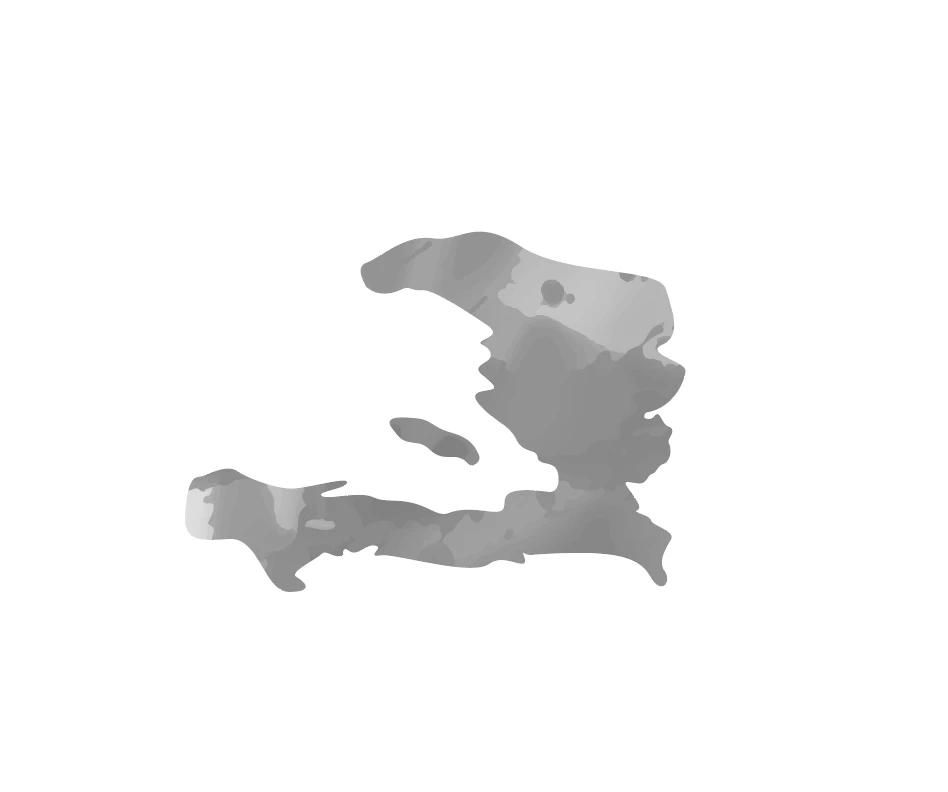
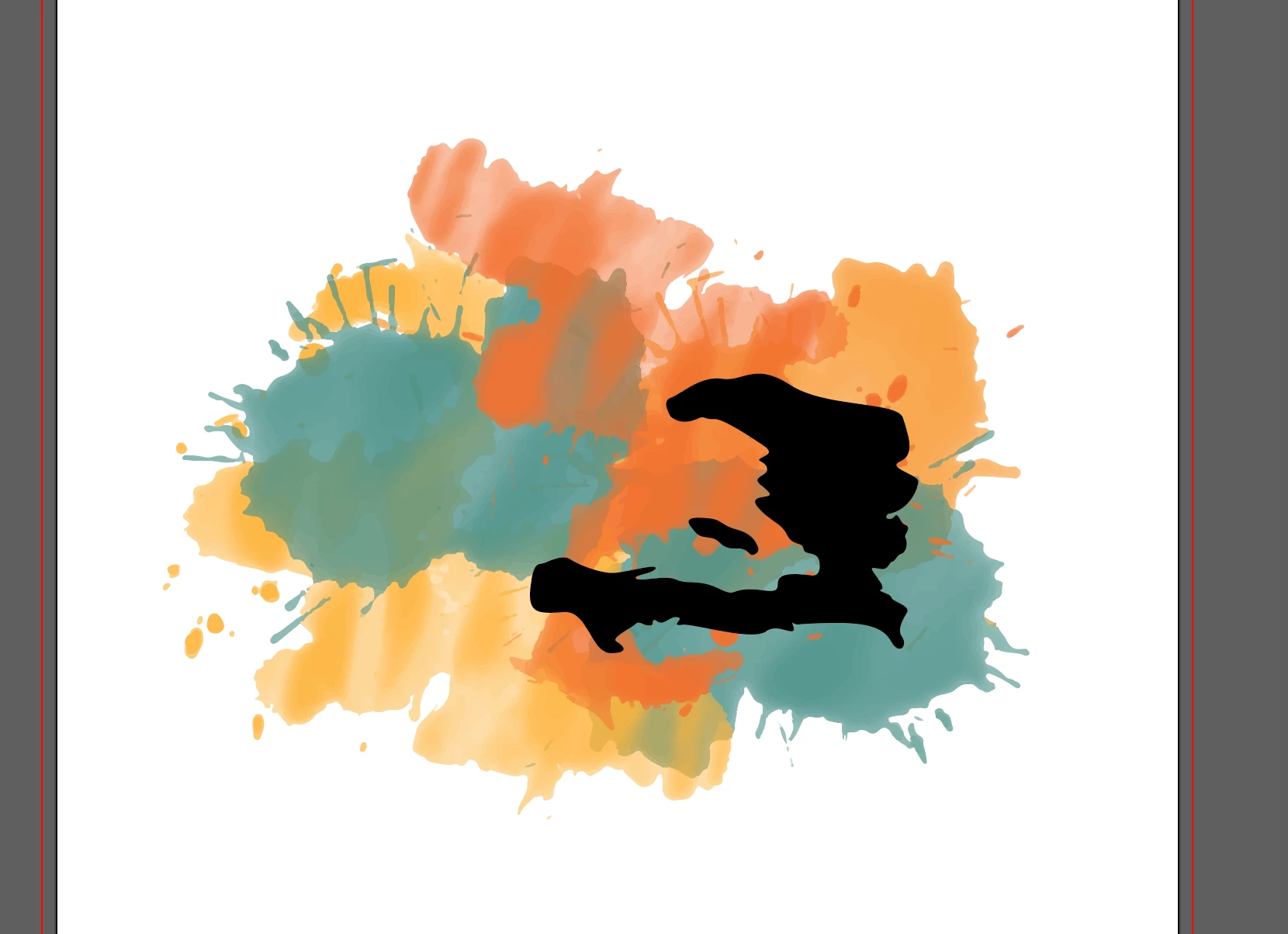
I am working on a Haiti logo and am trying to create a color fill inside the shape of the country with the watercolor 'splash' shown. Both the country shape and watercolor shape are vectors.

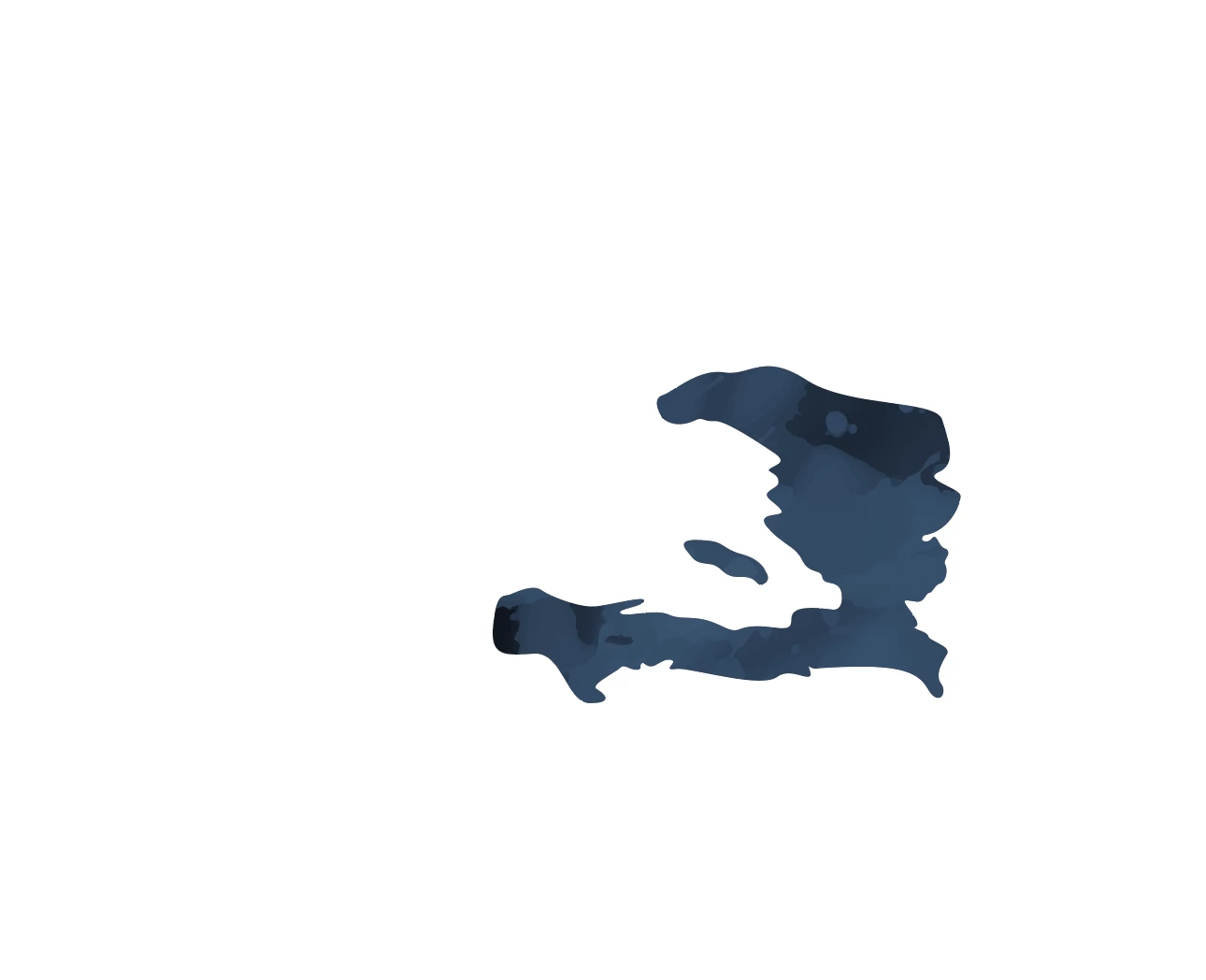
However, every time I make a clipping mask, it seems to keep the top object's color instead of bringing in the clipped color.

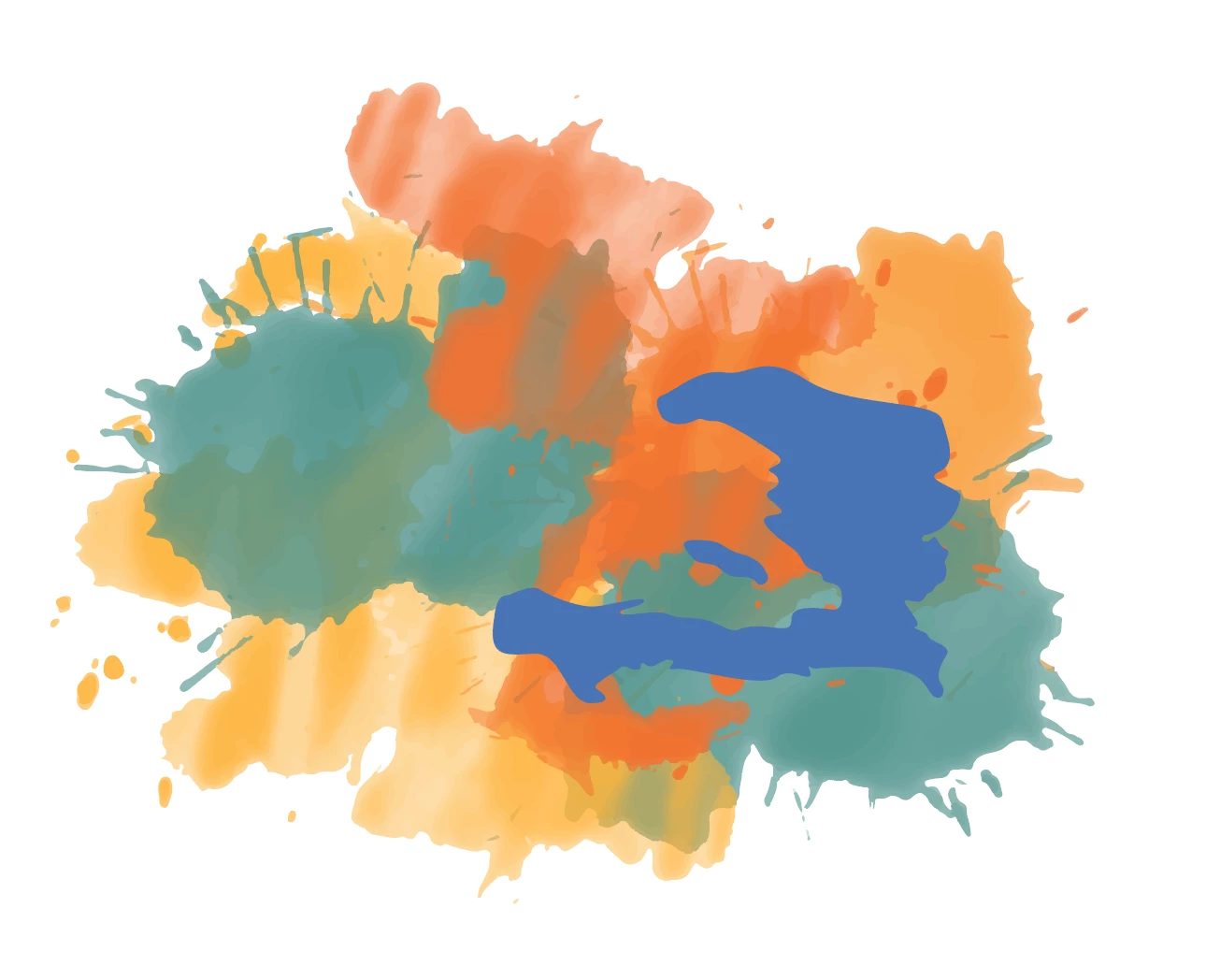
For example, in 2nd set of pictures if I have Haiti in a blue color before I clip, the subsequent result is the clipped splash but it retains that blue color.

Any advice on how to fix this?
This topic has been closed for replies.
Correct answer Monika Gause

Your mask object is groupd. Relese the group, make it a compound path instead.

Then select all the objects and Object > Clipping mask > Make

3 replies

jordant81900302
Participating Frequently
May 2, 2019

I tried rasterizing then clipping, and it still does not work. I also tried assigning the fill as 'none' and it just made the whole object transparent.

I have attached the original file:

Logo 1 RGB.ai - Google Drive

Monika Gause
Community Expert
Monika GauseCommunity ExpertCorrect answer
Community Expert
May 2, 2019

Your mask object is groupd. Relese the group, make it a compound path instead.

Then select all the objects and Object > Clipping mask > Make

jordant81900302
Participating Frequently
May 2, 2019

Tried it. Still getting the weird color overlay. Maybe I am doing a step wrong... were you able to get it to work?

Mike_Gondek10189183
Community Expert
Community Expert
May 2, 2019

Where did the water color art come from, is this something you created or downloaded?

Since we do not have access to the file I cannot  tell you exactly what is incorrect with the file construction (compound paths, duplicate paths, blend color mode, etc). Would recommend you object >> rasterize the water color art, then apply the clipping mask, or use transparency palette if you prefer.

Feel free to use dropbox, google drive or similar and am sure someone can answer you question once we see the file if you supply correctly showing the before and after of your issue.

jordant81900302
Participating Frequently
May 2, 2019

It was an image I originally made in PSD, then image traced to vectorize it. I will try clipping first then vectorizing and let you know how that goes. Thank you!

Monika Gause
Community Expert
Community Expert
May 2, 2019

Make sure there's really only one "Haiti" object before making the mask

If it still happens, select the masking path after creating the mask using the direct selection tool and then assign a fill of "None"