
Participating Frequently
March 3, 2019
Answered

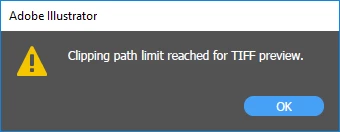
“Clipping path limit reached for TIFF preview" message in Illustrator CC 2018

  • March 3, 2019
  • 4 replies
  • 16444 views

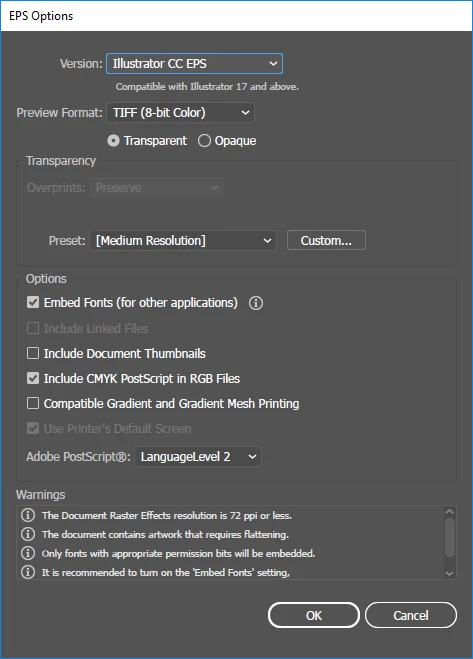
I was trying to save my design as an EPS with these settings:
But, around 80 - 85% of the saving process, I'm getting this warning message:
  • I've not used any clipping paths in my design. But I've used a drop shadow effect. Is that the cause?
  • Will this affect the EPS file in any bad way?
  • How can I avoid this issue?
Correct answer defaultoq250sfebsbu

The simplest way to counter this issue is to make the artwork smaller by scaling it down by may be 50%. Hope this helps.

4 replies

defaultoq250sfebsbuCorrect answer
Participant
October 17, 2022

The simplest way to counter this issue is to make the artwork smaller by scaling it down by may be 50%. Hope this helps.

Participant
October 19, 2021

Had this problem when my background was transparent. When I was saving the same file with an opaque background fill it worked

Participant
February 4, 2021

I know this is an old post, but this is for anyone still getting this warning. I work in a print shop. I get this warning all of the time. Especially when embedding images and using effects like drop shadow. To this day, I have never noticed any negative effects from this warning as far as how files print, cut, or are editable later. However, what this DOES affect is your preview image when using the file online. If you want it to go away, simply change "preview format" to none when saving. This may hurt your thumbnail previews, but thats about it. 

Michael Bullo
Community Expert
Community Expert
March 3, 2019

This doesn't address your exact question but is there any particular reason why you are saving this as an EPS file? Would an Illustrator or PDF file work? If so you could bypass your problem altogether.

clickerAuthor
Participating Frequently
March 3, 2019

Yeah, I need it as an EPS for uploading to certain stock image websites.

Michael Bullo
Community Expert
Community Expert
March 3, 2019

Some quick Googling suggests that some people were able to solve this issue by turning off the preview in the EPS Options dialogue box. I have no personal experience with this problem so I'm not recommending this. Just something you could try.