Inspiring
July 30, 2017
Answered

Closing a figure drawn with Pen???

  • July 30, 2017
  • 6 replies
  • 1102 views

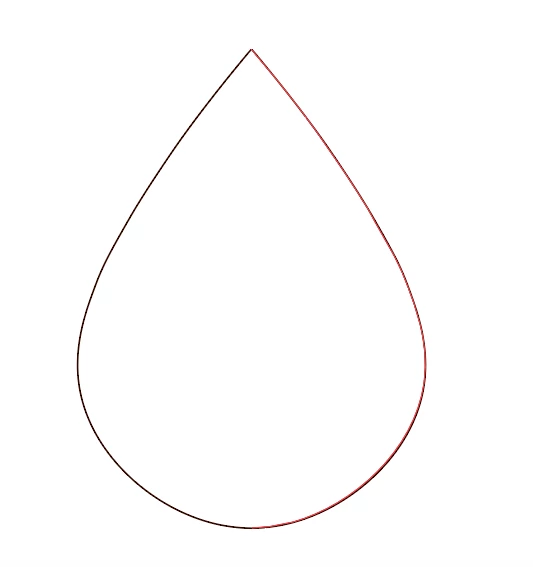
I have drawn half a water drop with "Pen" and duplicated it and reversed it 90' degrees in order to make a symmetrical water drop

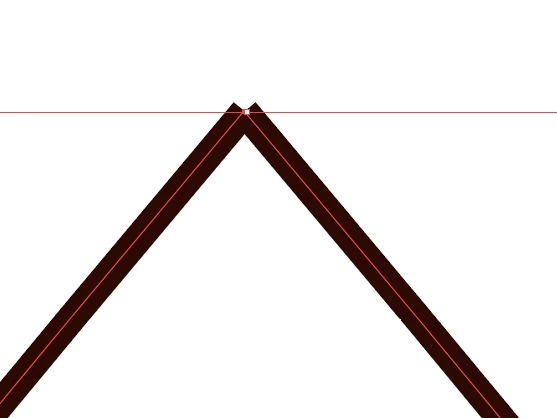
Now the issue is that i cannot draw a line between the 2 half water drop figures to close it with a triangle.

The water drop
The gap where the triangle should end
What do i do??

Or how do you make symmetrical shapes you draw yourself?

    This topic has been closed for replies.
    Correct answer Katie Houghton

    There are a lot of ways to do things in Illustrator so I have one more.

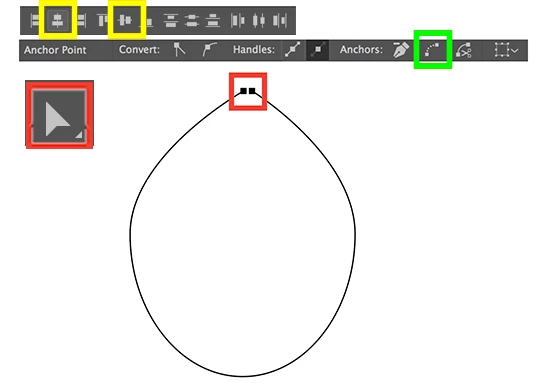
    1. Select the points with your Direct selection tool (RED)
    2. From the Control panel choose to align the points: Horizontal Align Center and Vertical Align Center (YELLOW)
    3. From the Control panel use the Connect Selected End Points icon to close (GREEN)
    4. If you have an anchor point selected you also have the option to Convert: Corner or Smooth.
    5. If you have two objects you should join the bottom point together as well.

    6 replies

    Monika Gause
    Community Expert
    Community Expert
    July 31, 2017

    Dream_  schrieb

    Or how do you make symmetrical shapes you draw yourself?

    Since this part of the question is a more general one, I'd like to add the most important part:

    Make sure that things are aligned carefully. So when drawing the left part of the mirror, make sure that the points on the right side are aligned exactly.

    And from then on I usually use the transform effect to create the mirroring. This allows me to adjust things while already working with the finished object.

    I can still adjust the shape of the shield easily, because it's only one half drawn. The mirrored half will pick up any change immediately automatically. When I'm done: expand appearance (if needed).

    But most important part: The two selected points need to be perfectly aligned. I use the align panel (only possible when there are more than 2 points on the path).

    Inspiring
    July 31, 2017

    This may be overkill but how about making a teardrop from a Circle shape? Here are the directions.

    Dropbox - Teardrop.pdf

    Inspiring
    July 31, 2017

    Use your direct selection tool (located next to the selection tool. Keyboard shortcut is "A") and then select the points (make a bounding box around the two anchor points). Once you have the anchor points selected, (not the entire object)  the Control panel (just below menu) should show what is selected, which in this case is the Anchor Point. (See my earlier picture) The options to alter those points will be located there on the control panel.

    Only two open points can join... don't select the center line. Remember every anchor point can only have two segments attached to it (based on basic geometry). That third line can not be connected to the other two segments. (It might be easier to move the third segment out of the way while you are joining the top of your teardrop) Once the teardrop is complete move the third segment back and try different caps to find the one that looks the best. Probably the rounded. (panel shown in one of the above answers)

    Katie HoughtonCorrect answer
    Inspiring
    July 31, 2017

    There are a lot of ways to do things in Illustrator so I have one more.

    1. Select the points with your Direct selection tool (RED)
    2. From the Control panel choose to align the points: Horizontal Align Center and Vertical Align Center (YELLOW)
    3. From the Control panel use the Connect Selected End Points icon to close (GREEN)
    4. If you have an anchor point selected you also have the option to Convert: Corner or Smooth.
    5. If you have two objects you should join the bottom point together as well.

    Ray Yorkshire
    Participating Frequently
    July 31, 2017

    Another way

    Select both sides and using the Shape Builder tool drag the mouse cursor  across the shapes to unite then into one ..

    _NortonAuthor
    Inspiring
    July 31, 2017

    That leaves me with lines in the middle:

    And if I remove one, the top is removed as well:

    Bill Silbert
    Community Expert
    Community Expert
    July 30, 2017

    In the screen shot below the process is shown:

    In the first picture the end cap of the lines has been set as yours is. Change that to the round ends as in the second picture. In the third picture I've used the keyboard command Option/Alt-Command/Control-J to average both points bringing them together but as yet unjoined. In the last picture I've used the keyboard command Command/Control-J to join the two points.

    _NortonAuthor
    Inspiring
    July 31, 2017

    I can for some reason only change the width of the lines, you have a billion more options than me.

    Bill Silbert
    Community Expert
    Community Expert
    July 31, 2017

    The options you're not seeing are available by clicking on the horizontal lines at the top right of the panel and choosing "Show Options" from the pull-down menu that you'll see.