



Alexandre Brandt
Inspiring
Nov 16, 2017 10:36 AM UTC
Answered

Color picker not wanting to validate and apply correct HEX color

Hello all,

I'm working in Illustrator CS6, making a business card.

I have text and shapes currently in white that I'm trying to change color to #9F183D

When I select text & shapes, I select the color picker and then paste the color code in the # field.
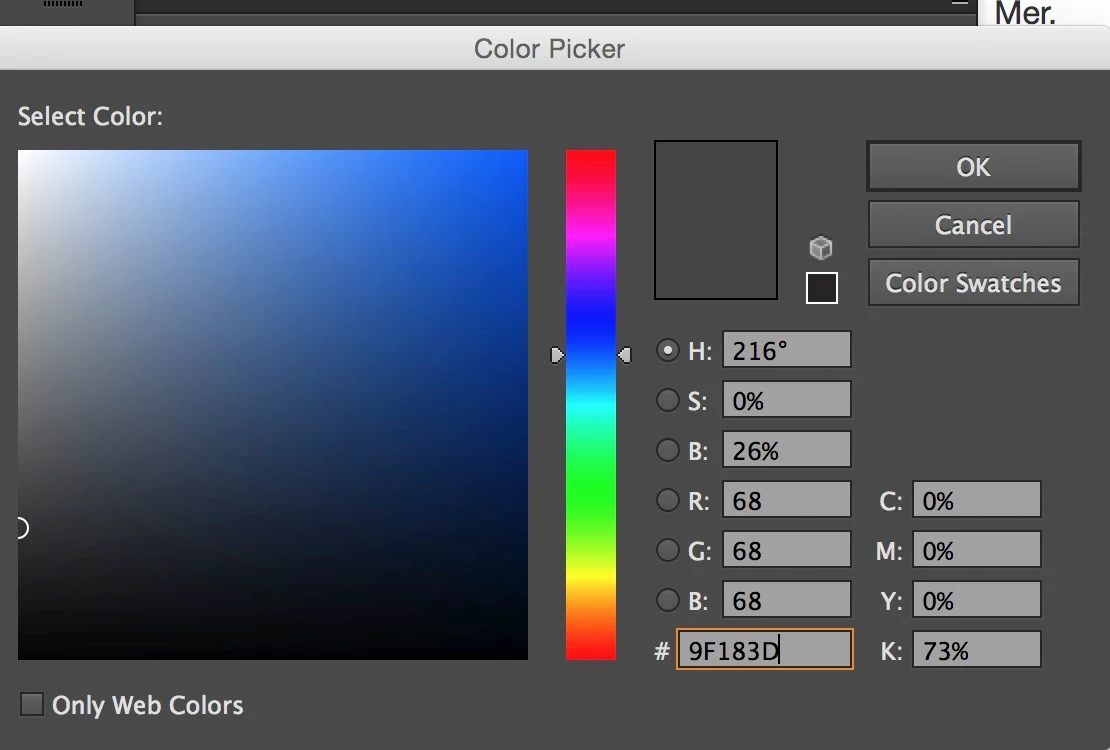
I click "OK". But I the color of the objects go to grey.

I see that in the color preview square

I open the color picker again and the color is in: 444444.
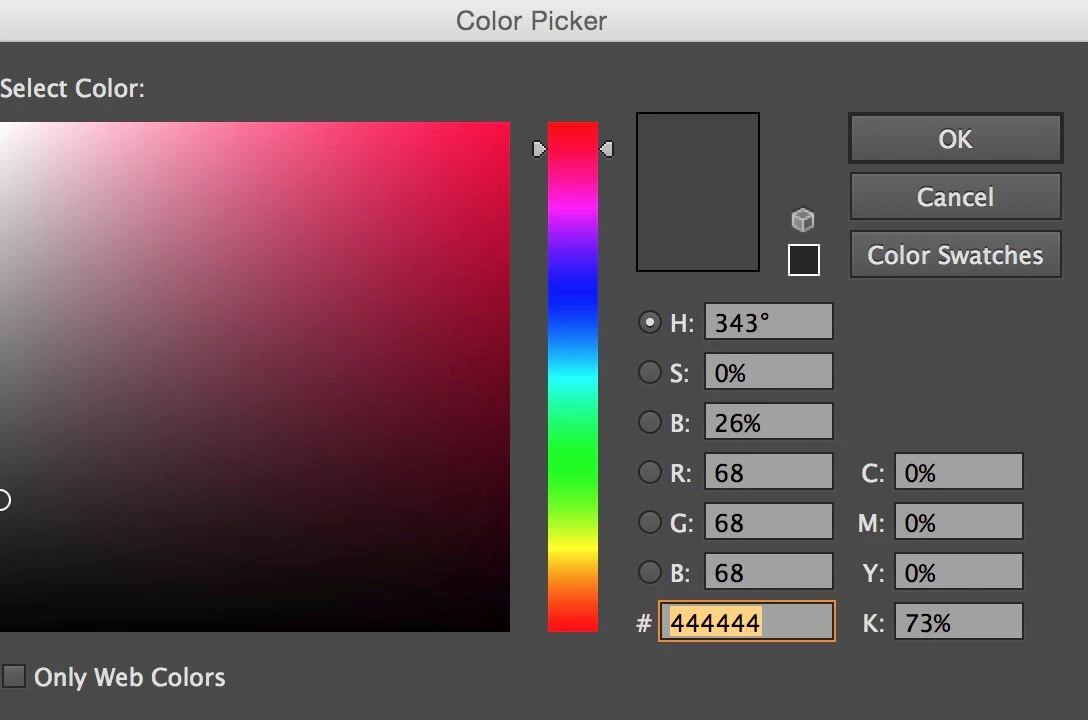
So the Color Picker did not apply the color I inputed.

I've been working that way for a while, done this dozens time but its not working now.

Can someone tel me WTF is going on ?

Thank you for your help

Alexandre
This topic is closed to new replies. Start a new post to keep the conversation going.
Paul LukesCorrect answer
Participant
Jul 23, 2023 8:01 PM UTC

Well, I'm not making this stuff up.

I even tried in Illustrator CS5 with one shape. Same problem.

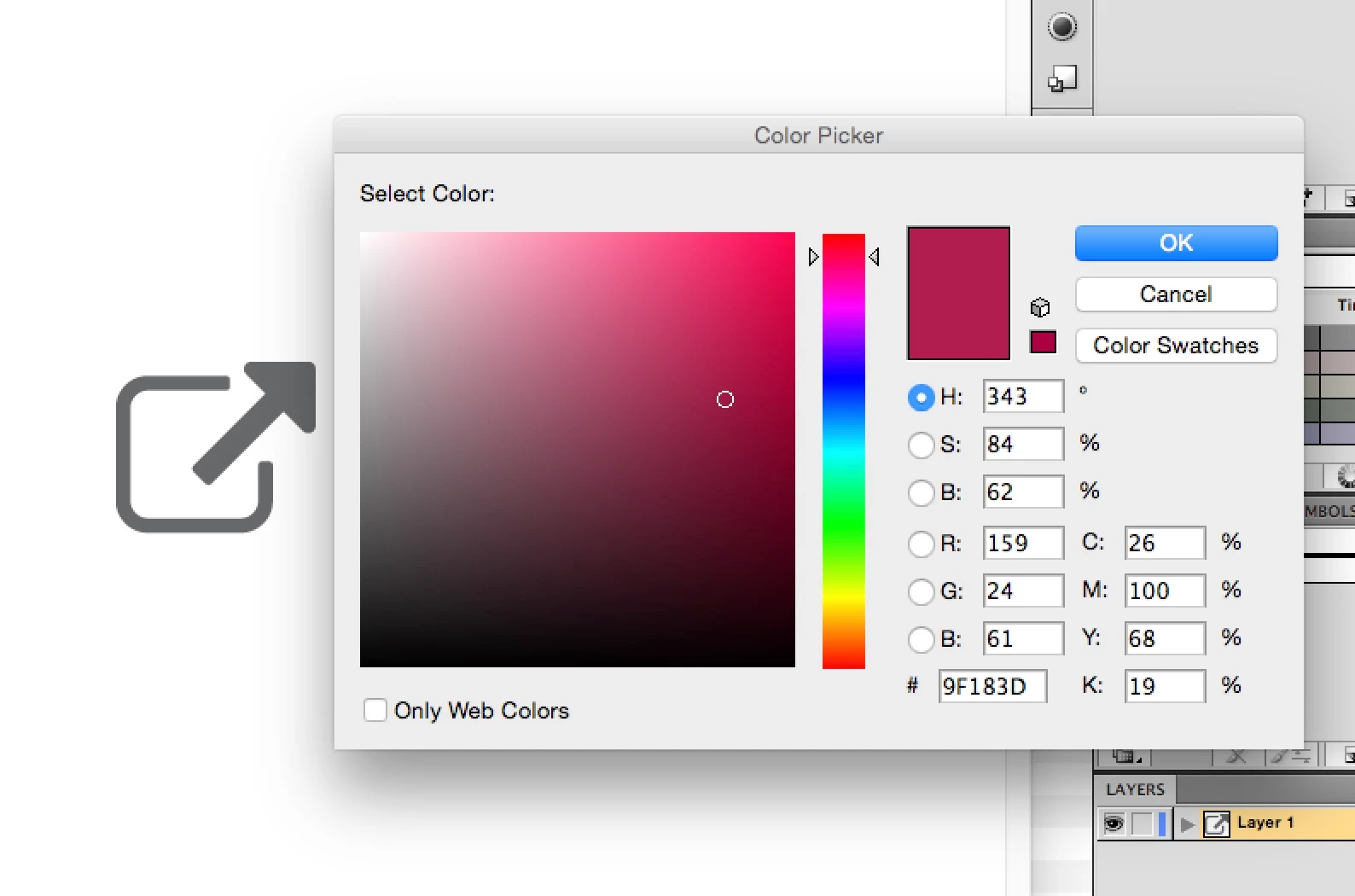
Look. The color picker tells me it's in red (raspberry) which is what I want but when I hit ENTER, or Ok on the interface, I get 444444 grey like the current color on the shape in the screenshot below.


I ran into the same issue when I was copying and pasting hex codes into the little box in the color picker. I realized that it was acting as if there was an extra invisible character coming with whatever I was copying and pasting. The problem went away when I manually typed the code in myself or did my best to eliminate the possibility that I was copying and pasting any extra characters. The problem persisted especially for me when I was copying and pasting hex codes from the web. Think converting them to plain text with no extra chracters (visible or not) is the best route to go.

17 replies

twinbrush
Inspiring
Jul 24, 2018 11:52 AM UTC

Alexandre, I struggled with this for a while too.

Didn't matter if my image was in CMYK color mode or RGB color mode. If I double clicked a fill swatch to open the color picker and added any value, even if I manually selected a color as soon as I hit enter it would go some shade of grey.

The work around that I've found is to open the color panel (Window > Color (F6 I think is the keyboard shortcut) at the bottom right of it there is a box for hexadecimal values. When I enter the value in there (whether in RGB or CMYK) then hit enter it applied the color. Still can't get the actual color picker to work though...but at least this seems to work.

Hope it helps

Translate
Alexandre Brandt
Inspiring
Jul 25, 2018 7:55 AM UTC

Hey Twinbrush,

Thanks for this tip.

Yep, it seemed to work when I was doing it this way.

It's a bummer really because it means the color square below the hex color value is actually useless if you can't use a color picker on it...

Translate
Ton Frederiks
Community Expert
Community Expert
Nov 16, 2017 11:29 AM UTC

I see your other problem, the color goes to grey.

After pasting the HEX value, use the Tab or Enter key to validate.

Translate
Ton Frederiks
Community Expert
Community Expert
Nov 16, 2017 11:22 AM UTC

Is your Document Color Mode CMYK?

That would explain it.

Work in RGB if you want the hex color to stay the same number.

But I would expect that CMYK mode is better for printed bussiness cards.

Don't worry about the exact HEX value when working in CMYK mode, use CMYK values.

Translate
Alexandre Brandt
Inspiring
Nov 16, 2017 2:07 PM UTC

Hello Ton,

My document color mode is CMYK because that design is for digital printing (business cards).

It's not a slight shift in hue or color that I see, its radically a different color. I get the grey color instead of the color I want.

When the problem occurs, whatever HEX value I input, its the same grey I get.

I work with HEX values because its what the Adobe Color CC tool gives me.

When I paste the HEX value, I tried hitting ENTER or TAB but problem persists :-(

Alexandre

Translate
Doug A Roberts
Community Expert
Community Expert
Nov 16, 2017 2:12 PM UTC

i'm not seeing anything like that result even in a CMYK doc...

Translate