
Participant
July 14, 2024
Answered

Colour fill issues
  • July 14, 2024
  • 5 replies
  • 702 views

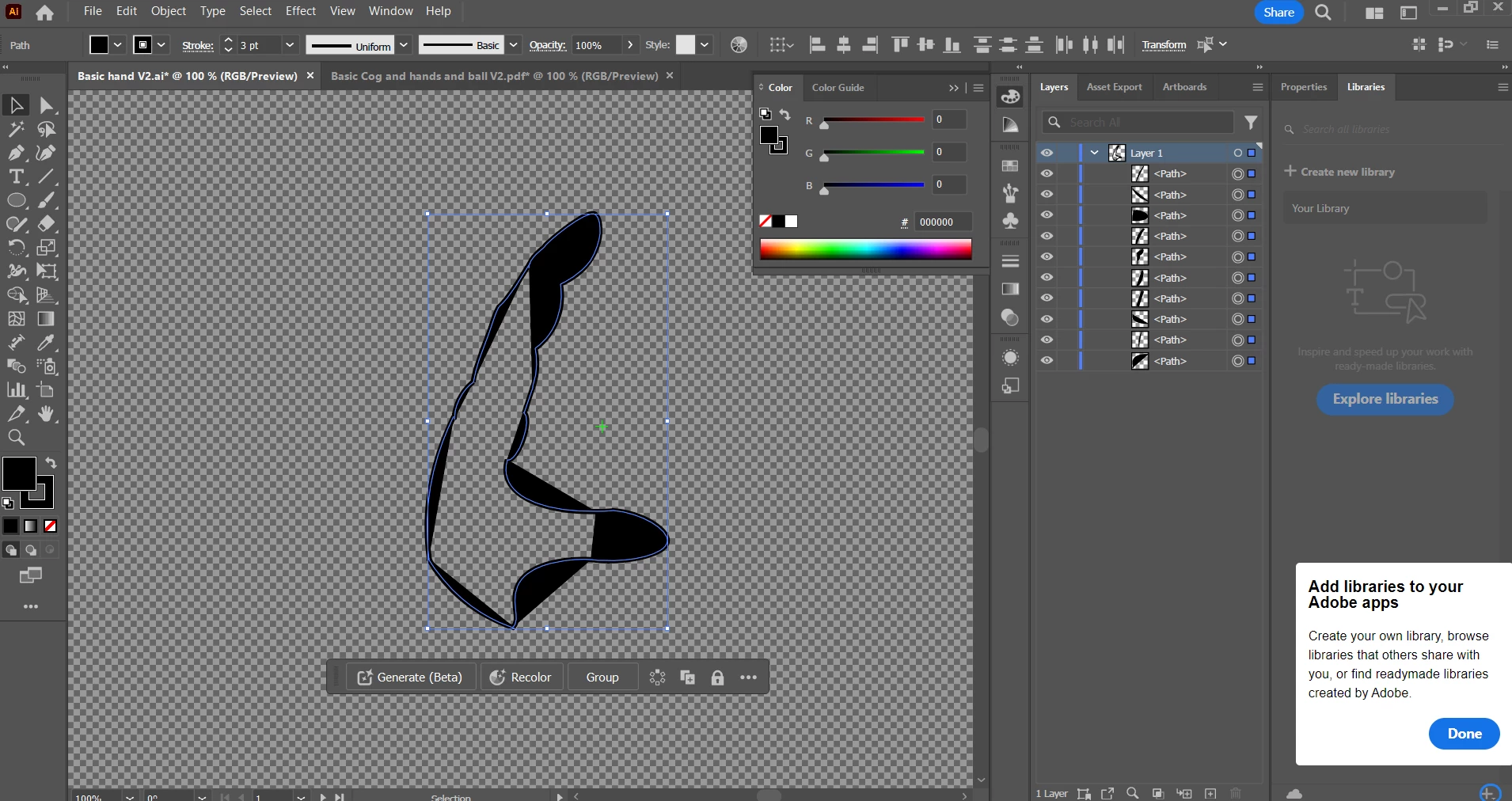
Hey everyone. I've run into a wall on the learning curve. I've created this hand with a lot of trial and error. I've spent the past 6 hours trying to work out why it's not filling with colour and getting colour outside of the shape I've created. Being totally new to this I know it's something I've either done, or not doing, but no amount of googling is helping find an answer. I'm hoping one of the amazing wizards in the community can help me solve my problem or direct me to a post that offers the solution. Fingers crossed it's a simple fix. Thanks team.

This topic has been closed for replies.
Correct answer Ton Frederiks

And it may be useful to spend some time with this tutorial.

https://creativecloud.adobe.com/cc/learn/illustrator/web/use-pen-tool?locale=en

5 replies

Participant
July 22, 2024

Hi everyone. I just wanted to say a big thank you to everyone who responded to my help request. I followed the advice and got it to work how I needed. Nice to have a supportive group of people helping each other out. As a newbee I really appreciate it. 

Oh and thanks for the tip of the tutorial. That would have made it a whole lot easier from the beginning lol. But as they say, you learn more from your mistakes. Cheers

Ton Frederiks
Community Expert
Community Expert
July 22, 2024

Good to hear we could help.

Mohammad.Harb
Community Expert
Community Expert
July 14, 2024

Press ctrl + Y to see the path in outline mode 

here you can easily check if the path is open or closed.


Ton Frederiks
Community Expert
Ton FrederiksCommunity ExpertCorrect answer
Community Expert
July 14, 2024

And it may be useful to spend some time with this tutorial.

https://creativecloud.adobe.com/cc/learn/illustrator/web/use-pen-tool?locale=en

Jacob Bugge
Community Expert
Community Expert
July 14, 2024

Ayden,


In addition to what Ton said, I imagine the end Anchor Points of adjacent open paths are not coinciding.


This means that you can get a lot of small straight segments between the parts you have now, and they may be visible when zooming in, or even when looking at the final size, unless you make them coincide and become a single Anchor Point.


For each pair you can select (by ClickDragging across at a slanting angle and make sure only two are selected), then Object>Path>Average (Both), then join.


There is a cunning way to draw (a draft version of) the whole hand in one go/path with curves and (especially inner) corners right from the beginning. Presumably, you have already worked with the Direct Seletion Tool (and maybe other tools) to adjust the shapes.


Monika Gause
Community Expert
Community Expert
July 14, 2024

@Jacob Bugge  schrieb:


For each pair you can select (by ClickDragging across at a slanting angle and make sure only two are selected), then Object>Path>Average (Both), then join.


Select those points and press cmd+Alt+Shift+J (Ctrl instead of cmd on Windows)

This shortcut will automatically first average and then join. No dialog box.

Jacob Bugge
Community Expert
Community Expert
July 14, 2024

Indeed, Monika. I never use Average, so obviously too hard to remember.


Ton Frederiks
Community Expert
Community Expert
July 14, 2024

You have many open paths. If you fill an open path it will fill between the start and end points of the path.

Try selecting two open points at the time with the Direct Selection tool (A) and join them using Object > Path > Join

Repeat until you have a single closed path for the hand.