Participant
February 5, 2018
Answered

completely different results shown on screen and when printing

  • February 5, 2018
  • 1 reply
  • 588 views

I've got some weird problems with the visibility of my illustrator-drawn (2017 cc) map when printed and when shown on screen.

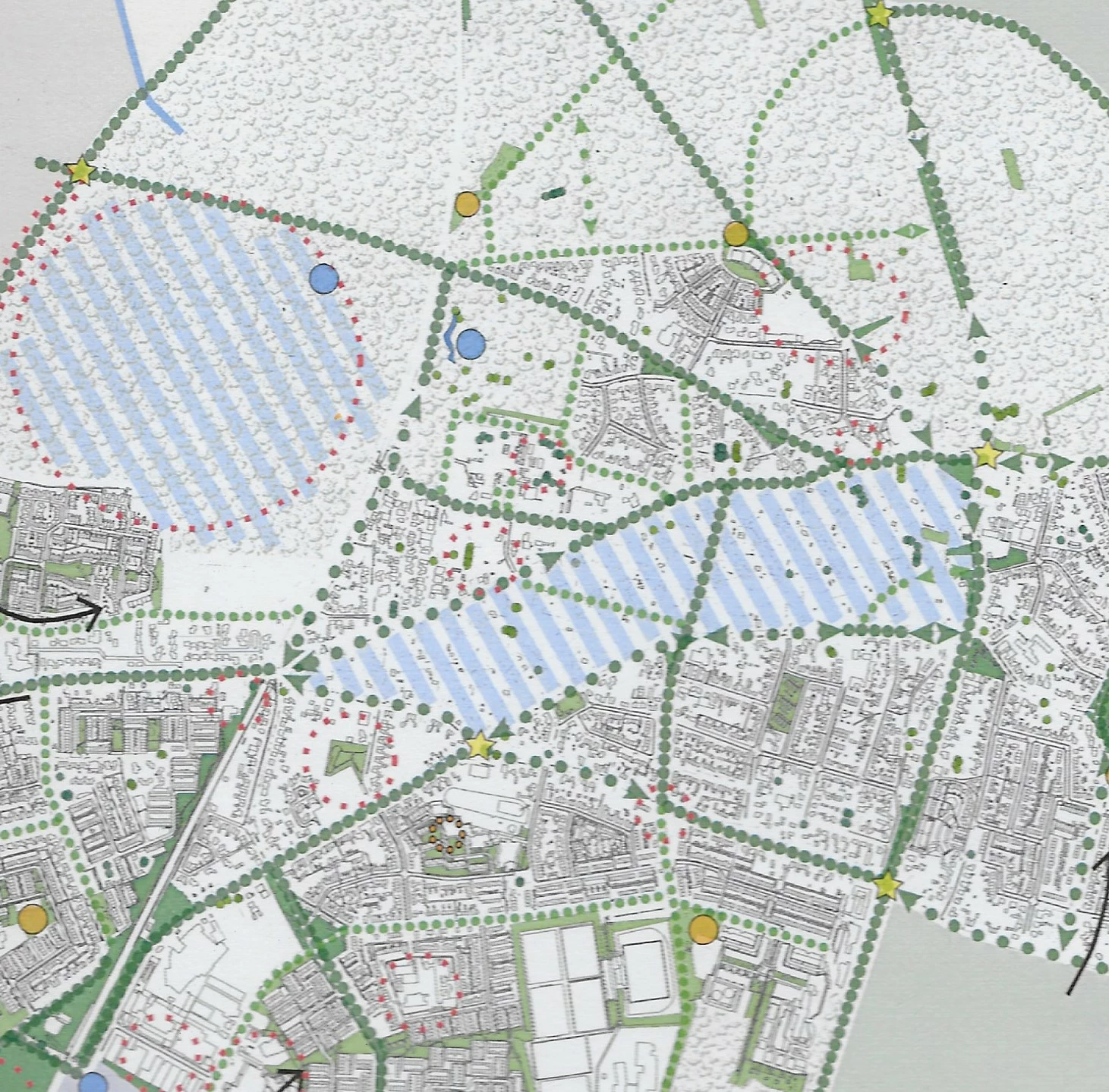
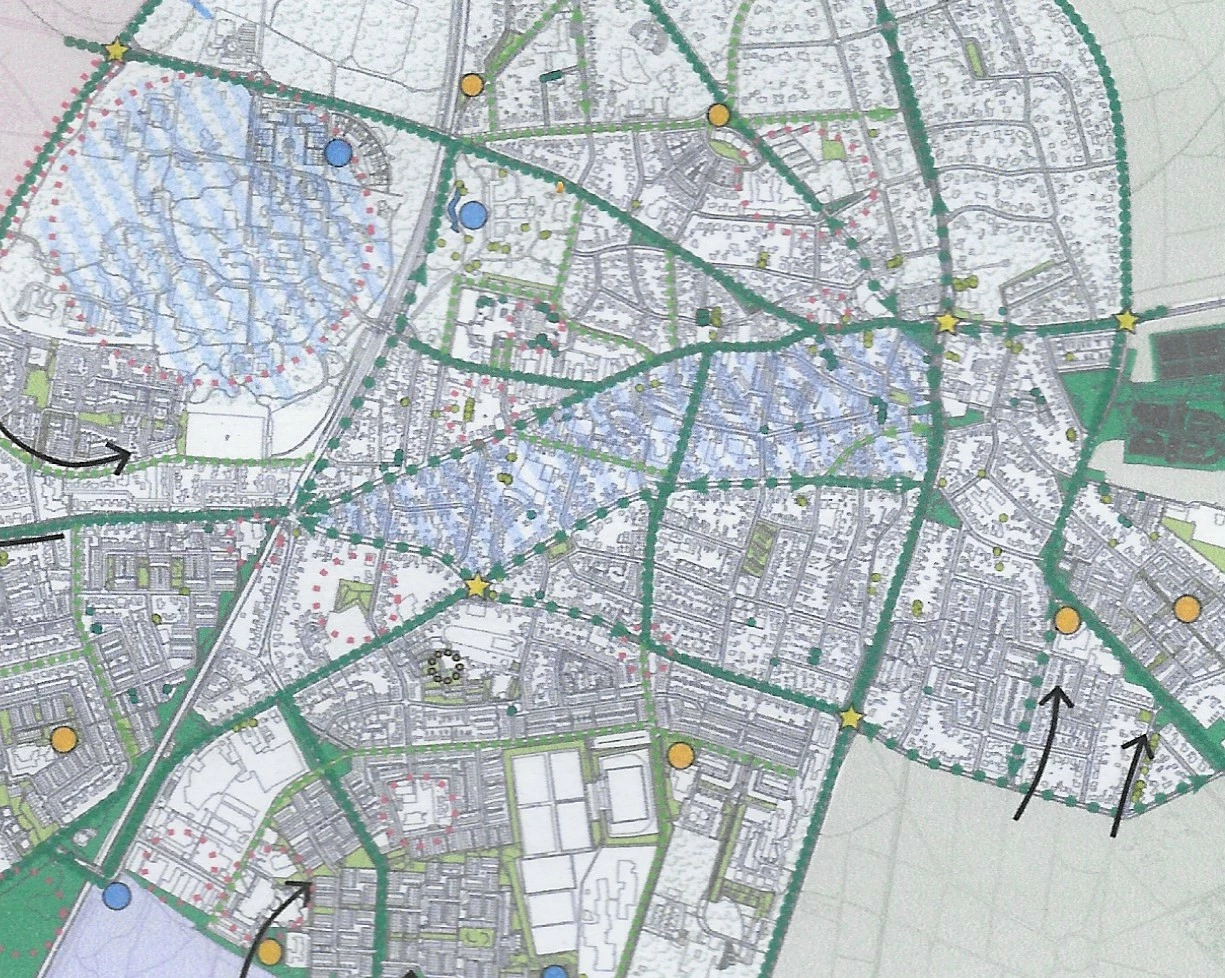
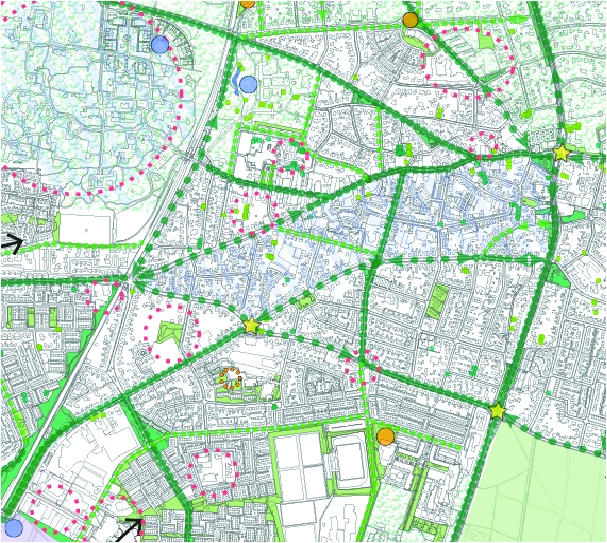
In some way my cadastral background is shown differently when printed on different document sizes. Below i got three examples of my map. The most above is an export of my map as it looks when created a pdf on print quality. The second one is a scan of an A3 print of the pdf and the last one a scan of an A4 print of the pdf.

As you can see at the second image: the cadastral background is partialy dissapeared. Can anyone tell my how this is possible? I've been changing settings all along the road but the printing results keep differing from partial fall aways to huge fall aways and when i thickin the lines it becomes too thick and black when printed.

Can someone tell me what i'm missing or how to maybe solve this anoying problem?
This topic has been closed for replies.
Correct answer Monika Gause

The problem is that you don't use color management. Or at least have not set it up to your needs.

Color management is not just in the printing menu, but everywhere. Your monitor needs to calibrated, Illustrator (and all the other apps you use) need to be set up, your printer needs to be set up and calibrated, the file needs to be set up to your needs and the PDF needs to be exported according to your needs. Or when printing you need to specify the correct options. And in most printer drivers you also need to turn off printer wise color correction.

This is just an introduction, you will need to read much more

Understand Photoshop color management

Set up color management

There's a training on Lynda.com dedicated to it (paid):

Color Management Fundamentals

1 reply

Monika Gause
Community Expert
Community Expert
February 5, 2018

Do you know about color management?

Does your printer support color management?

Is your system calibrated?

Participant
February 5, 2018

I have indeed not used the color management menu. I just discovered that the second image was printed on a big printer, a plotter. And the third, clear version, was printed on an normal inkjet printer. You would suspect that the big plotter has more qualities en possibilities, thus should print it clear. But now it's seems to be the other way around. So the problem would be in the printing settings?

Monika Gause
Community Expert
Monika GauseCommunity ExpertCorrect answer
Community Expert
February 5, 2018

The problem is that you don't use color management. Or at least have not set it up to your needs.

Color management is not just in the printing menu, but everywhere. Your monitor needs to calibrated, Illustrator (and all the other apps you use) need to be set up, your printer needs to be set up and calibrated, the file needs to be set up to your needs and the PDF needs to be exported according to your needs. Or when printing you need to specify the correct options. And in most printer drivers you also need to turn off printer wise color correction.

This is just an introduction, you will need to read much more

Understand Photoshop color management

Set up color management

There's a training on Lynda.com dedicated to it (paid):

Color Management Fundamentals