
Participant
November 20, 2019
Question

Complex paths won't convert to shape = Pathfinder Exclude tool not preserving 'cutouts' properly :'(

  • November 20, 2019
  • 5 replies
  • 37895 views

Hi, all!


I have been ripping my hair out about this for a week now, contacting Adobe support and searching online for hours to no avail, so any help would be MUCH appreciated! 


I am simply trying to subtract the artwork in the foreground (white) from the background (black). So essential if they were one layer, everything in white would be transparent.


I drew the background myself in Illustrator, but used brushes to create the white artwork, also in Illustrator:
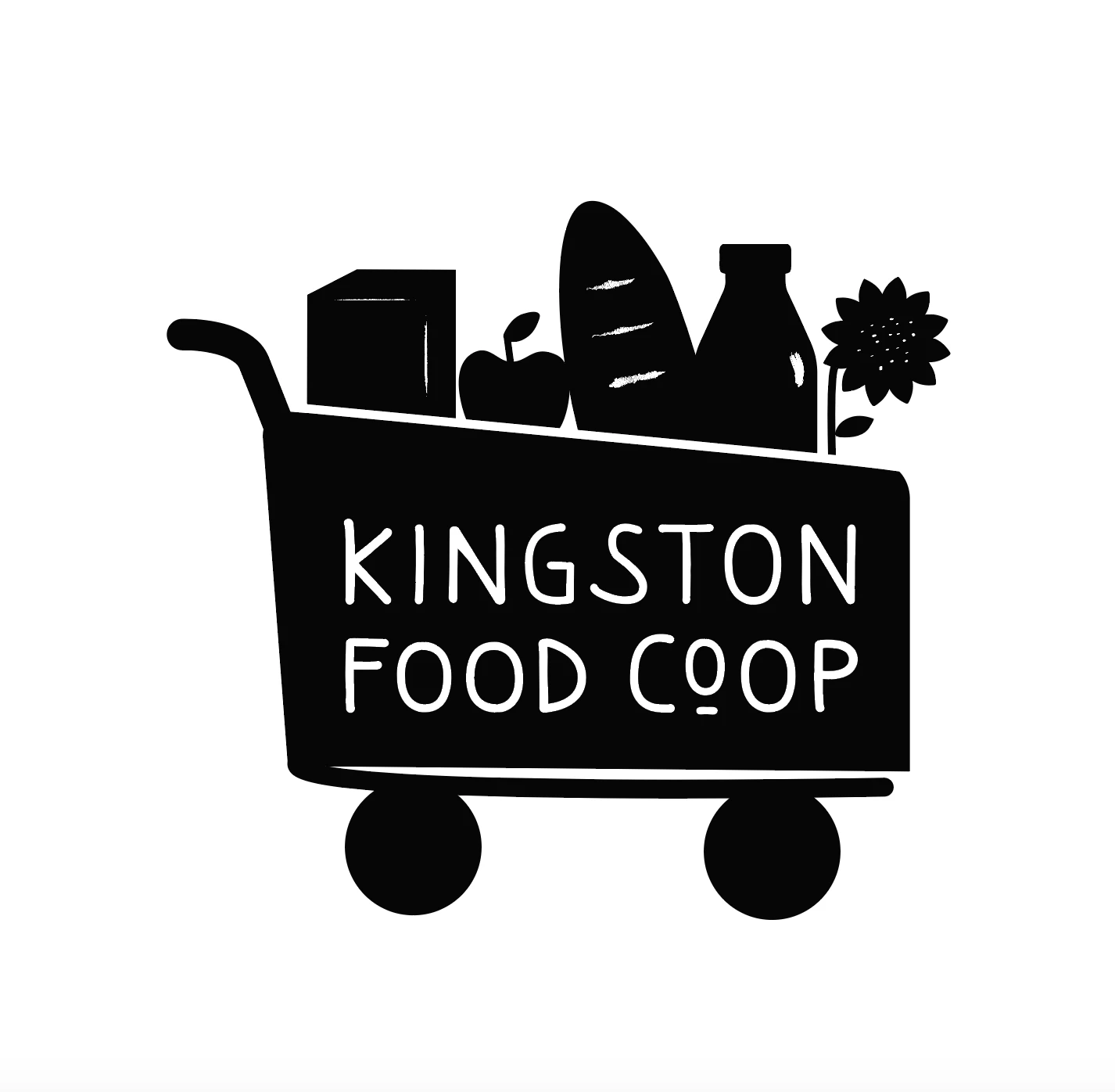
 

All I want to do is cut the white details out of the black silhouette. However, when I use the Exclude or Minus Front via Pathfinder, it loses a lot of the detail like so:
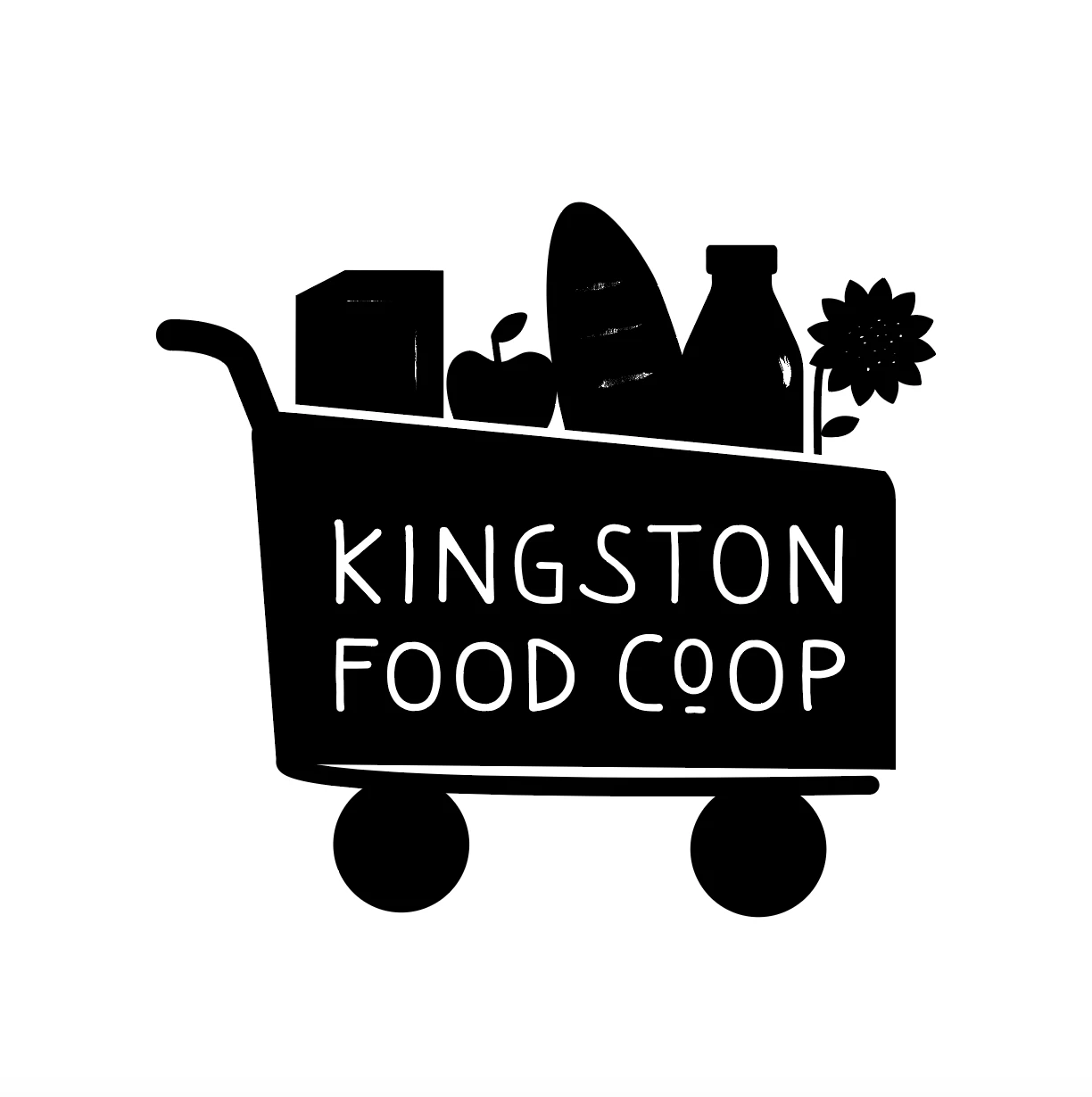
 

I've tried expanding the white detail but that does nothing. I've tried converting it to a shape but keep getting the same error message: "1698 of 1709 objects not converted." So clearly it's a very complex design. Outline Stroke doesn't do anything either.


I've tried using the Shape Builder tool but it was literally taking something over an hour to delete a single teeny tiny white shape, and was still losing detail in the end.


I'm at a total loss! This is for a really rad food cooperative trying to make healthy, local food more accessible within the community, especially for underserved groups.  I'm happy to share the ai file should someone want to try their hand at it themselves. Thank you in advance for any and all help!

5 replies

Ton Frederiks
Community Expert
Community Expert
November 21, 2019

If you can share the file, that would be great.

John Mensinger
Community Expert
Community Expert
November 21, 2019

There are several ways to approach this, but I'll give you a series of steps that should work no matter the construct of your art, or Illustrator version.


Try this on a copy of the file:

  1. Select > Select All
  2. Object > Expand Appearance
  3. Object > Expand
  4. Deselect
  5. Select a black-filled object
  6. Select > Same > Fill Color
  7. Object > Compound Path > Make
  8. Deselect
  9. Select a white-filled object
  10. Select > Same > Fill Color
  11. Object > Compound Path > Make
  12. Select > Select All
  13. Pathfinder > Minus Front
Participant
September 16, 2022

I LOVE YOU


Thank you so much for this, exactly what I needed.

Monika Gause
Community Expert
Community Expert
November 21, 2019

Outline stroke won't do anything if you have used brushes to paint this. Have you?

In that case use "Expand appearance"

If that doesn't work, upload the file to Dropbox or the like and share a link here.

Ton Frederiks
Community Expert
Community Expert
November 21, 2019

Outline stroke does what it should, also with brushes.

キィィ─!!!
Participating Frequently
November 21, 2019

Hi, barbaram31234940
How about trying to use “Opacity mask” instead of “Minus Front”?

(Sorry, I'm using the Japanese version.)

tromboniator
Community Expert
Community Expert
November 21, 2019

Is there a stroke applied to the black paths?


Peter