robertb58116061
Participant
January 6, 2025
Question

Compound Path not exporting correctly from Illustrator to .svg

  • January 6, 2025
  • 1 reply
  • 563 views

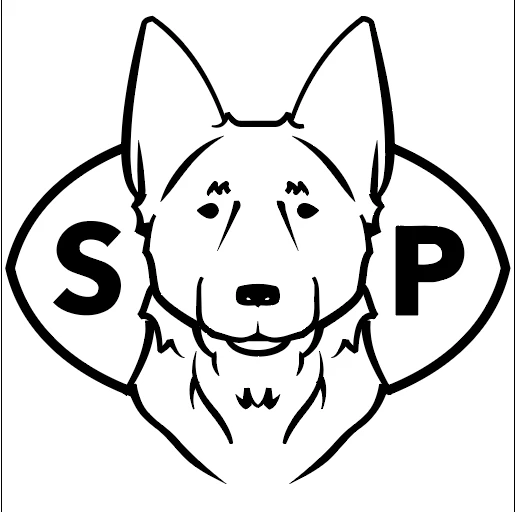
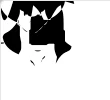
I am attempting to export a very simple 1-color icon/mark as an .svg file. When I export as .svg, I get black filled in shapes instead of the proper strokes/outlines in the design. I'm uploading an image of the design in Illustrator as well as what it looks like when I export. 

I have already converted all text to outlines and have attempted to use object>expand on the shapes before export, and that has not solved my problem. No matter how I export to .svg, the shapes are messed up. 
1 reply

Monika Gause
Community Expert
Community Expert
January 7, 2025

If this is for cutting you might not need the compound path.


If it's not for cutting: are all paths closed? Is the fill rule Non-zero applied to the compound path?

robertb58116061
Participant
January 7, 2025

It is going to be used for a potter's mark-- so I'm assuming yes, cutting will be required. The design needs a compound path so that it's not filled in all black. Not sure how else to accomplish that within Illustrator. 

The paths are all closed. I don't know what fill rule non-zero means or how to apply it. What is that?

Anna_Lander
Community Expert
Community Expert
January 7, 2025

If possible, please provide the original AI file. Sometimes there are issues when we export AI to SVG, but it's difficult to say something without seeing the workflow.
In your case, I would try:
- release the compound file and create some simpler units (e.g. just dog's head) using Pathfinder > Minus Front feature, and then group or unite it with the letters;
- check your strokes and, if needed, expand them with the "Outline Strokes" command.
Finally, you should have a set of black-filled shapes, no complex strokes (e. g. variable width), and no effects.