November 2, 2019
Answered

Connecting closed paths

  • November 2, 2019
  • 3 replies
  • 1202 views

Hello, I'm pretty new to Ilustrator so I need a bit of help with this.

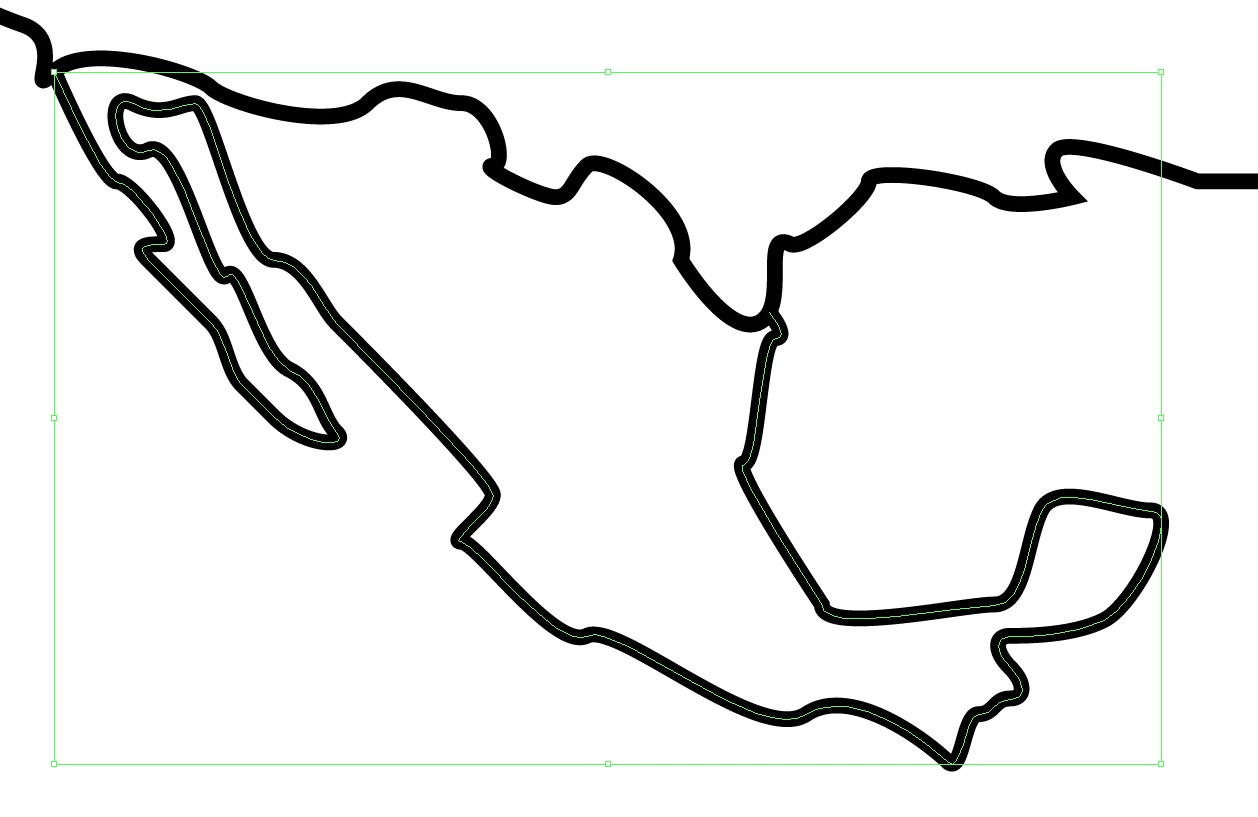
I'm trying to make a world map. I alredy have a closed path outlining the US. I was outlining Mexico and noticed that I couldn't connect it with the US border. So I'm stuck, I can't fill in Mexico because it is an open path and can't use the join tool because it draws a straight line between the two end points. Please help.
This topic has been closed for replies.
Correct answer Monika Gause

"1) Select both Mexico and USA, then Pathfinder>Divide, then Ctrl/Cmd+G to Ungroup,

2) Deselect and select Mexico and reapply the stroke, or copy it from the US stroke."


Live paint or the shapebuilder tool will do the dividing automatically.


But if you want to avoid using an appropriate tool at any cost, I would suggest to just connect those endpoints of Mexico in a curve and then put the Mexico shape below the USA shape and apply fills, so it's hidden.

3 replies

Jacob Bugge
Community Expert
Community Expert
November 2, 2019

Axel,


Smart Guides are your friends.


If the end Anchor Points of the open Mexico path coincide with the USA path segments (as in Smart Guides saying path when you place them), and if you wish to have Mexico as a closed path (so you can move it away or wish to give it a different stroke colour including the border or for whichever other reason or just to have it nice and tidy), you may either:


1) Select both Mexico and USA, then Pathfinder>Divide, then Ctrl/Cmd+G to Ungroup,

2) Deselect and select Mexico and reapply the stroke, or copy it from the US stroke.


This will give you Mexico as a closed path, the northern border being an exact copy of the southern US border.


If you need no strokes, you may remove the stroke from the USA path and just perform 1).


If you wish to have the stroke, as an alternative you could also remove the stroke from USA, perform 1), and then apply the desired stroke to the paths which are already selected.


Monika Gause
Community Expert
Monika GauseCommunity ExpertCorrect answer
Community Expert
November 2, 2019

"1) Select both Mexico and USA, then Pathfinder>Divide, then Ctrl/Cmd+G to Ungroup,

2) Deselect and select Mexico and reapply the stroke, or copy it from the US stroke."


Live paint or the shapebuilder tool will do the dividing automatically.


But if you want to avoid using an appropriate tool at any cost, I would suggest to just connect those endpoints of Mexico in a curve and then put the Mexico shape below the USA shape and apply fills, so it's hidden.

November 3, 2019

This really help. Thank you, but now I'm having another problem.

(I'm doing it in Spanish, just in case) As you can see there's the border that separeates Poland and the sea. I alredy made the line Live Paint, but Illustrator doesn't seem to detect it. What can I do to fix this so I can fill in Poland?


Simmer1
Community Expert
Community Expert
November 2, 2019

Hi,


I would try drawing Mexico and the US as two individual shapes with closed paths using the Pen Tool

https://helpx.adobe.com/uk/illustrator/using/drawing-pen-curvature-or-pencil.html


I hope this helps,


Sim


Monika Gause
Community Expert
Community Expert
November 2, 2019

You can't join paths in a Y crossing. There can be only two segments joining at each point.

Try the live paint tool to solve your issue: https://helpx.adobe.com/illustrator/using/live-paint-groups.html