
Participating Frequently
August 23, 2018
Question

Converting very detailed design to vector

  • August 23, 2018
  • 3 replies
  • 3747 views

I need a little help with converting a design to a vector with all separate color layers. I have managed to get away with it for a while but I want to learn the real way. Most designs work fine if you do the "High Fidelity" or one of the colors traces (3,6,16) and then select each color and separate it in color layers. This doesn't work however on very detailed designs where there is gradient textures and shadows. If I do it the way I've been doing it there would literally be 1000 layers because each color is slightly different. So how exactly would you go about doing an image like this?
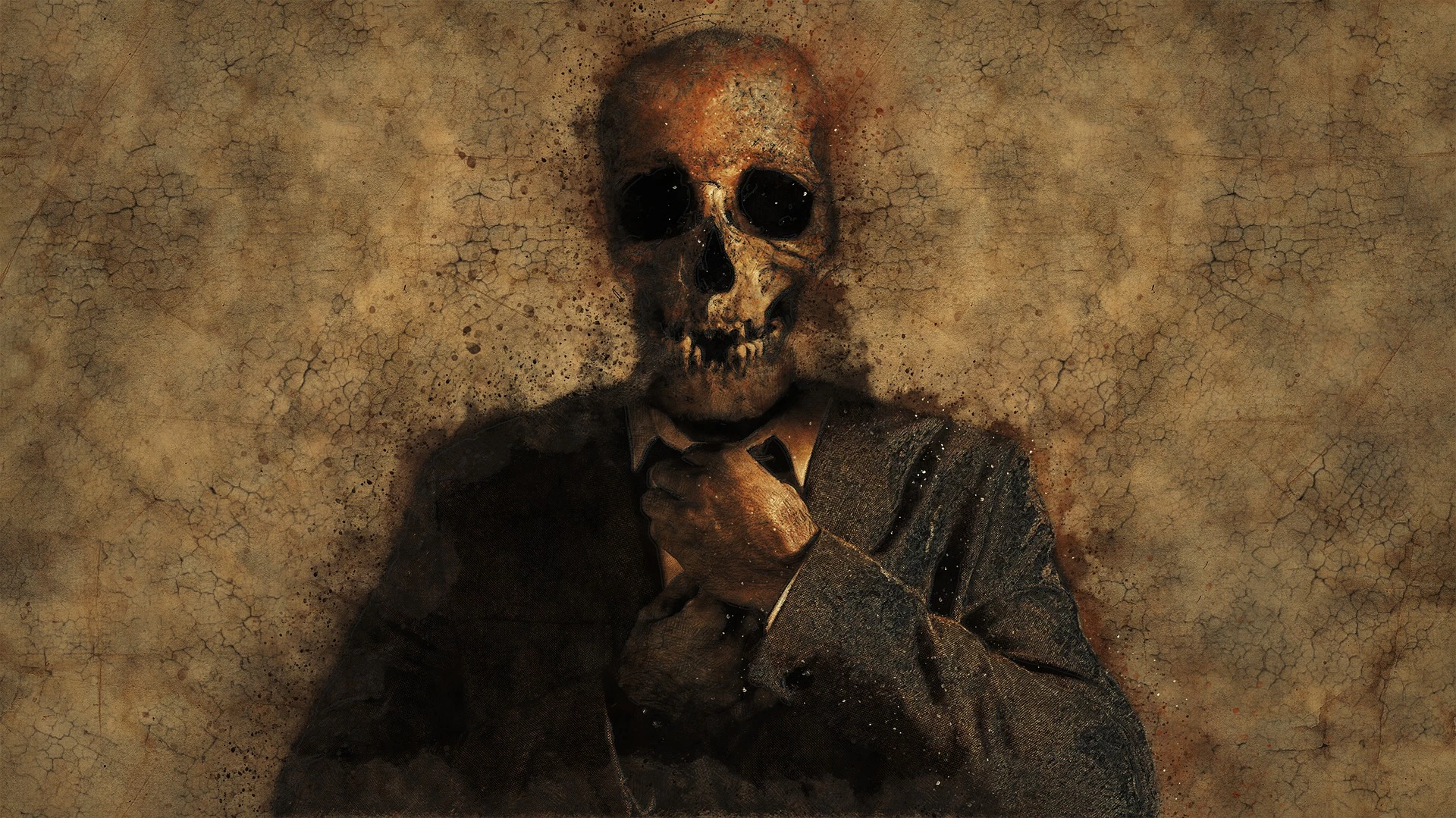
This topic has been closed for replies.

3 replies

Myra Ferguson
Community Expert
Community Expert
August 24, 2018

If you did want to prep your image in Photoshop and then trace it in Illustrator, here are a couple of ways to go about it.

1. With your image open in Photoshop, go to Image > Adjustments > Posterize. Use the slider to limit colors. If you go to 4 colors, you'll see why it might just be better to use the 4 inks in process color to reproduce more colors. You can set it for however many color levels, but you might try 6 because, well, it looks better and there's a setting in Image Trace for 6 colors.

2. Another way to limit the colors would be to take the original image in Photoshop and go to File > Export > Save for Web (Legacy). Use  the Legacy one to set it to Gif and reduce the number of colors. You can play around with the settings to see which yields the results closest to what you want, but here are a couple of tips: Diffusion will use dots to make transitions between colors (which may or may not be what you want), and you can alter the Color Table to make a Custom setting. In the Color Table, you can select and delete similar colors and/or select a color and double-click it to change it.

After prepping the image by reducing the colors in Photoshop, then you can bring it back into Illustrator to trace.

Participating Frequently
August 24, 2018

Thanks very much, I will try this method.

JETalmage
Inspiring
August 24, 2018

You are confusing "line art" with vector-based art.

Screen printing requires line art. It does not require vector-based line art. (The screen isn't going to scale the drawing as it prints it.)

Artwork for screen printing does need to be color separated. But that usually means opaque spot color separations, not translucent process color separations. And again, for best results, those color separations should be solid line art (not course halftone or tint screens).

That image could probably be printed quite convincingly in four intelligently chosen spot inks. But there is no need (nor advantage) to trying to auto-trace those separations.

There is no "conversion" of raster images to vector paths. It's not a "conversion." It's just a tracing. It's not called auto-tracing for nothing. There is only re-drawing the design, whether done intelligently or by an automated algorithm that has absolutely no idea of what it is drawing.

Thinking of auto-tracing as a means by which to magically get the advantages of vector-based artwork out of raster-based artwork is like thinking tracing a watercolor painting with oil paint will give you the advantages of oil paint. They are two different mediums, with their own strengths and weaknesses. That's why they both exist.

It's the same with raster- versus vector-based electronic art. Raster-based artwork is by its nature appropriate for high "texture" detail. Vector-based artwork is by its nature all about sharp, accurate edges and smooth fills.

You can more easily mimic vector-based artwork at a particular fixed scale with a raster image than you can mimic a highly textured raster image with vector artwork.

When delivering highly textured "distressed" artwork for screen printing, it is best done by building in a raster imaging program capable of displaying multi-channel artwork as spot colors. (Photoshop, PhotoPaint, etc.)

JET

Kurt Gold
Community Expert
Community Expert
August 23, 2018

Which version of Illustrator are you using?

What benefits are you expecting from converting that raster image to paths?

Participating Frequently
August 23, 2018

I have a cloud subscription so the latest one. And I need all separate colour layers so the t-shirt place can print it. I'm assuming they are screen printing it which is why every colour needs to be separate.

Kurt Gold
Community Expert
Community Expert
August 23, 2018

Have you already asked the print providers what kind of files they actually need in order to put the dead man up on clothes?