
Participant
September 21, 2021
Answered

Copy object with clipping mask to Photoshop without extra space showing

  • September 21, 2021
  • 6 replies
  • 3179 views

I'm sure there's a simple solution for this, I've just searched everywhere and cannot find what it is. If I copy an object with a clipping mask in Illustrator, it selects only the masked area:
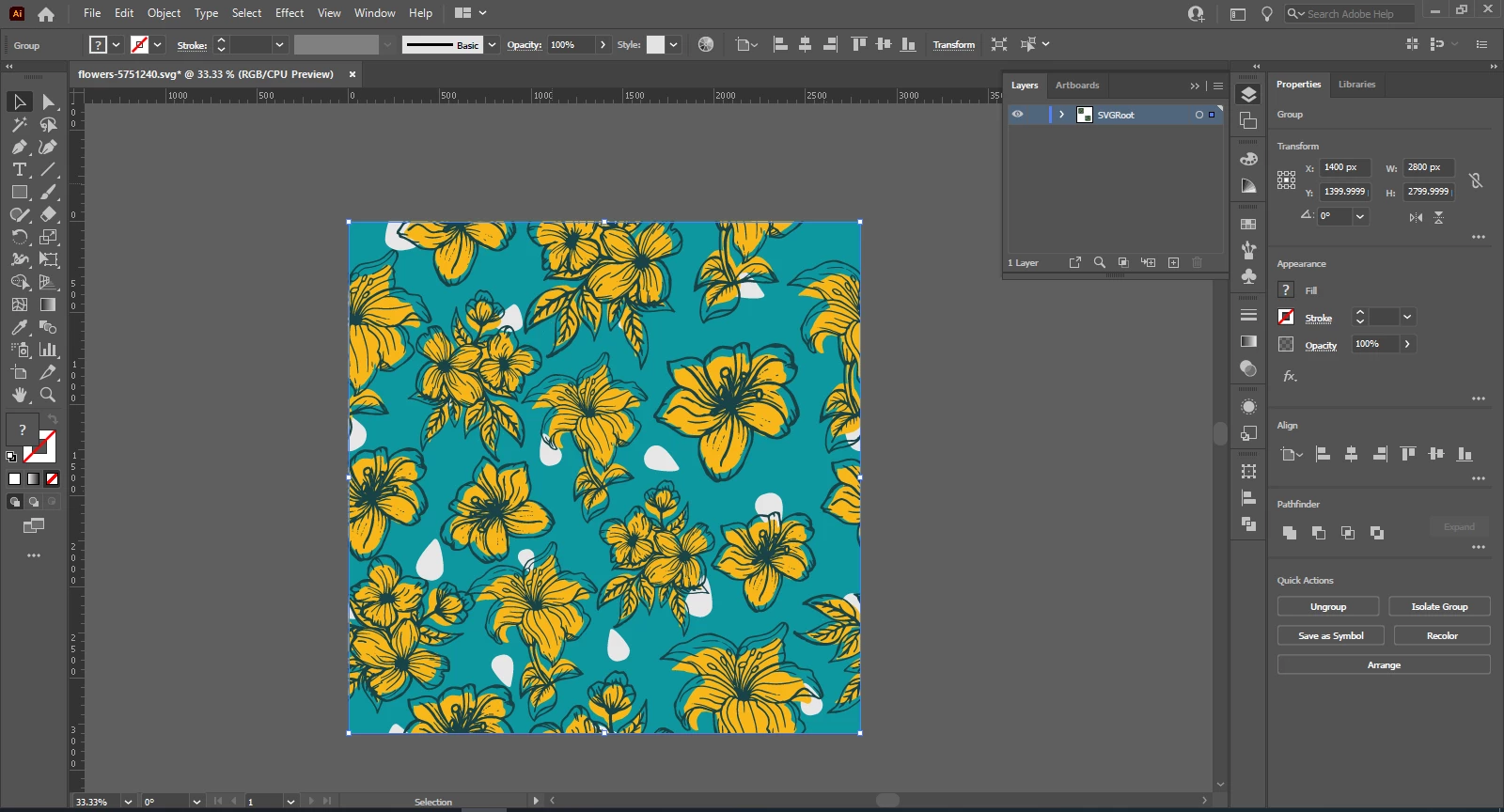


However, when I paste it into Photoshop, it pastes with all the extra space hidden by the mask showing. 
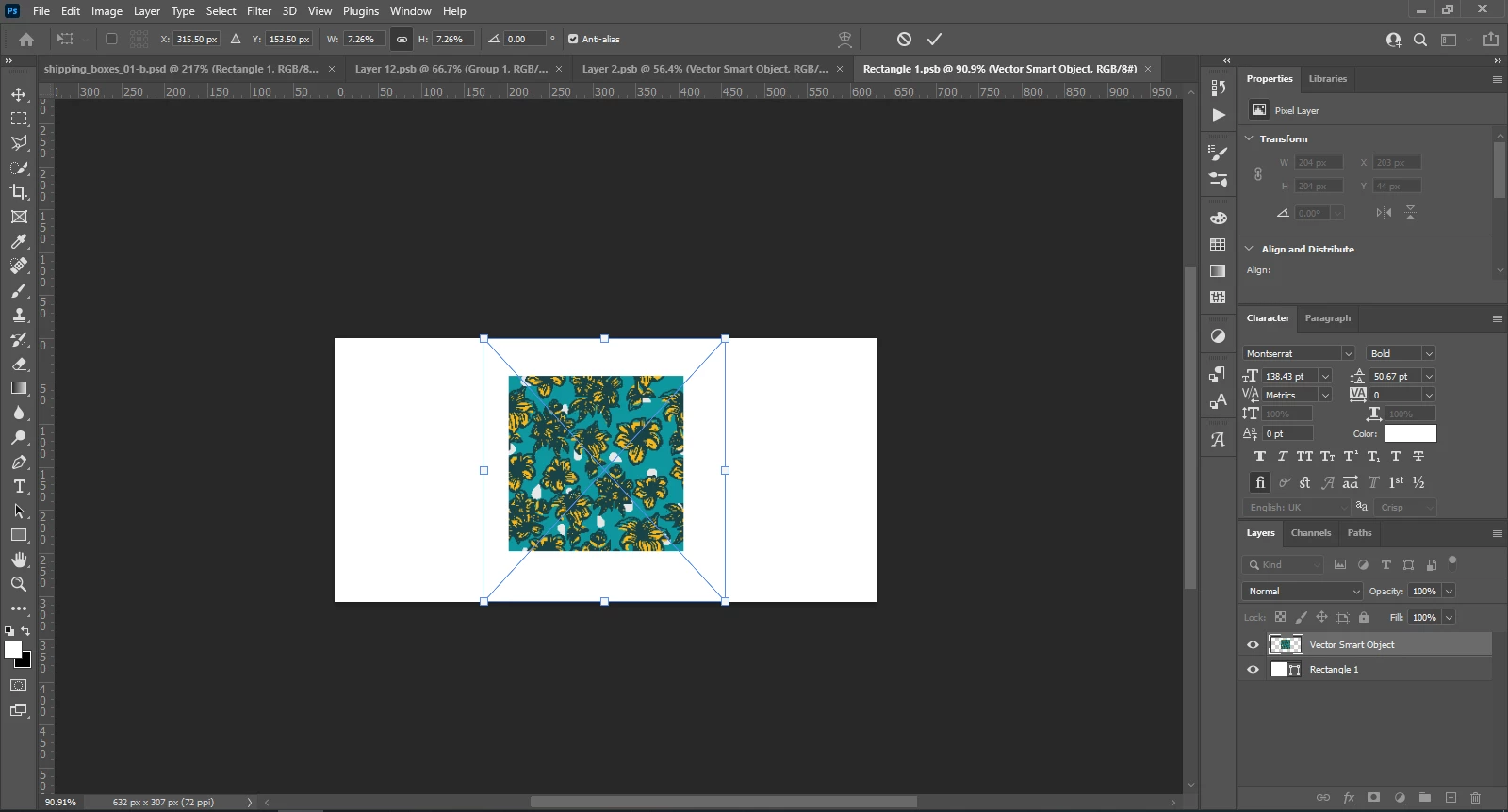


What's the best way to prevent this? My current workaround has been to make a copy of the masked stuff, rasterize it, then copy and paste that into photoshop, but that's not really ideal so I'm hoping there's a simpler solution.

Correct answer Kurt Gold

You may try this Illustrator action if the clipping mask contains just plain filled paths, stroked paths or live type objects.


Photoshop Clipper


Instruction: Select a clipping mask and run the action.


The action won't work if the clipping mask contains more complex constructions with other object types (e.g. raster images).


6 replies

Participating Frequently
July 10, 2024

This remains unanswered. Ton Frederiks' reply was not an answer to the OP's question yet it was upvoted as a "correct answer". The OP asked how to cut and paste using the mask bounds as the object. This is still a problem in 2024.

Ton Frederiks
Community Expert
Community Expert
July 10, 2024

Someone may have marked it as correct answer, it is a workaround. I think that Kurt's suggestion is the easiest way to transfer clipped objects to Photoshop.

But you can always do a feature request:

https://illustrator.uservoice.com/

Kurt Gold
Community Expert
Community Expert
September 23, 2021

Although an Illustrator action route is not the most terrible approach, I think using (Cloud) Library objects to transfer the clipping groups may be the easiest way at the moment.


As far as I can see, Photoshop will always recognize only the visible parts of the clipping groups. No matter what kind of objects the clipping masks actually contain.


Kurt Gold
Community Expert
Community Expert
September 23, 2021

This slightly modified version allows multiple selected clipping groups. The first version does not allow it.


Photoshop Clipper 2


Kurt Gold
Community Expert
Kurt GoldCommunity ExpertCorrect answer
Community Expert
September 22, 2021

You may try this Illustrator action if the clipping mask contains just plain filled paths, stroked paths or live type objects.


Photoshop Clipper


Instruction: Select a clipping mask and run the action.


The action won't work if the clipping mask contains more complex constructions with other object types (e.g. raster images).


Anshul_Saini
Community Manager
Community Manager
September 21, 2021

Hi there,


Thank you for reaching out. In addition to the suggestion by @Ton Frederiks, you may try toggling the "Resize Image During Place" and "Always Create Smart Objects when placing" from preferences in Photoshop under General and see if that helps.


Regards,

Anshul Saini

Ton Frederiks
Community Expert
Community Expert
September 21, 2021

If you save the file (make sure the artboard has the same size as your artwork), you can choose File > Open as Smart Object in Photoshop.