Participating Frequently
September 9, 2024
Answered

Create transparent knockout path around text

  • September 9, 2024
  • 1 reply
  • 978 views

Hello,


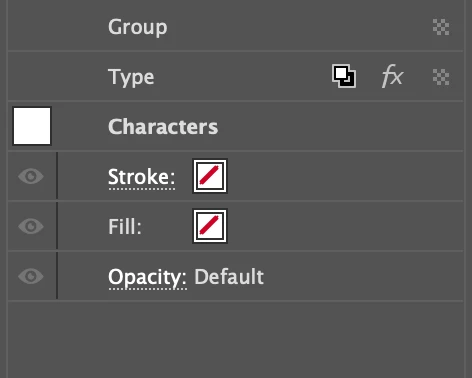
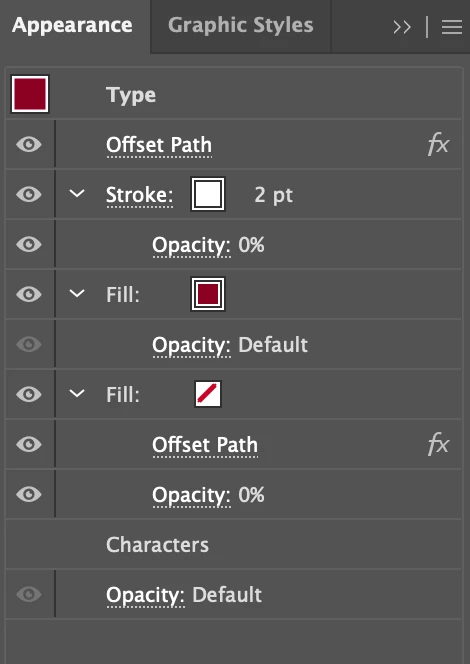
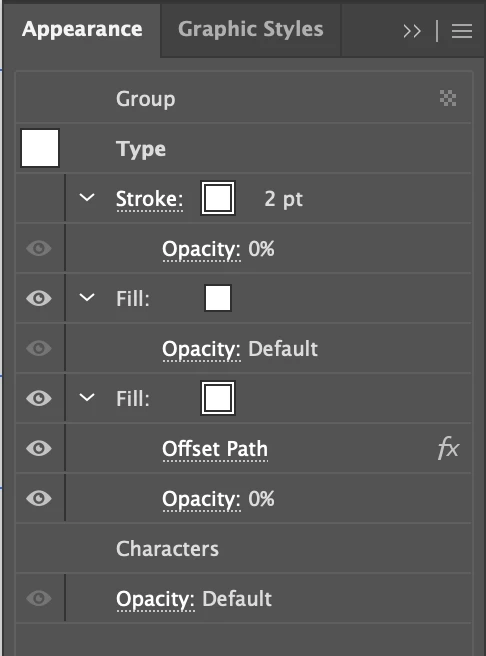
I'm working on a logo where I need a transparent knockout path around some text. When I created the white-on-transparent version, it works fine (I put a blue background so you can see it):

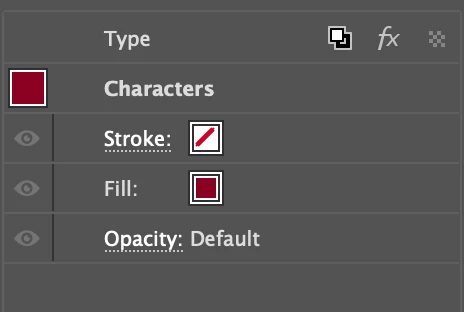
When I do the exact  same thing on the color version of the logo, the transparent knockout isn't there:

What am I missing on this color version?


This topic has been closed for replies.
Correct answer Monika Gause

The problem is that I can't remember what steps I used. I tried deleting the text layer, retyping it, and making it part of the same group as the other design elements. Same problem, although I can make the text disappear entirely. Could someone walk me through the steps? 


https://youtu.be/pqPm4igvvmI

Sorry for the German interface. 

1 reply

Doug A Roberts
Community Expert
Community Expert
September 9, 2024

The first example is a group. In the second you seem to have just the Type object selected.

MikeP5403Author
Participating Frequently
September 9, 2024

So putting the type layer into a group will fix it? How do I get the type layer into a group? 

Doug A Roberts
Community Expert
Community Expert
September 9, 2024

You need to apply Knockout Group in the transparency settings at the group level, as in your first example. Follow the same steps you used to create that.