Participant
September 20, 2019
Answered

Creating Illustrator brush pattern problem

  • September 20, 2019
  • 3 replies
  • 909 views

Hello Illustrator Community,


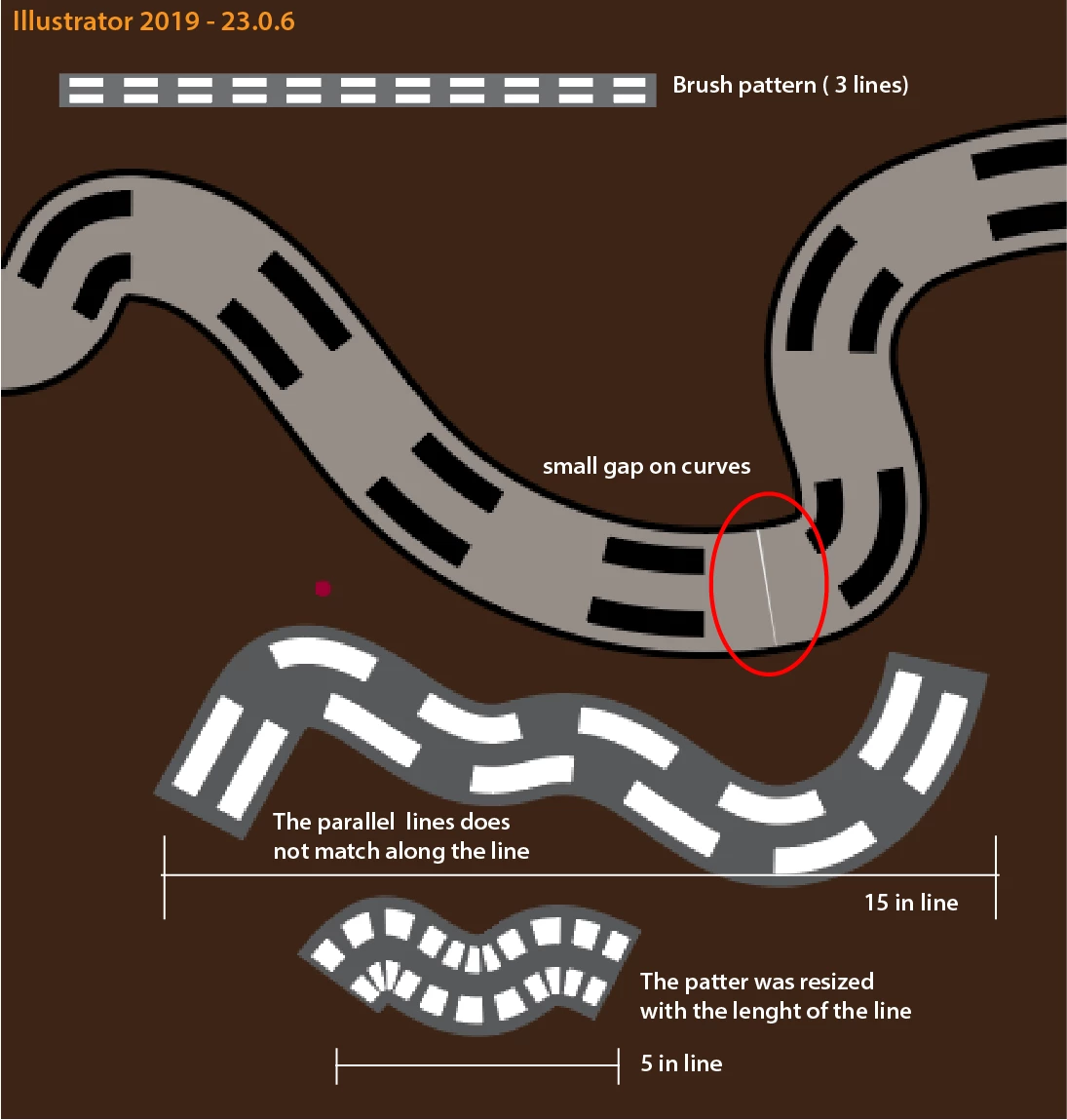
Here is my problem! I am creating a map that have many types of lines (Rivers,  paved road, trails, gravel road, etc...) I want to create a brush (line) pattern thatn I can apply to each line type on the map. I try many ways but I always get many problems with the patterns: 1) small gaps on curves, 2)  the doble dash lines does not run parallel on the patterns, and 3) the pattern rezises/scale with the lenght of the line( see pics).  Any idea  what i am douin wrong or how I can acomplish this?...Thanks for any help!


JB
This topic has been closed for replies.
Correct answer tromboniator

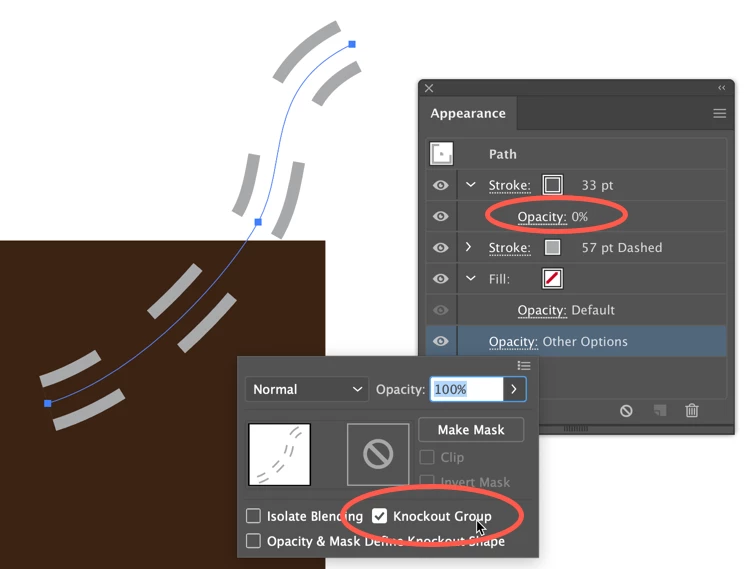
I'm not at all sure if this is even close to what you're after, but if so try using Knockout Group and opacity settings in the Appearance panel. 

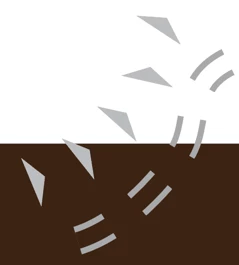
For the triangle thing, if this is even close, try a Scatter Brush, and save that appearance as a Graphic Style.


Peter

3 replies

tromboniator
Community Expert
tromboniatorCommunity ExpertCorrect answer
Community Expert
September 20, 2019

I'm not at all sure if this is even close to what you're after, but if so try using Knockout Group and opacity settings in the Appearance panel. 

For the triangle thing, if this is even close, try a Scatter Brush, and save that appearance as a Graphic Style.


Peter

JCBARR07Author
Participant
September 23, 2019
You guys are the best! Thank you so much for the assistance and all the suggestions. The basemap that I am using for all the maps is an aerial image, so I can't use Background color match to create the transparency appearance (as Srishti suggested). Using Knockout Group and the opacity settings in the Appearance panel (suggested by Peter) did exactly what I need to match the Graphic Style with the standard styles that was given for the maps. I am using a combination of both techniques. Thanks everyone once again for the help!. I finally completed one map…1000 more to finish! Have a nice day. JB
tromboniator
Community Expert
Community Expert
September 23, 2019
You're very welcome, JB. I'm glad you found useful information here.
Srishti Bali
Community Manager
Community Manager
September 20, 2019

Hi JB,


Thanks for reaching out. The example shown above will not work for transparent background, however, as a workaround you can use Background color to create the appearance. 


You can also take a look at this simple video tutorial: https://www.youtube.com/watch?v=olbdcLaSB7A


Let us know if you have any further query.


Regards,

Srishti


tromboniator
Community Expert
Community Expert
September 20, 2019

Rather than using brushes, build the roads by applying multiple strokes to each path in the Appearance panel, then save the results as a Graphic Style that you may apply to any path with one click. 

Peter

JCBARR07Author
Participant
September 20, 2019
Hello Peter ....Thank you so much for your time and help!. I did look into using Graphic Style but I need transparent background for some of the line styles (e.g. double dashed lines and and small triangles). Can that be done using graphic style?
Monika Gause
Community Expert
Community Expert
September 20, 2019
Please show.