Participant
February 21, 2021
Answered

Creating lines that fit together

  • February 21, 2021
  • 3 replies
  • 342 views

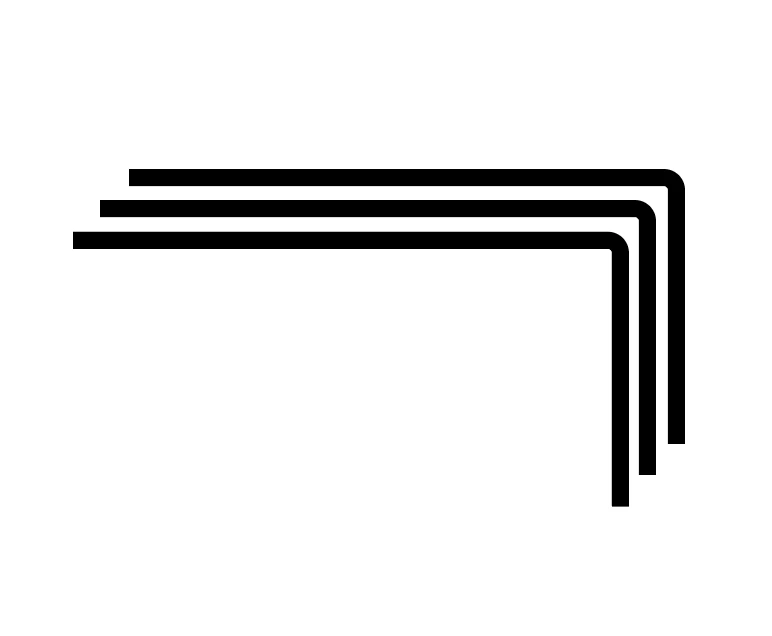
Hello! I'm curious if there is a way to make curved lines fit together more snugly - with the same amount of space between then at the bend? I've included a picture below. When I curve the edges, they just don't fit flush. Any ideas? Would be so helpful.
This topic has been closed for replies.
Correct answer tromboniator

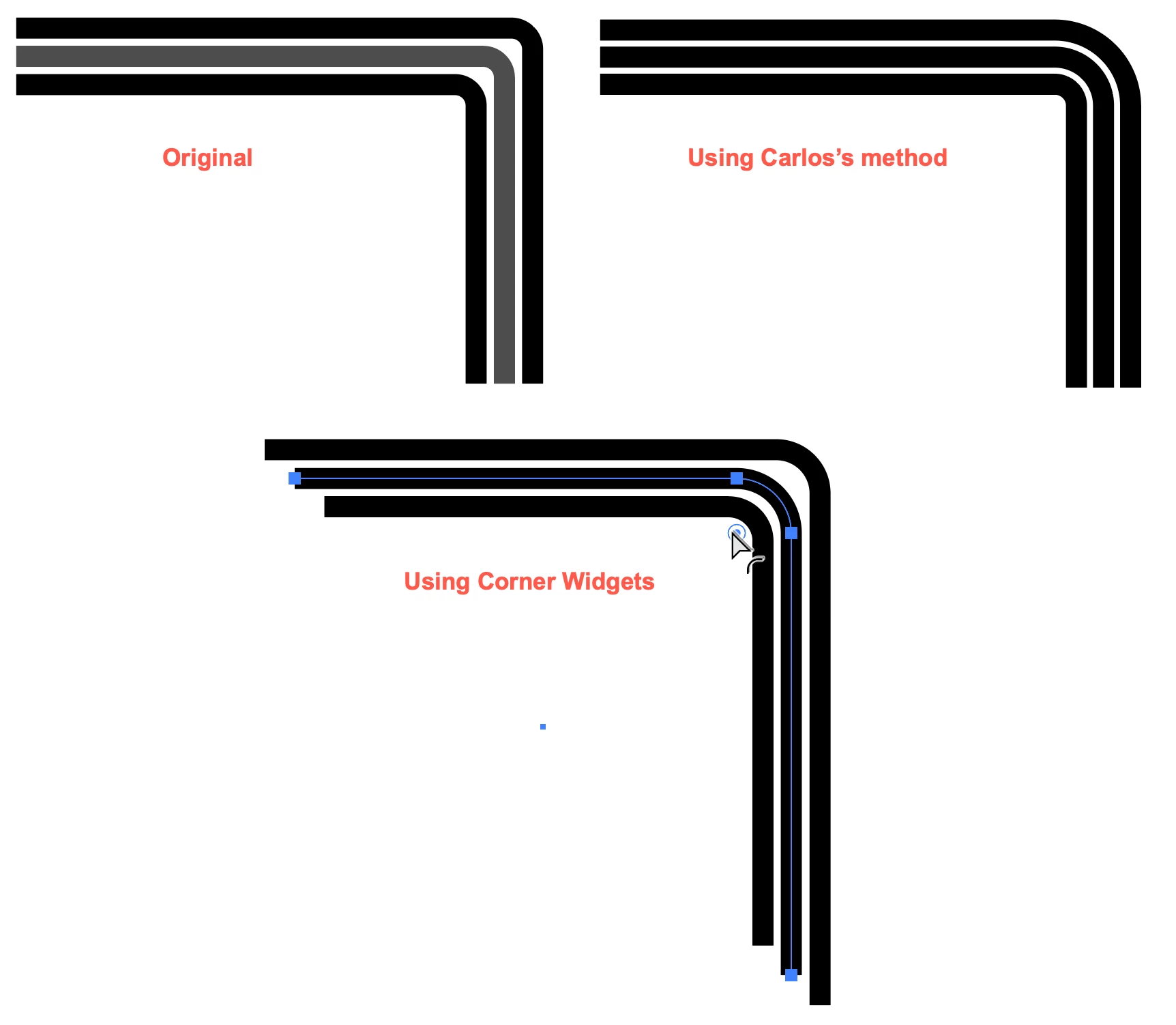
To maintain the spacing around a curve, geometry requires that the radii increase as the path moves away from the center: as the outside of the bend has a larger radius than the inside, a path further outside must have a correspondingly larger radius. Carlos's method, which I have used here, is easy and precise, but it can be accomplished with native Illustrator tools such as the Corner Widgets by selecting and adjusting each path. As with most things in Illustrator, there are certainly other possibilities.

Peter


3 replies

tromboniator
Community Expert
tromboniatorCommunity ExpertCorrect answer
Community Expert
February 22, 2021

To maintain the spacing around a curve, geometry requires that the radii increase as the path moves away from the center: as the outside of the bend has a larger radius than the inside, a path further outside must have a correspondingly larger radius. Carlos's method, which I have used here, is easy and precise, but it can be accomplished with native Illustrator tools such as the Corner Widgets by selecting and adjusting each path. As with most things in Illustrator, there are certainly other possibilities.

Peter


carlosgarro
Community Expert
Community Expert
February 22, 2021

Hi.

With AG Offset from Astute Graphics, you have more control over the offset path and it works con open paths.
Please check this video.

And the web https://astutegraphics.com/plugins/stylism

Ton Frederiks
Community Expert
Community Expert
February 22, 2021

Add more strokes to the same object in the Appearance panel and use the Path > Offset Path... effect