Participant
July 27, 2018
Answered

Cropping a placed PDF in Illustrator

  • July 27, 2018
  • 4 replies
  • 38567 views

Hi everyone,

So I have an odd question but could really use the help!

In order to print a newsletter we make in-house at work, I have to order each of my individual pages myself in printing order on tabloid size artboards (landscape). This means I have to set page 1 next to 28,  2 next to 27, ect in order for it to print properly. This is the only way we can print any type of publication - using the booklet function to order pages doesn't work with our printers.

So, in order to do this, I have to export each page I make as either a jpeg or pdf file. Becuase I have spreads (taking up two pages at a time) I cannot simply copy and paste my work from the original file to the "print version". I have to be able to crop the pages in order to place them side by side appropriately and not lose any content.

I find the clearest picture I can get when I export each page is by exporting as a .pdf. It's the only type of file that doesn't lose the quality when printed. I have tried everything else (.jpeg, .gif, .tiff) and nothing is as clear once printed. I even tried "saving for web" as mentioned in another post, but it still comes out blurry. SO, I would like to export each page as a PDF and then create my print copy from there (still on illustrator not acrobat). However, every time I crop one of the PDF's to fit on half the page, the text is almost unreadable - it becomes so transparent! I don't understand how cropping the .pdf would make the image distort. Is there any trick to fixing this?! Also, I tried uploading the PDF files to InDesign, and they aren't clear at all there.


There has to be some issue with the way I am exporting or cropping the files. Everything I have exported I have set to the highest quality and resolution. All advice is greatly appreciated! Thanks!

A
    This topic has been closed for replies.
    Correct answer barbara_a7746676

    Clipping mask, as Ton said, would be the way to do it in Illustrator.

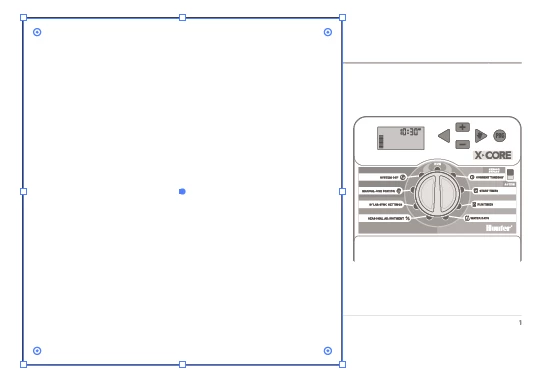
    Let's say this is your PDF:

    Draw a rectangle over the area you want to keep. Color of the rectangle doesn't matter.

    Select the PDF and the rectangle and choose Object > Clipping Mask > Make. The original quality will be preserved.

    4 replies

    Jacob Bugge
    Community Expert
    Community Expert
    July 27, 2018

    A,

    So, in order to do this, I have to export each page I make as either a jpeg or pdf file.

    As I (mis)understand it, why create sets of two PDFs at all, instead of just placing, or masking and then placing if needed, each part of artwork to form one half of the spread?

    And then save the spreads as (pages of a) PDF, unless the printing requires AI document(s).

    barbara_a7746676
    Community Expert
    barbara_a7746676Community ExpertCorrect answer
    Community Expert
    July 27, 2018

    Clipping mask, as Ton said, would be the way to do it in Illustrator.

    Let's say this is your PDF:

    Draw a rectangle over the area you want to keep. Color of the rectangle doesn't matter.

    Select the PDF and the rectangle and choose Object > Clipping Mask > Make. The original quality will be preserved.

    inskeeptdAuthor
    Participant
    July 27, 2018

    Thank you so much! I will try this first thing on Monday!

    Ton Frederiks
    Community Expert
    Community Expert
    July 27, 2018

    I agree with Monika, InDesign!

    When you use the crop function in Illustrator, your PDF becomes an image and loses it's resolution independence.

    If you really have to do it in Illustrator, use Clipping masks.

    Monika Gause
    Community Expert
    Community Expert
    July 27, 2018

    This looks like a job for InDesign. In face everything in there shouts "InDesign"

    The issues you experience (the blurring) might just be screen rendering.