
shogun1901
Participant
October 18, 2017
Answered

CS6 Photoshop/Illustrator Blank Dialog Boxes–Save doesn't work

  • October 18, 2017
  • 1 reply
  • 1361 views

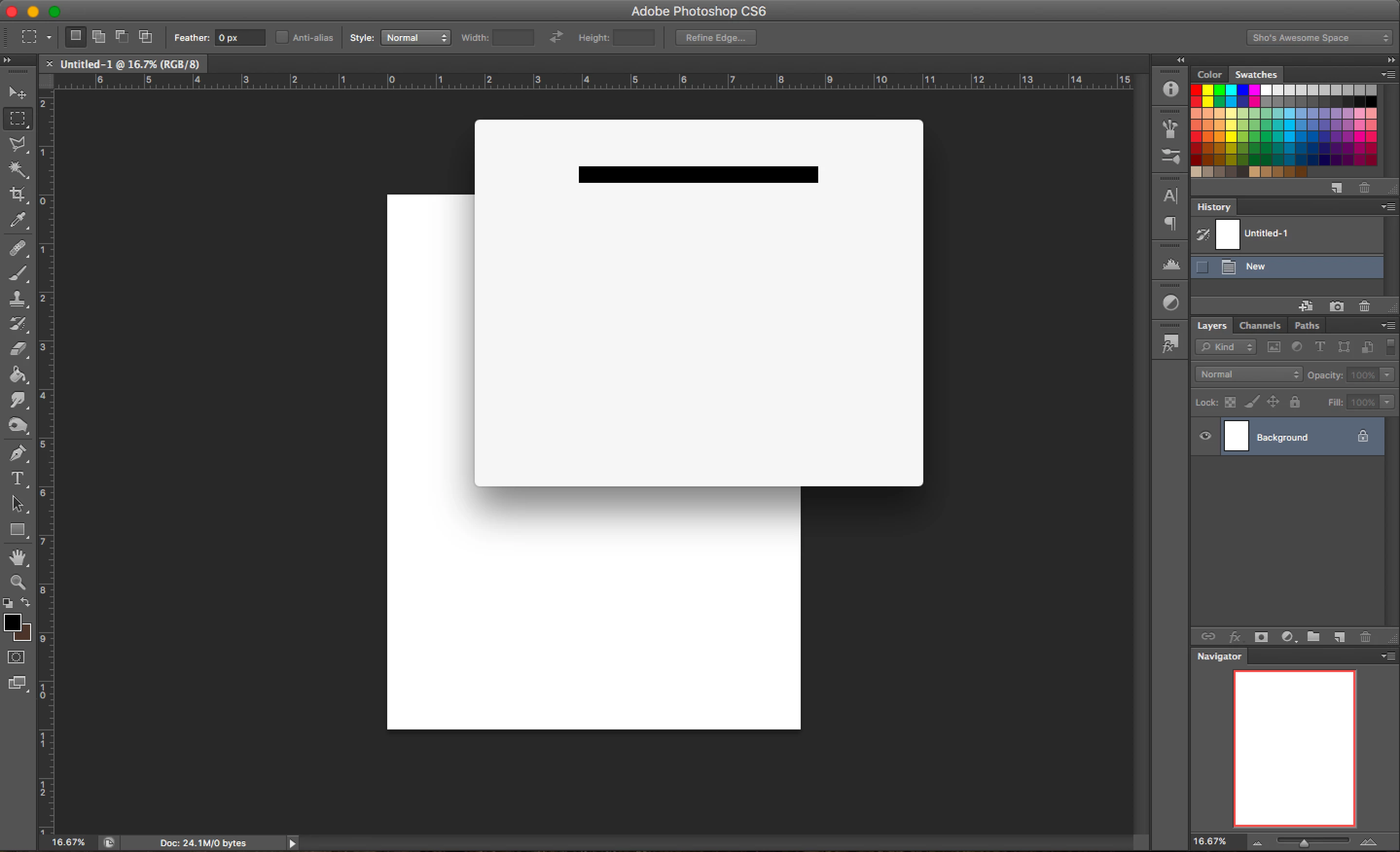
Anytime I try to File>Save or File>Save As or File>Export in either Photoshop or Illustrator the dialog boxes are completely blank (see attached image). I just hit enter to at least save the file wherever it may end up just so I won't lose all my work but it'll only save as a .psd or .ai file.

I have Mac OS Sierra version 10.12.6, Adobe CS6. I do not use a Wacom tablet while using the programs. I have installed the White Window plug-in and that did not work either.

Any suggestions/help are welcomed. Thanks!
This topic has been closed for replies.
Correct answer Bill Silbert

I suggested it as a possibility since, as I said, CS6 is not supported for Sierra. If it's possible to downgrade your OS to Yosemite (the last OS to support CS6) that might help. In doing so you may have to reinstall your versions of CS6 if the programs have been corrupted and still will not work. If that happens make sure that you have your original serial numbers available. If there is any problem reinstalling please contact Adobe Customer Support.

1 reply

Bill Silbert
Community Expert
Community Expert
October 19, 2017

CS6 is not supported for Sierra. The best suggestion that I can offer would be to trash your preferences.

To do so for Illustrator:

With Illustrator closed launch a Finder Window in column view and click on your home folder. With the Option Key pressed choose Library from the Finder Go Menu. Within the Library folder find the folder called Preferences and within it find the following two files and delete them: “Adobe Illustrator <Version #> Settings” (earlier versions of Illustrator might just say “Adobe Illustrator”) and “com.adobe.Illustrator.plist”. When Illustrator is next launched it will create new preference files and the program will be restored to its defaults.

After you’ve reset up the program (make sure that no document window is open) to your liking, it is a really good idea to create copies of your personalized “mint” preference files (make sure that you quit the program before copying them—that finalizes your customization) and use them in the future to replace any corrupt versions you may need to delete.

For Photoshop follow the same path as above to the Preferences folder and delete the folders that say "Adobe Photoshop (XX) Paths" and "Adobe Photoshop (XX)Settings".

shogun1901
Participant
October 19, 2017

Thank you! I'm going to try this right now...

To clarify, these are the correct files & folders to delete?

Illustrator: “Adobe Illustrator <Version #> Settings” and “com.adobe.Illustrator.plist”

Photoshop: "Adobe Photoshop (XX) Paths"  and "Adobe Photoshop (XX)Settings"