
Custom workspace panels location jumps off screen after running Mac Yosemite 10.10.2 update
Hi there.
In October 2014 I purchased Adobe CS6 and set up custom workspaces for Illustrator and Photoshop. I have a 2014 MacBook Pro connected to a Thunderbolt Display, and I use the Thunderbolt screen for my main work area, and the MBP to host my custom workspace panel arrangements.
They look like this, respectively:
Illustrator:
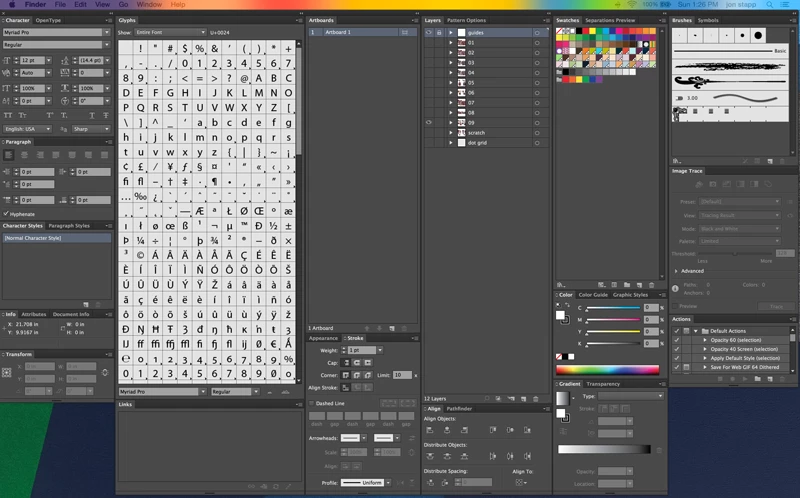
Photoshop:
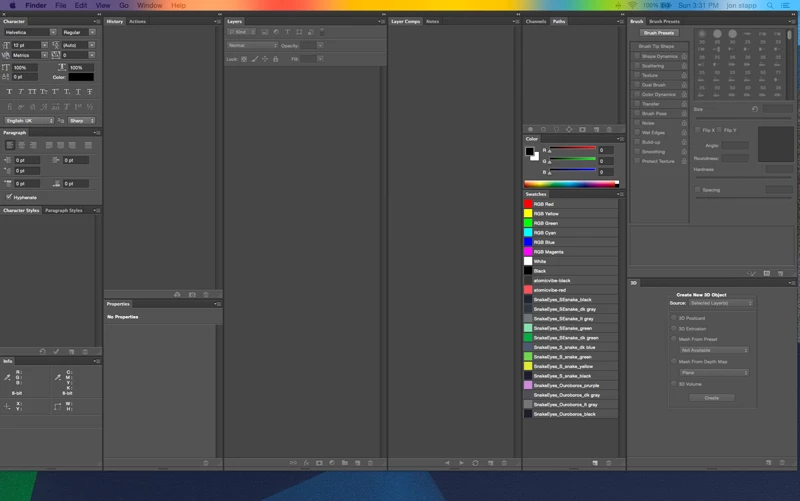
Last night, I left both Photoshop and Illustrator open and my MBP on before going to bed. When I went to do some work today, I saw a notification that Mac OS X Yosemite had auto updated to 10.10.2, and had rebooted. When it rebooted, it reopened both Photoshop and Illustrator, however, my workspace panels now look like this:
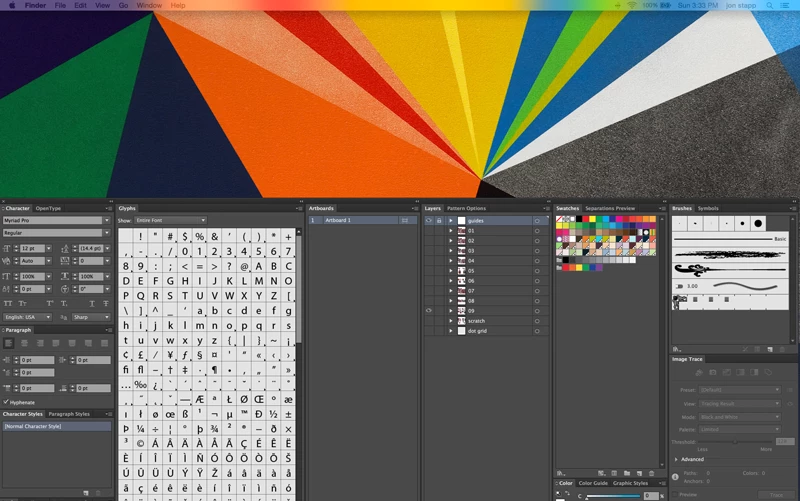
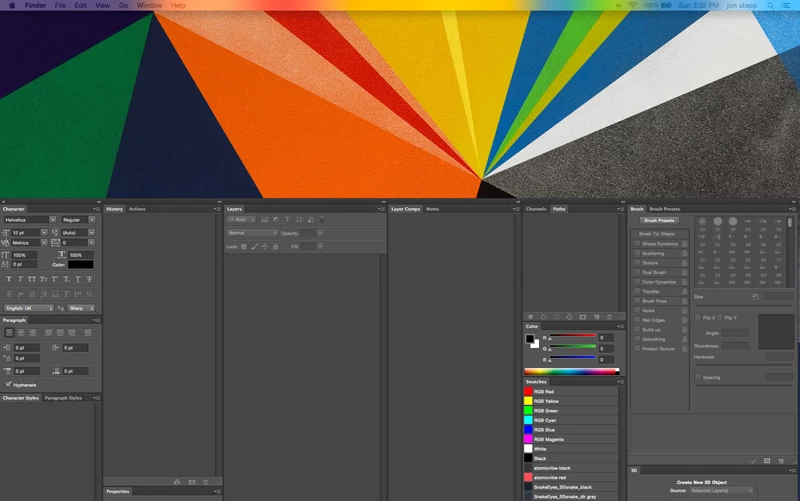
Any attempt to snap them back to their original position is futile, because they always snap back to this mid-screen position when either switching back and forth between applications, or whenever I try to use any of those panels. It's frustrating because I can't make them stay put!
I tried restarting my Mac, and then tried a hard shutdown and restart. Issue persisted. I then thought my Adobe prefs might be corrupt, so I trashed the prefs files for both applications. That didn't fix it, either. I then tried renaming my custom workspaces. That didn't work. I also tried deleting my custom workspaces, and then rebuilding them from scratch, and the problem still persists.
So, I called Apple, since this issue arose directly after this Yosemite update, and after a two-hour call — during which we zapped PRAM, and repaired the disk in safe boot mode — and after consultation with a senior advisor, the tech's only advice was to reach out to Adobe, since *technically* this is an issue happening from within an Adobe application.
Of course, Adobe does not support non CC-related software by phone or email, so, here I am.
So... has anyone come across this issue? TBH, I'm convinced something happened during the Yosemite update, since both apps were left open — AND my Yosemite experience has been nothing but frustrating ever since I bought my MBP.
Aside from reinstalling CS6 (which I feel like I might have to do at this point), any help you guys could give me would be most appreciated.
 AdChoices