
Known Participant
November 1, 2020
Answered

Cutting a Circle segment

  • November 1, 2020
  • 4 replies
  • 1546 views

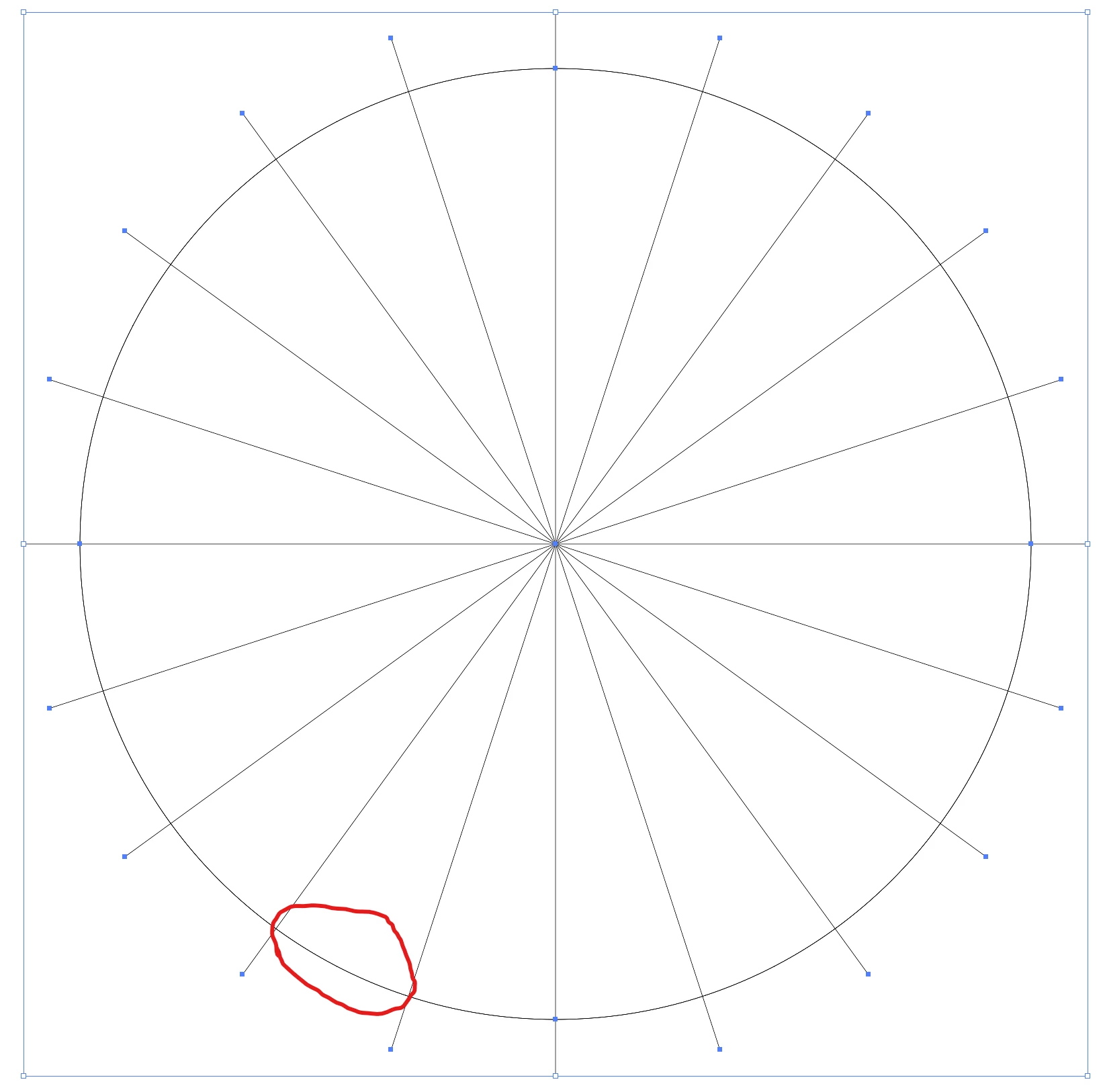
I have created an Ellipse (Circle) and then used line segment to divide it into equal segments.  The next step that I want is to cut a segment of the circle.  I don't want to create a pie shape - I'll delete the line segments.  I only have those so I know where the start and end of each line segment is.  In the end I just want the line that I've highlighted.


Thanks!
 

This topic has been closed for replies.
Correct answer jdanek

Try Select All > Pathfinder > Divide.  Then, delete everything except that line segment ( on a copy of course ).

4 replies

Known Participant
November 2, 2020

Thank you all for your suggetions.  I would have spent a long time with trial and error to come up with these!

jdanekCorrect answer
Inspiring
November 2, 2020

Try Select All > Pathfinder > Divide.  Then, delete everything except that line segment ( on a copy of course ).

barbara_a7746676
Community Expert
Community Expert
November 1, 2020

If you want to end up with just the small line segment that you circled, this is what you could do.

Select everything -- the circle and all of the lines.

In the Pathfinder panel click the first icon in the second row.

Everything will be grouped.

Use the Direct Selection tool (white arrow) to click the line segment you want to keep. Be careful to click just the line, not in the middle of the segment. The handles should be white, not filled in.

Choose Copy, and then Paste. The line segment will be pasted in the same position. You can use the Selection tool (black arrow) to move the line segment, or to select the unwanted areas to delete them.


Ton Frederiks
Community Expert
Community Expert
November 1, 2020

Select the circle and the lines.

Fill the segment with the Live Paint Bucket (K)

Object > Live Paint > Expand

Ungroup twice and delete the other objects.