Participant
September 18, 2023
Answered

Cutting out a stroke around a shape

  • September 18, 2023
  • 2 replies
  • 694 views

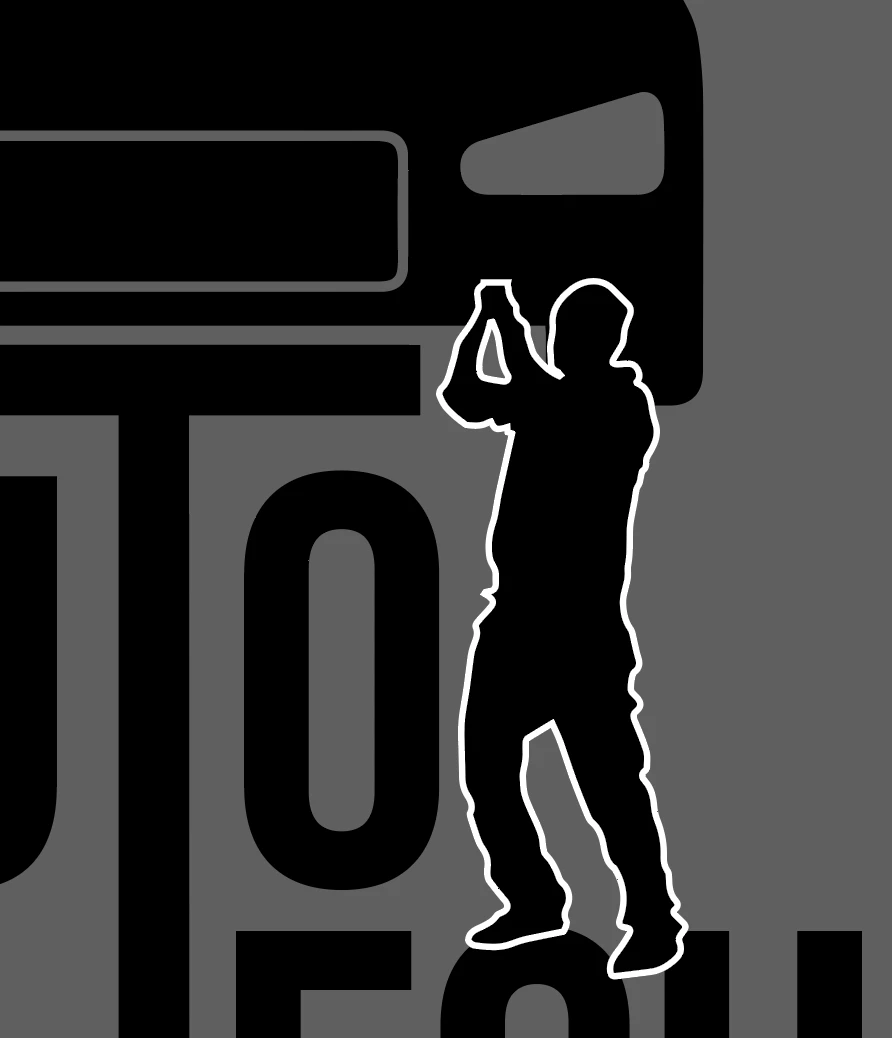
Hi, I am a very beginner user, so I'm sorry if this makes no sense but I am trying to create a "clear" stroke around this shape, I tried to expand the stoke and clipping mask over the bigger image, but that didn't work.


I am trying to punch out the stroke so you can see the shape in the other shapes if that makes sense. TIA
This topic has been closed for replies.
Correct answer Ton Frederiks

Adia, select the expanded stroke and the background objects.

In the Transparency panel click Make Mask.

You may have to toggle Clip off and Invert Mask on

2 replies

Ton Frederiks
Community Expert
Ton FrederiksCommunity ExpertCorrect answer
Community Expert
September 18, 2023

Adia, select the expanded stroke and the background objects.

In the Transparency panel click Make Mask.

You may have to toggle Clip off and Invert Mask on

Participant
September 18, 2023

Forever in your debt

Ton Frederiks
Community Expert
Community Expert
September 18, 2023

Thanks, good to hear that was helpful.

Monika Gause
Community Expert
Community Expert
September 18, 2023

Do you need this as paths so you can use it on your plotter?

In that case you would need to separate the black fill of the person and the white stroke. You could use Object > Expand for that. Afterwards ungroup.

Then you need to make all the black shapes (including the person) into a compound path. Then get the white line in front and then use Pathfinder panel to subtract it from the rest.