
Participant
November 7, 2018
Question

Delete part of a stroke of a shape

  • November 7, 2018
  • 3 replies
  • 11674 views

Hi,

is it possible to delete just a part of a stroke of a shape using one of the tools of Illustrator?

For example, given a shape like this with fill and stroke:
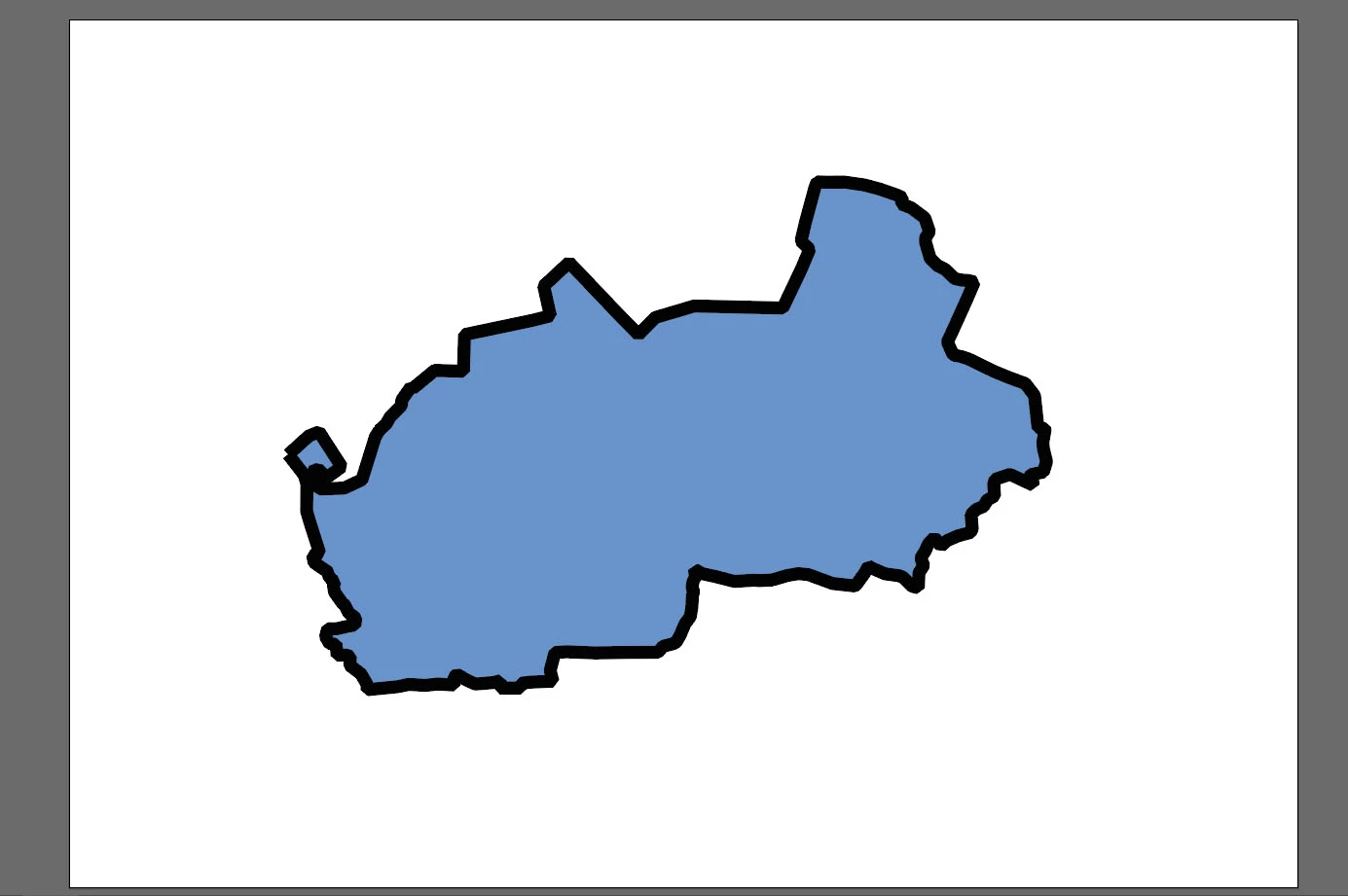
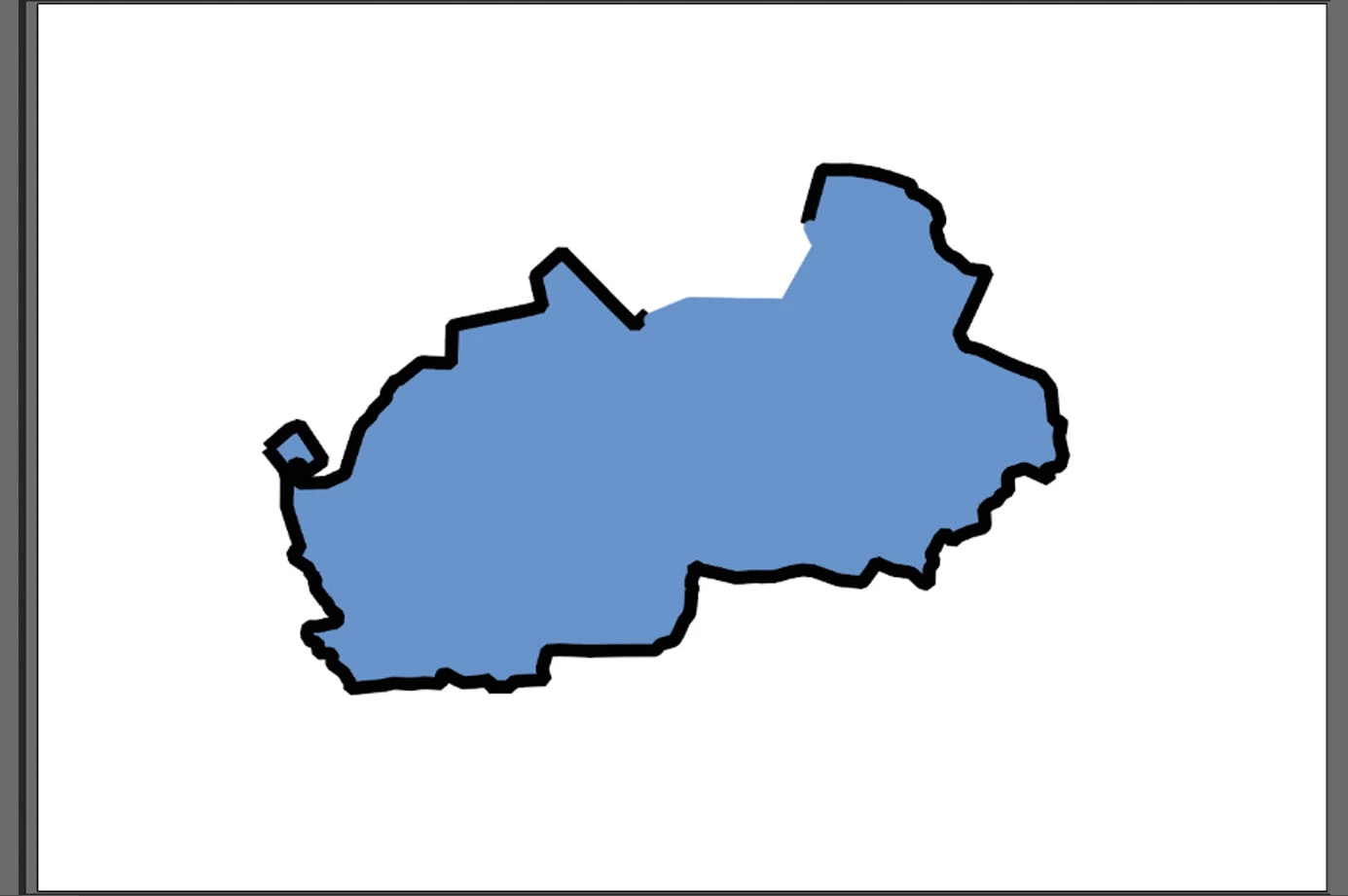
I need to leave certain parts of its stroke "open" like this leaving the fill appearance untouched (made with Photoshop):
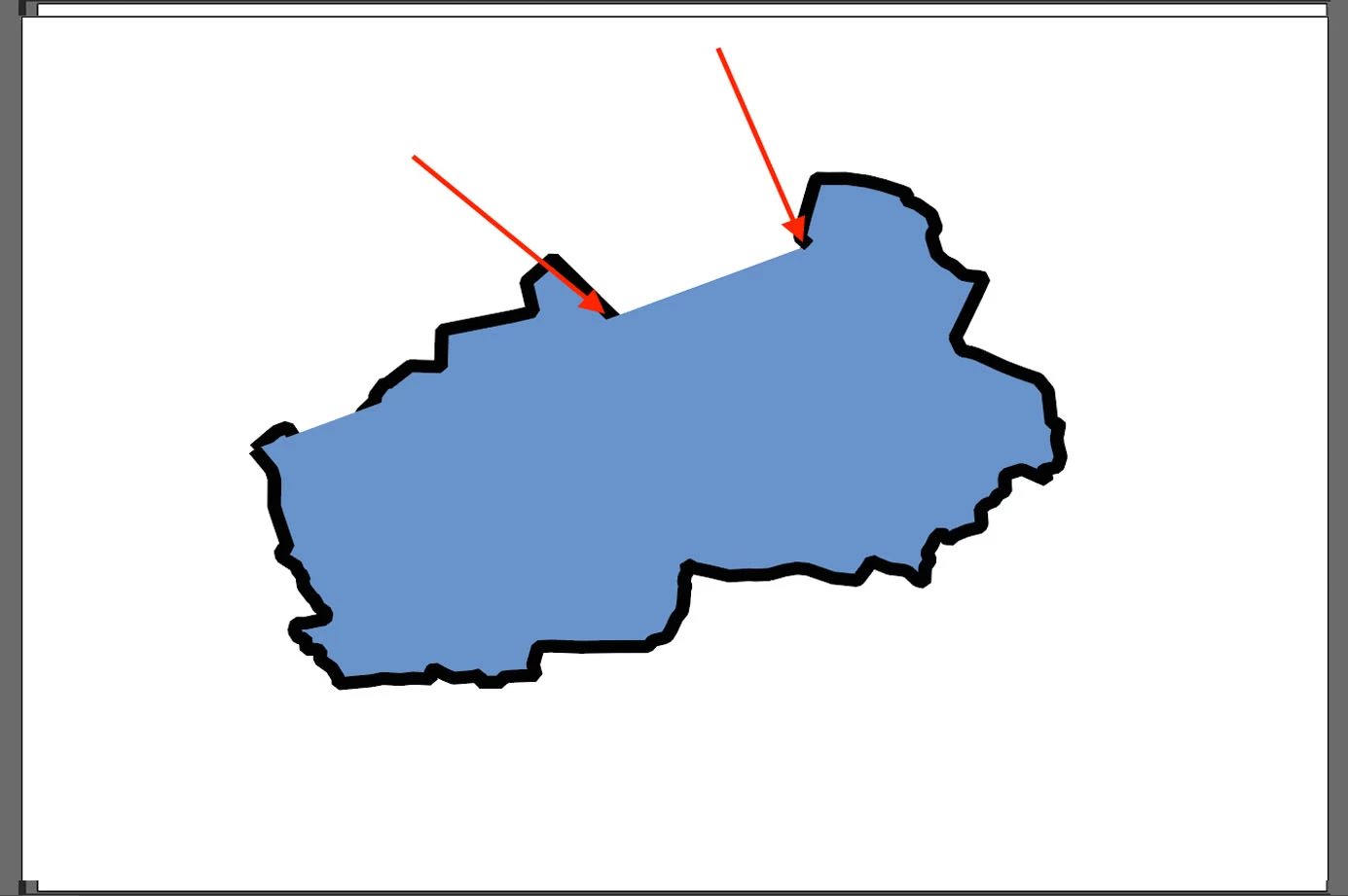
But when I try to use the scissor tool to cut the path in the wanted points I get this instead:
How can I get, if possible, the result I obtained in the second image? Is there a specific tool I have to use?

Thank you

    This topic has been closed for replies.

    3 replies

    meganchi
    Legend
    November 7, 2018

    copy your shape, then paste in front and set the fill to none, and stroke to black. Then, use your scissors to cut the black stroke areas that you want to delete.

    The bottom shape that you copied from can be a fill with no stroke.

    Jacob Bugge
    Community Expert
    Community Expert
    November 7, 2018

    KB,

    Your images seem to suggest certain lacks in the coherence of your shape, which seems to consist of (at least) two objects, an upper left one being a separate path extending from the very leftmost corner where there is an obvious meeting of two open end (Butt Cap) Anchor Points and to somewhere between the two cutting points in the third image; in the third image you can see the two stretches of unstroked boundary line between the very leftmost corner and the rightmost cutting point: such an unstroked boundary line proves the openness of the path(s) to the lower right; and the leftmost part of it also hides part of the upper left open path which dips down behind it, showing that the upper left open path is beneath the other(s) in the stacking order. You ought to be able to see the different paths in an expanded view of the Layers palette.

    Closing the shaping into one path would make the whole thing more sound, it ought to be possible to just select both/all paths and Ctrl/Cmd+J.

    As an alternative way of cutting the stroke (with just one path forming the shape), applicable (almost) regardless of version, would be to select the path and Ctrl/Cmd+C+F and then remove the stroke on the original and remove the fill on the copy, then cut the latter as desired and delete the unwanted part.

    Monika Gause
    Community Expert
    Community Expert
    November 7, 2018

    Draw two additional lines where you want to "cut it". Then select all the objects and use "live paint".

    Cactus Cowboy
    Inspiring
    November 8, 2018

    Live Paint is awesome. Kudo's to the Adobe Illustrator Team for that one. I'd love hear the story about how that feature came about. That was a major game changer tool. Yet, I doubt 10% of users know how to use it or when.