Matt,
As I (mis)understand it, you can:
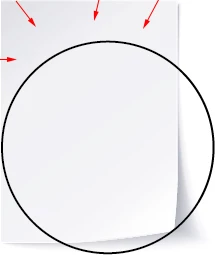
1) Copy the circle and lock the original,
2) Cut the copy where it reaches/crosses the paper image (Scissors Tool) and delete the lower part,
3) With the Pen Tool Click one of the end Anchor Points from 2) and complete a closed path that encloses the undesired upper paper image part, then give it a black Fill and no Stroke,
4) Select both the new path and the paper image and in the Transparency palette (flyout) click Make (Opacity) Path with both Clip and Invert Mask unticked (in the main Transparency palette),
5) Unlock the original circle from 1) and select it and Ctrl/Cmd+C+F+X+F to bring it to the front, then select everything and Ctrl/Cmd+G to Group.
Or if you only wish to have what is within the circle shown (so the bottom left paper part and the shadow at the bottom right are also hidden), you can just select everything and Ctrl/Cmd+7 to create a Clipping Mask, then if desired deselect and with the Direct Selection Tool click the (invisible) circle and reapply its Stroke.

 AdChoices