
Known Participant
October 18, 2022
Answered

Determining Which Layer Found Text Is On

  • October 18, 2022
  • 2 replies
  • 1190 views

Hello all


We have a large, multi-layer file with quotes, 10 per layer, and about 50 layers. When we search for a text string to see if we already have the quote, if Illustrator finds it, it merely highlights the text string — it doesn't designate which layer the text is on. We need to know which layer it's on.


Is there something we're missing? It does no good to just reveal the string with all the layers mashed on top of one another but not designate which layer said text is on...
This topic has been closed for replies.
Correct answer Mike_Gondek10189183

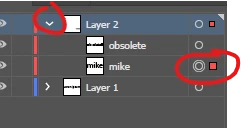
After find selects the item. Open your layers palette and flip down the triangles, to find what layer/sublayer it is on.


2 replies

RAILheadAuthor
Known Participant
October 18, 2022

Oooooookay, I figured it out.


I have to have all layers visible for Illustrator to show which layer. Here's what I was doing...


I have 50 layers with 10 different text blocks per layer, so let's say I had Layer 1 visible and all others are hidden so I could work on the layout of just that layer. Now, I need to know if I used the phrase "the lazy dog" anywhere, so I would search for it. All layers would become visible and I could see the text highlighted black — but no indication in the layers palette. When I hit DONE, everything went back to how it was.


So now, I need to make all 50 layers visible, then search, then Illustrator indicates which layer the text is on.


This is my solution — but it still seems like Illustrator should designate the layer the hidden text is on, especially since searching on hidden layers is an option.

Steve Werner
Community Expert
Community Expert
October 18, 2022

Great, glad that you figured it out. Of course, the file I tested on was much simpler and I had made visible and unlocked the layers.

Mike_Gondek10189183
Community Expert
Mike_Gondek10189183Community ExpertCorrect answer
Community Expert
October 18, 2022

After find selects the item. Open your layers palette and flip down the triangles, to find what layer/sublayer it is on.


RAILheadAuthor
Known Participant
October 18, 2022

That doesn't work — you are unable to manipulate the layers palette while the Find/Replace dialog is open, and when you close the dialog, the found text is no longer highlighted.

Steve Werner
Community Expert
Community Expert
October 18, 2022

It just tested Mike's suggestion. After finding the text which selects it, clicking Done in the dialog leaves the selected. I can open the selected layer and the text indicated as selected in the Layers panel.