Participating Frequently
August 26, 2009
Answered

Divide a line into equal sections

  • August 26, 2009
  • 10 replies
  • 132007 views

I haven't been able to find anything on this. Please point me to a link if I missed it somewhere. How can I divide a line into equal segments in Illustrator? This is computer software, right? Shouldn't a computer be able to figure how to segment an arbitrary line? I tried turning the line into a sliced object and dividing that, but it didn't seem to work. Pathfinder only works on two or more objects. What have I missed? Am I just being really dense? (don't answer that)

Ideas?

This topic has been closed for replies.
Correct answer Ibraz

Try :

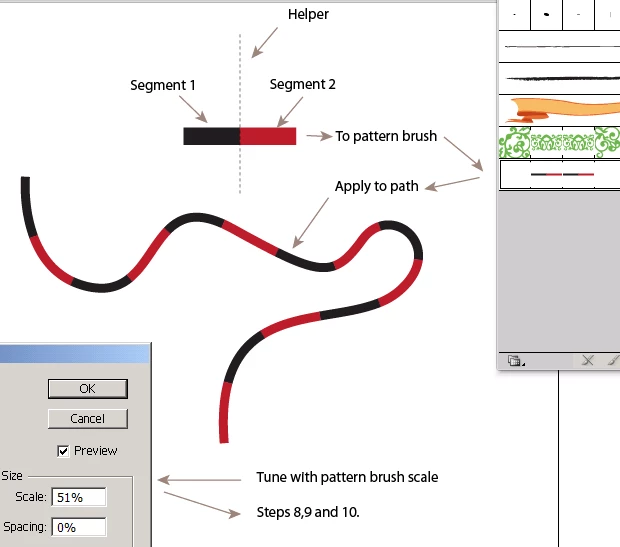
  1. Draw path to divide.
  2. Draw a black line to use as a division (a small horizontal line).
  3. Copy black line and stroke to other color to contrast with black.
  4. Align the two so that two ends meet without changing length. (use vertical line as a helper to align)
  5. Use these two segments as a pattern brush.
  6. Apply pattern to path to divide.
  7. Tune with pattern brush scale to vary divisions' length and, therefore, the number of divisions (This is where the contrasting colors of the segments allow you to see the variation of pattern scale).
  8. Expand appearance.
  9. Delete initial path.
  10. Join smooth resulting segment's overlapping ends to rebuild continuous path.

  I hope it works.

10 replies

Participant
May 25, 2023

Use the ALIGN TOOL is the FASTEST and EASIEST way I've found to divide a straight line into any number of segments: 

0.) First of all, turn on smartguides (ctrl + U) this lets you drag things around and snap to Horiz / Vert / midpoints super easily. (These should just always be on, in my opinion)

1.) Draw the line you want to divide. (Let's call this the working line)

2.) Draw another, shorter line perpendicular to the one you want to divide (Let's call it a construction line)

3.) Grab the construction line by it's midpoint and drag it to the start point of the working line.

4.) With Construction line (only) selected, Alt drag it by midpoint again to the end point of  your working line. Now you have  what we can call the "border lines" on either end of your working line.

5.) Decide how many segments you want (Minor maths here!)-- you will need one less dividing line than the number of segments you want. For 3 segments, you'll need 2 dividers; for 7 segments you'll need 6 dividers, and so on... Copy one of your borderlines "anywhere" onto your working line, here's how: (5a.) I like to keep them centerered on their midpoints for visual neatness. (5b.) Alt drag a borderline by it's midpoint again to the midpoint of your working line. (5c.) Copy / Paste the number of dividers you need based on number of segments you want. It's easiest to use "Paste in front" (ctrl + F)

6) Now you should have one long(er) working line to be divided, a borderline at either end of it (exactly intersecting the end points of working line at 90 degrees) and however many divider lines stacked on top of each other at the midpoint of the line to be divided into equal segments.

7) Select ONLY the borderlines and divider lines and go to the ALIGN tool. Choose distribute based on orientation of line to be divided (horizontal or vertical). Now the dividers are equally distributed along your working line.

😎 Select working line and dividing line then PATHFINDER. Line will be chopped up into equal segments!


In summary: Illustrator can and should have a "divide" command similar to AutoCAD where you can select a line, activate "divide" command then enter the number of segments and it then evenly marks that many segments along the line. 

Monika Gause
Community Expert
Community Expert
May 26, 2023

You might want to read page 1 of this thread, because your steps are not the simplest method.

Artstep
Participant
January 5, 2022

Wow, I cannot how much I pay for a software that can't divide a curve into segments 12 years on..... There's shameless and then there's Adobe, in a league of their own - there are countries that can launch nukes in fewer steps than this


Participant
April 2, 2020

Thank you! I'm making a roll and move board game and this was invaluable to create evenly sized spaces. Much appreciated!

Participant
April 2, 2018

The easiest and most convenient way is to create a ruler. Just open file, make sure the "ruler" is set to view so you can see it at the top of your page, then using your line tool ( while holding down the shift to to keep the lines you create straight vertical lines) draw lines straight down. Make sure they are equidistant of course. Add numbers for convenience for future use. Then use your marquee tool to select out a section, copy it and paste it. Save the file. You can copy and paste it on a file, then edit and scale it to the length of the line you are working on. Go bak to the layer the line is on and mark off your divisions.

scorpio_zx
Participant
September 13, 2017

To divide any path to any equal segments:

1- draw a short vertical line

2- with that vertical line create a pattern brush

3- select a copy of the path u want to divide

4- apply the pattern brush u created

5- open that pattern brush option

6- make sure preview is ticked, and stretch to fit is ticked

7- in the spacing option keep increasing the space

until the line have divided the path into the number of segment desired.

8- done!

Eternal Warrior
Inspiring
May 5, 2017

noldo9  - Please could you decide who has provided the correct answer to your problem and mark all others that are helpful as helpful.

You certainly have enough correct answers to choose from.

As others have pointed out there really are 101 different ways to achieve something.

By marking as helpful or correct allows better indexing so that when others have the same problem they can search on google and find threads like this that may be useful to them.

If you cannot decide on the best correct answer then the fairest method is to do either one of two things:

  • Either mark the first correct answer as the correct answer for responding first and all others that were helpful as helpful.
  • Or mark the discussion with the "Assumed Answered" option and designate replies that were helpful accordingly.

Many thanks,

EW

Ibraz
IbrazCorrect answer
Participant
May 5, 2017

Try :

  1. Draw path to divide.
  2. Draw a black line to use as a division (a small horizontal line).
  3. Copy black line and stroke to other color to contrast with black.
  4. Align the two so that two ends meet without changing length. (use vertical line as a helper to align)
  5. Use these two segments as a pattern brush.
  6. Apply pattern to path to divide.
  7. Tune with pattern brush scale to vary divisions' length and, therefore, the number of divisions (This is where the contrasting colors of the segments allow you to see the variation of pattern scale).
  8. Expand appearance.
  9. Delete initial path.
  10. Join smooth resulting segment's overlapping ends to rebuild continuous path.

  I hope it works.

Participant
August 8, 2019

You sir are a genius! That's a brilliant way to do it!

Participating Frequently
August 26, 2009

When discussing "technique" with Illustrator, there's at least 101 different ways to draw whatever. In this particular case, Harron's described method of dividing a straight line into equal segments is also my method of choice. The only thing I'd like to add is, that to retain the original position of the line, regardless if it's horizontal, vertical, or angulated, is the Reference Point that you select. Eddie

Horizontal Line     Draw line. Notice that the Reference Point is at 9 o'clock position.

Horizontal Line     With line selected, divide by number of segments that you want. In this case, seven.

Horizontal Line     Click "Enter".

Horizontal Line     Final result after stringing together multiples.

Angled Line     Notice that the Reference Point is at 11 o'clock position.

Angled Line     Either the W or H may be divided, it does not make a difference.

Angled Line     Final result after stringing together multiples.

Inspiring
August 26, 2009

Are you talking about a standalone line segment? How do you want the divided segments arranged?

If the answers are 'yes' and 'I don't care,' I would simply append '/n' (without the quotation marks) to the W or H field in the control or transform panel/palette, where n equals the number of segments into which you want the line divided. Hit Enter to apply the transformation. Then, simply copy and paste n-1 times.

Make sure the constrain proportion link between the W and H fields is activated if the line segment is not perfectly vertical or horizontal.

Oh... and make sure you've turned off 'Scale Strokes & Effects' if you want to maintain stroke weight.

Jacob Bugge
Community Expert
Community Expert
August 26, 2009

noldo,

Presuming you are talking about an arbitrary subdivision of a straight line, you may:

1) Select the target line and set the Reference Point in the Transform palette to a suitable border and write down the X or Y value;

2) Click the Rectangular Grid Tool, set the height/width to the same value as shown in the Transform palette, and set the  horizontal or vertical division to the number of subdivision minus one;

3) Insert the X or Y value from 1);

4) Ungroup the grid;

5) With the Scissors Tool cut at the corners of the outer frame of the grid and delete the lines not crossing your target line;

6) Select both target line and gridlines and Pathfinder>Trim and reset the stroke;

7) Delete the cut parts of gridlines.

That should give you an equal division of the target line into short lines. If you want it as one line with equidistant Anchor Points, you may DirectSelect the coinciding end points and Ctrl/Cmd+J to rejoin them.

Not just a click with a tool.

As I am sure you know, you may halve any path repeatedly with Object>Path>Add Anchor Points.

Steve Fairbairn
Inspiring
August 26, 2009

It all depends on whether the path is straight or not and what you call "equal" sections. Equal along a vertical, horizontal or angled axis, or equal along the path.

Object>Path>Add Anchor Points will only halve straight paths. If you're working with curves it will give you unequal results depending on the length of vector handles.

If you want to divide a curve into equal sections it becomes a bit complicated. Dashed strokes with carefully adjusted increments might get you part of the way. But as soon as you expand a dashed stroke its thickness comes into play.

Using Pathfinder on this kind of thing will certainly divide your path into horizontally equal sections, but the steeper the slope of the curve the longer the sections along the line. Please try to define your problem better.

Inspiring
August 26, 2009

Oh, you guys and your thinking....

I would just use the script here:  http://park12.wakwak.com/~shp/lc/et/en_aics_script.html#divide

(lotsa good scripts there - none of them mine.)