
Known Participant
August 5, 2022
Answered

Drop shadow and outer glow

  • August 5, 2022
  • 1 reply
  • 1781 views

Hello Experts


I am working with a map.


I want to have an outer glow along the coastline and a drop shadow under the frame.


So I applied the outer glow to the Live Paint map then made a clipping mask the same size as the map frame to limit the glow just to the coastline. Like this:
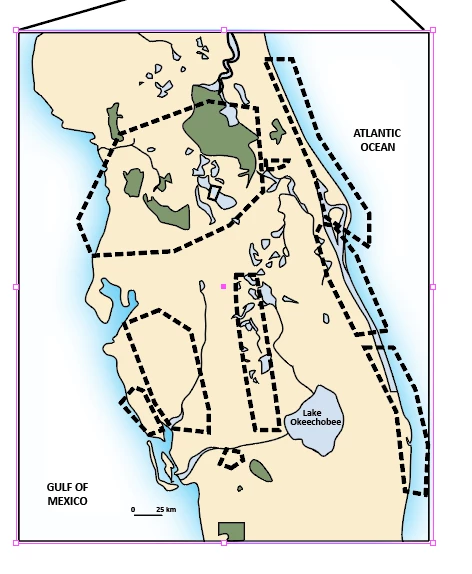


But I still want a drop shadow on the map. The “white” area in the Live Paint is void. So when I apply the drop shadow to this I get this:
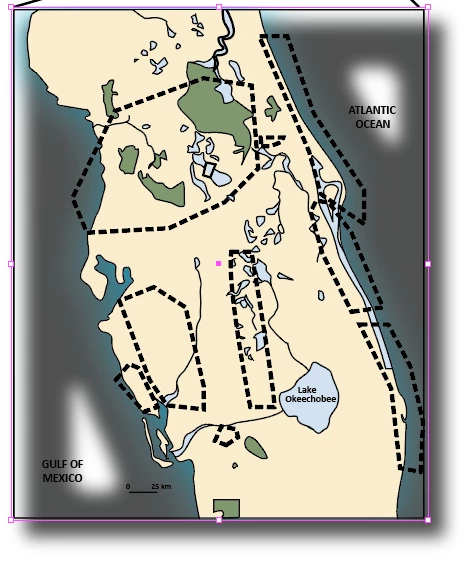


Looks like the drop shadow is applied to objects inside the Clipping mask of the Live Paint.


I just want the drop shadow around the frame in the above image.


How do I do that?


I have put the .ai file on DropBox if anyone wants to take a look:

https://www.dropbox.com/s/yy43atv1mc2j4qy/Temp.ai?dl=0

Thanks for any ideas!


jdballou
This topic has been closed for replies.
Correct answer Monika Gause

I understand.

I noticed that the .ai file in the DropBox does not have the outer glow effect. My mistake.

OK - I updated the DropBox link with the .ai file that has the outer glow applied plus the clipping mask.

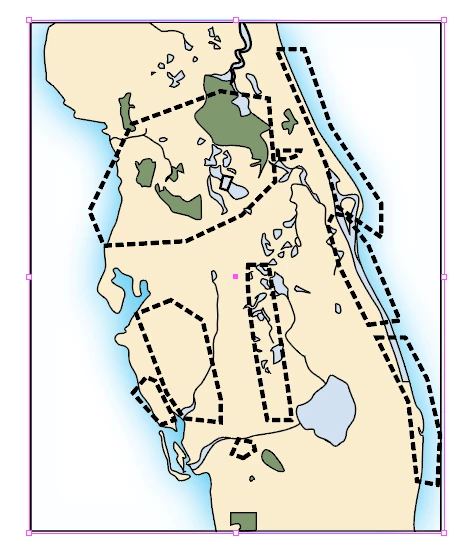
It looks like this:


In the outer glow effect change the blend mode from Screen to Normal.

And then select the clipping mask object with the direct selection tool and apply a white fill to it.

And then you can apply a drop shadow to the complete object. You need to select it with the selection tool for that.

1 reply

Monika Gause
Community Expert
Community Expert
August 5, 2022

You could select the clipping mask with the direct selection tool and then apply a white fill.

jdballouAuthor
Known Participant
August 5, 2022

No. That doesn't work.

Monika Gause
Community Expert
Community Expert
August 5, 2022

In your demo file I can just select it and apply the drop shadow. I'm not sure what is wrong with it.


Could you perhaps describe. I don't get it.