Participant
October 25, 2017
Answered

Edit Type on a path circle shape uniformly

  • October 25, 2017
  • 1 reply
  • 3380 views

I used to be able to do this before I updated my CC this month (october 2017).

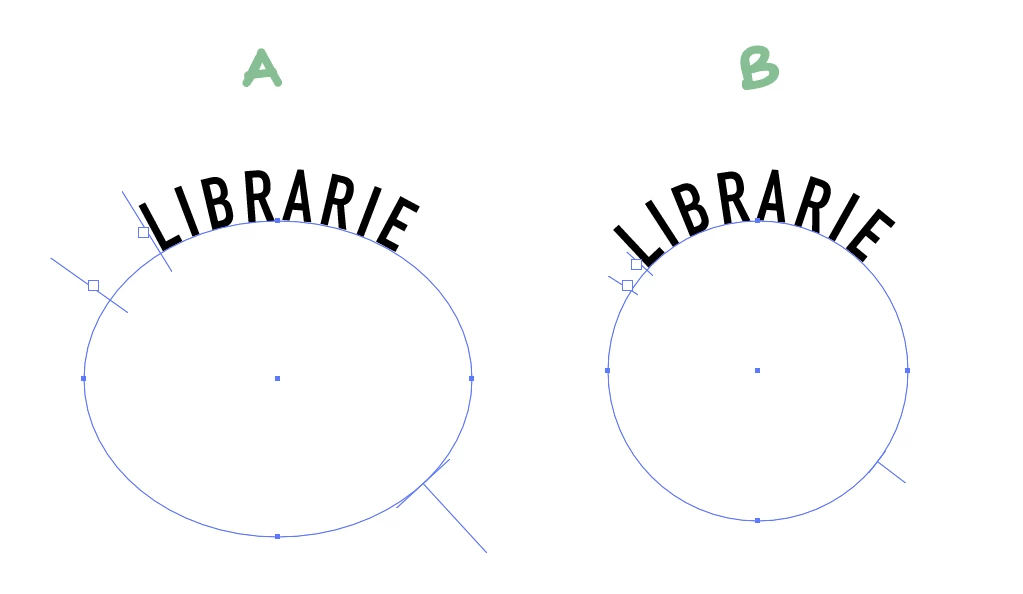
So the situation is, I make a circle (A) and then type on a path with it. However, sometimes I want to be able to

adjust the shape of the circle without having to keep guessing and creating a new circle shape to get the right

curve I want. I used to be able to hold a certain key down and adjust the type on the path shape WITHOUT distorting

the type (that's the key mission there). So live adjusting the shape of the path where the type stays uniform. (see B)

Since the update I can't do that anymore, does anyone know how? and can any developers of Adobe also explain why that function

disappeared? I use this function every time I design and it's a huge bummer if it was taken away.
This topic has been closed for replies.
Correct answer M74RK

Thanks Kurt, do you know what's the best way to report it? I've tried this forum, chatting with support 3 times, as well as tweeting them. If you could help find the right source to send it to, I'd be happy to report it.

Thanks!


I just got it to work select with Selection tool, then hold Shift while selecting Direct Selection tool. The shape is then directly editable. Hope that helps.

1 reply

Monika Gause
Community Expert
Community Expert
October 25, 2017

CC2017 behaves the same.

When you just distort the text on a path using the bounding box, all that happens is that type gets stretched or squashed. You can reset that using Cmd+Shift+X

resp Ctrl+Shift+X (Windows)

Participant
October 25, 2017

Example of how it used to work in Illustrator 2017 and older

How it acts after update. Type is distorted

Hi Monika!

Thank you for your reply. This is a great workaround, but it's not the exact solution I am looking for. It's being able to keep the type uniform while transforming the "type on a path" shape. For now, I'll definitely use your suggestion, but hopefully someone knows the answer.

Kurt Gold
Community Expert
Community Expert
October 25, 2017

There are some serious issues in AI CC 2018 when it comes to type objects, but this is not one of them.

In the first video you are using the Direct Selection tool to alter just the path. In the second video you are using the Selection tool to modify the entire object with the bounding box.

Do it as shown in the first video.