
Known Participant
February 19, 2026
Answered

Editable text mask?

  • February 19, 2026
  • 2 replies
  • 42 views

Somehow, I created this transparent editable text layer but I can’t remember what I did or where I learned this, so I am hoping some experts can help.


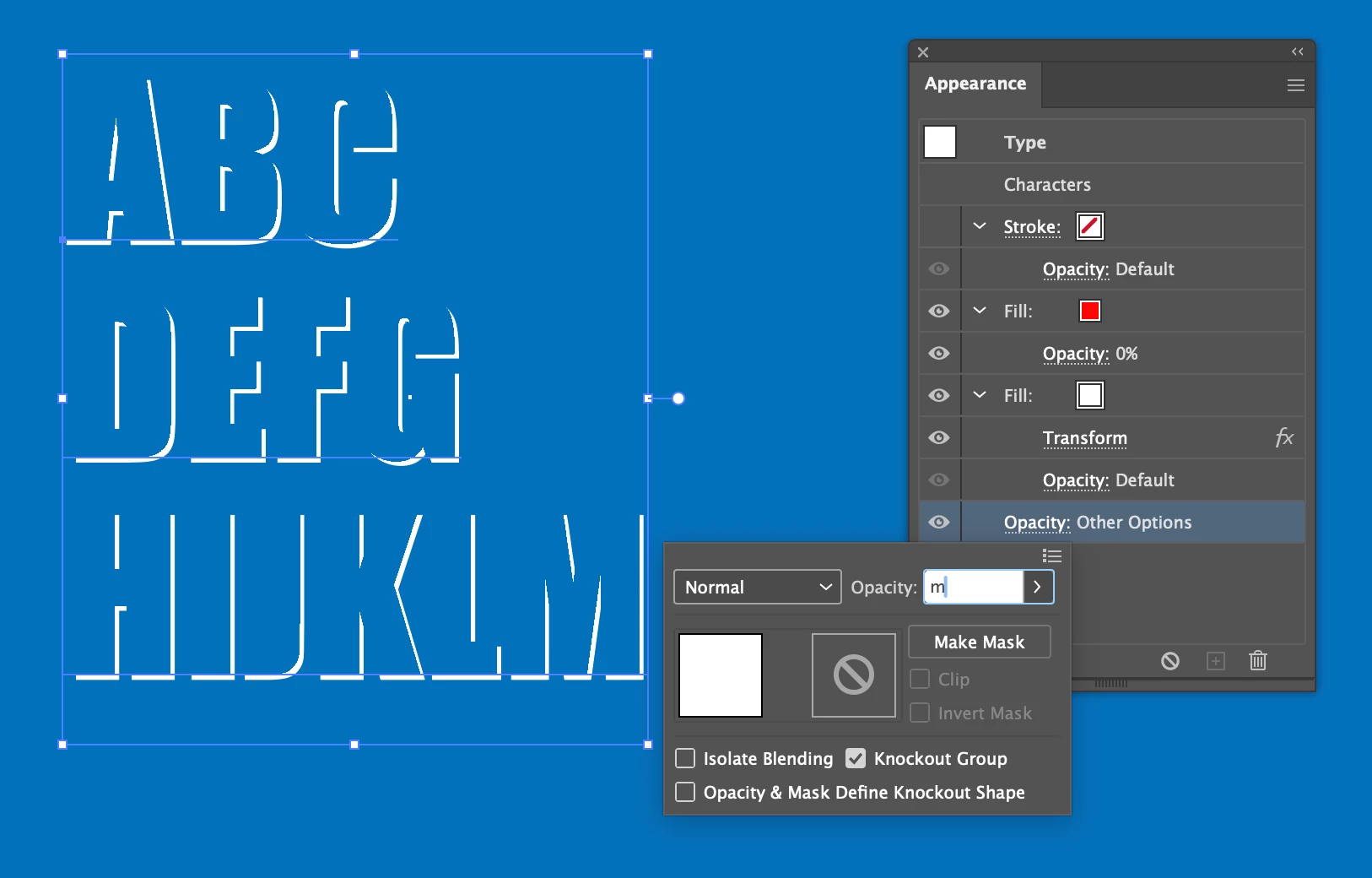
All text is editable. Nothing is masked and nothing is grouped. When click, both layers appear as a compound shape in the transparency panel. Blending is normal. Opacity 100%. 
 

Correct answer Ton Frederiks

I would first get rid of the text fill and add 2 new fills in the Appearance panel, a colored one on top and a white one below.

Use a Transform Effect to offset/move  the white one.

Give the top color one an opacity of 0%.

Check in the Opacity options at the bottom of the Appearance panel the Knockout Group option.

Text remains editable.


2 replies

Ton Frederiks
Community Expert
Ton FrederiksCommunity ExpertCorrect answer
Community Expert
February 19, 2026

I would first get rid of the text fill and add 2 new fills in the Appearance panel, a colored one on top and a white one below.

Use a Transform Effect to offset/move  the white one.

Give the top color one an opacity of 0%.

Check in the Opacity options at the bottom of the Appearance panel the Knockout Group option.

Text remains editable.


Known Participant
February 20, 2026

Thank you! I am not sure those are the same steps I followed before - it’s been about two months, but that worked. I appreciate your help!

Monika Gause
Community Expert
Community Expert
February 19, 2026

There are other methods, but if you want it as a compound shape, then make the text and make a copy of the text. Select both and in the Pathfinder panel, Alt-click the Subtract button.

Known Participant
February 19, 2026

I tried subtract, but it took out all but the C. It didn’t duplicate what I did before, so I am not sure if that is what I did, or maybe I am doing it wrong now? 

Monika Gause
Community Expert
Community Expert
February 20, 2026

Do not outline the text first.