
Participant
September 19, 2020
Answered

Editing a Stock Vector Logo

  • September 19, 2020
  • 3 replies
  • 2291 views

Hello. I am 100% new to AI so bear with me. This is an Adobe Stock Vector image I purchased. I have gotten as far as opening the .ai file in Illustrator. I need to be able to edit/change the text and leave everything else alone. I read numerous threads and watched numerous videos. I keep seeing vids that show cutting the text and retyping what I want. Simple right? Nope. Doesn't work. Others have said to click on Create Outlines and take it over to a Fonts page and recreate it. Huh? No way I'm going to "recreate" when I see EXACTLY what I want, I

just need it to allow me "to put my text here."
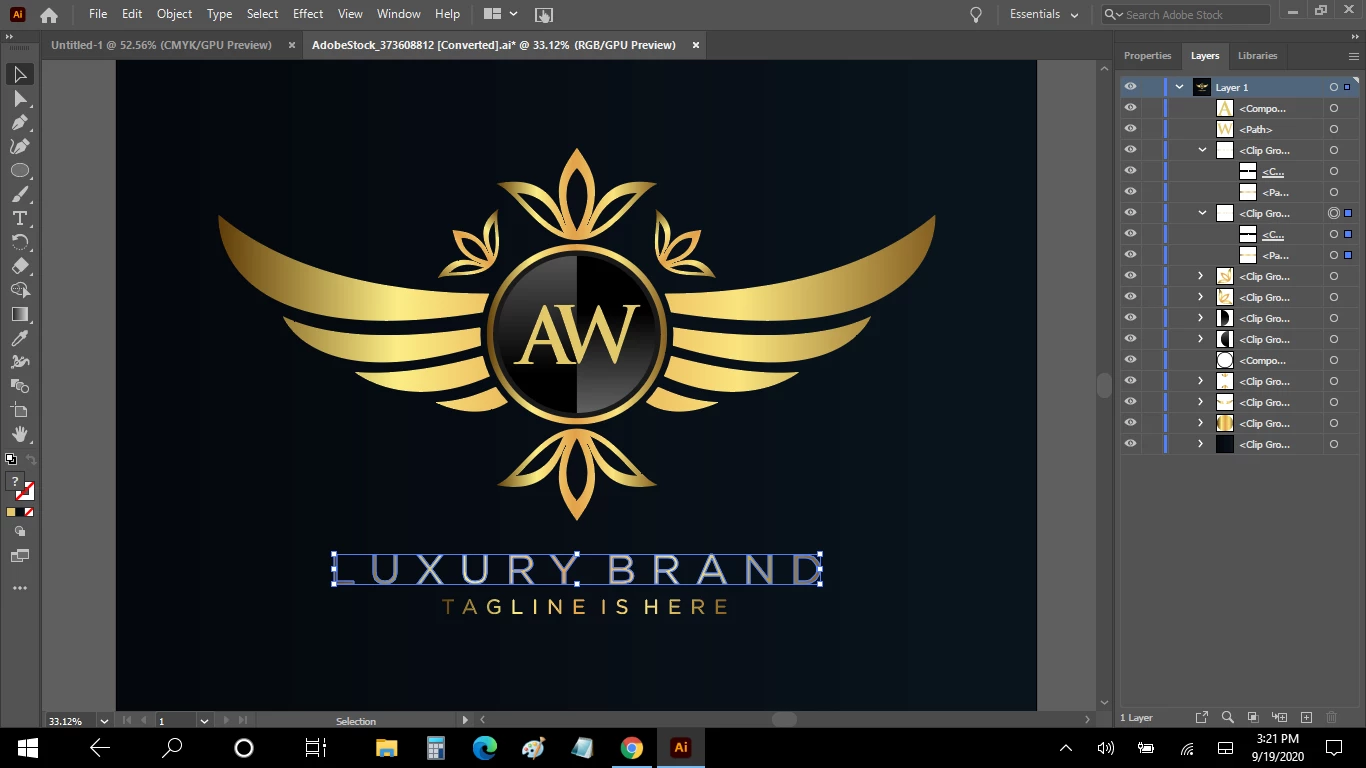
 

I've highlighted one line of text here. But I can not delete and change any letters. "Ungroup" is grayed out. I can not use it. "Create Outlines" is grayed out. Can't use it. Also "Type on a Path" is grayed out.

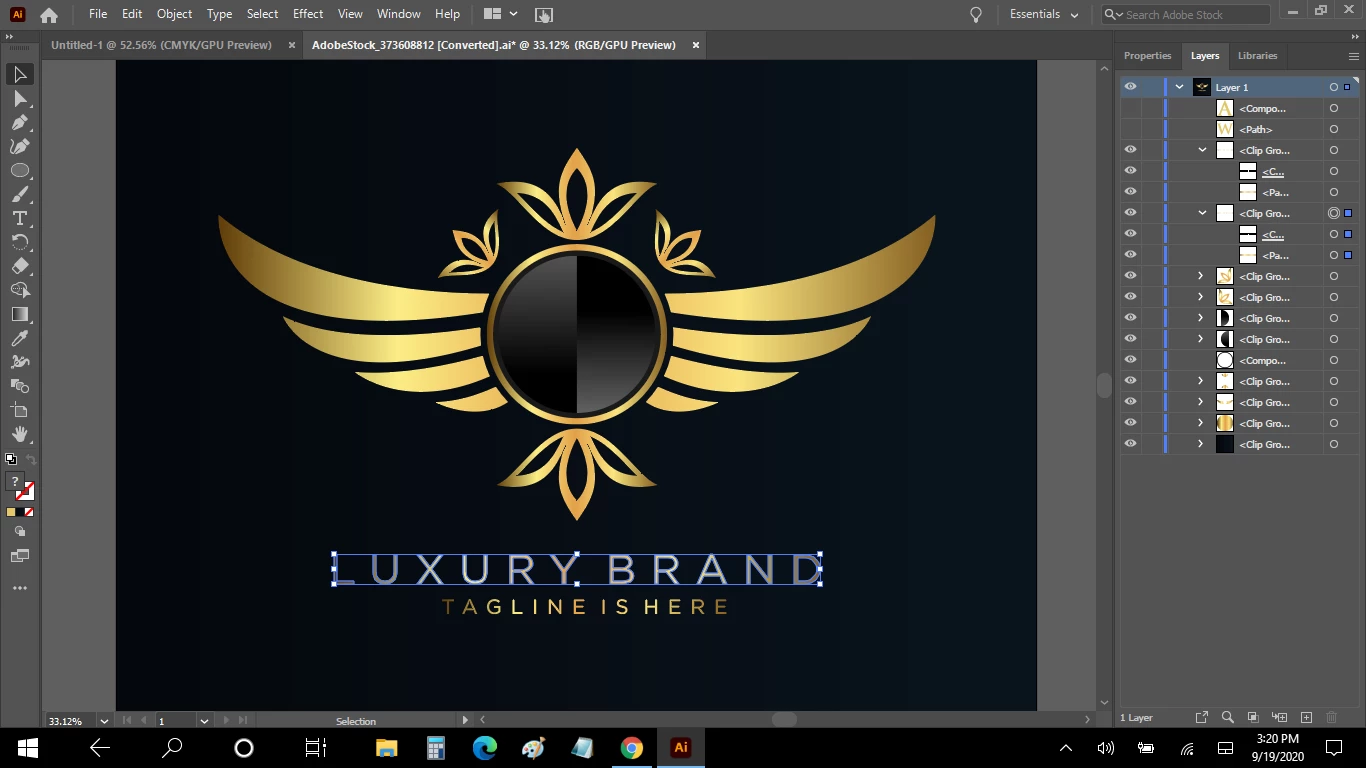
I was able to open the Layer Option and as you see here I can make a letter disappear but still can not change it to another letter.
 

If I click on the Text Tool and go to the text I want to change, ANY click of my mouse just inserts this teeny tiny bunch of black Latin language. Why? What is that?

Help? TIA

This topic has been closed for replies.
Correct answer michelew83603738

As has been stated, fonts don't download with the templates. My suggestion is to copy the file to have a backup, then use the direct selection tool to delete the name that is there and use a font like Avenir (Light perhaps) and use your brand name, apply a gradient effect if desired and go from there. If the font isn't exact, it doesn't matter. Just find a similar font.

3 replies

michelew83603738
Community Expert
michelew83603738Community ExpertCorrect answer
Community Expert
October 1, 2020

As has been stated, fonts don't download with the templates. My suggestion is to copy the file to have a backup, then use the direct selection tool to delete the name that is there and use a font like Avenir (Light perhaps) and use your brand name, apply a gradient effect if desired and go from there. If the font isn't exact, it doesn't matter. Just find a similar font.

Participating Frequently
October 1, 2020

The background looks like a solid color so just put a box over the text, grab the background color with the eyedropper to color it the same to hide the unwanted text, then put the text you want over that.

Larry G. Schneider
Community Expert
Community Expert
September 19, 2020

Can you provide a better view of the Layer panel (enlarged so we can read the sub layer text). We have to know what the objects are to offer help.

Participant
September 19, 2020