
Participating Frequently
April 18, 2024
Answered

EPS file appears to be translucent

  • April 18, 2024
  • 3 replies
  • 421 views

I have an EPS file of a logo (see attached). When I open the file in Illustrator, it's translucent by default, and I can see no way to modify that. Its fill in the file is set to black, but it looks grey. If I set it to red, it looks pink. When inserting it into a design, I can see background elements through it. Yet the opacity is very obviously set to 100%. I can't figure out how to work with this to make it fit into my designs. Can anyone please explain how I can resolve this issue?
This topic has been closed for replies.
Correct answer Doug A Roberts

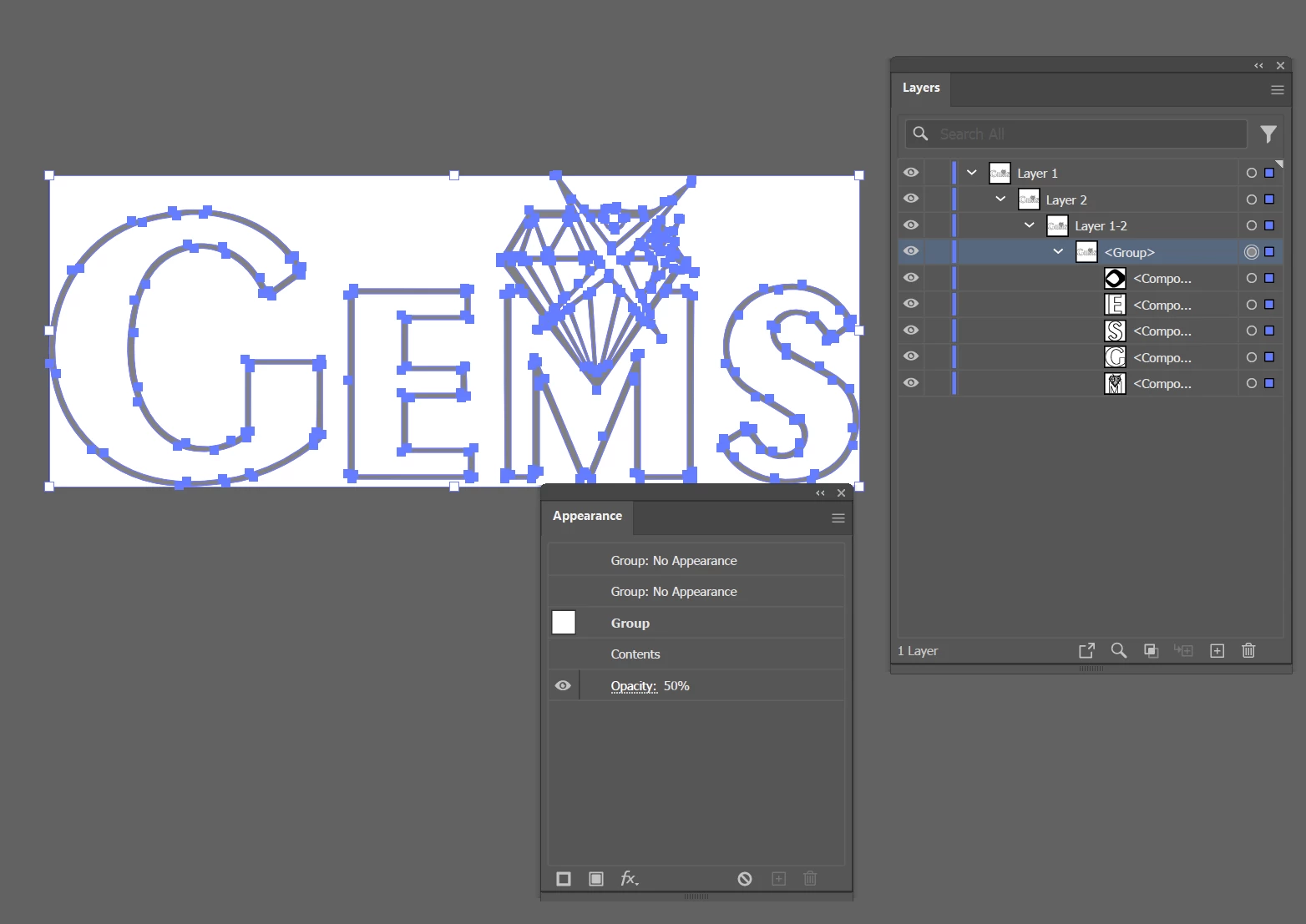
Apologies, didn't realise that was the EPS attached to your post. Specifically, this group has 50% opacity:


3 replies

Doug A Roberts
Community Expert
Doug A RobertsCommunity ExpertCorrect answer
Community Expert
April 18, 2024

Apologies, didn't realise that was the EPS attached to your post. Specifically, this group has 50% opacity:


rawgoreAuthor
Participating Frequently
April 18, 2024

THANK YOU! It never occurred to me that yet another grouping was set differently. I had tried ungrouping twice and wasn't seeing any difference, so I figure ungrouping wasn't actually doing anything. Didn't think to keep ungrouping ad nauseum 😂

Monika Gause
Community Expert
Community Expert
April 18, 2024

It's grouped about a dozen times and in one of those groups there is reduced opacity. 

Can you open it in Illustrator and see that? Or would you rather have a corrected version?


In order to correct it:


open the file, don't place it.

Object > Ungroup

Repeat the ungrouping until the fill is black

Save the file

or copy the objects.

You might group them again or don't.

Doug A Roberts
Community Expert
Community Expert
April 18, 2024

Can you share the file?

Failing that, can you show the relevant contents of the layers panel along with your entire Illustrator workspace?