Participant
February 2, 2019
Answered

Exact number of dots along cirlce

  • February 2, 2019
  • 2 replies
  • 3943 views

Hi!

Pretty newbie here @ illustrator.

I'm trying to create a way of getting the exact number of dots along a circle. I figured out how to do a dotted stroke along a line but with this you cant really easily control how many you want on the line. You have to fool around with gap and size which is kind of a pain.

I was trying to use the polar grid tool. With this you can easily divide a circle in the exact amount of divisions you want. Is there a way to for example then get 1 dot on each other point of that circle and this getting the exact amount of dots I wanted? And they be able to control the size of the dot as well.

How would I achieve this. It would be even more awesome if it's flexible as well!

edit: if this is possible to control the exact amount on a line as well more easily this would be amazing as well.

thnx!
    This topic has been closed for replies.
    Correct answer pixxxelschubser

    The way to go:

    • draw your (one) dot
    • draw a single anchor point (distance from the dot = radius of your resulting circle)
    • align them
    • group them
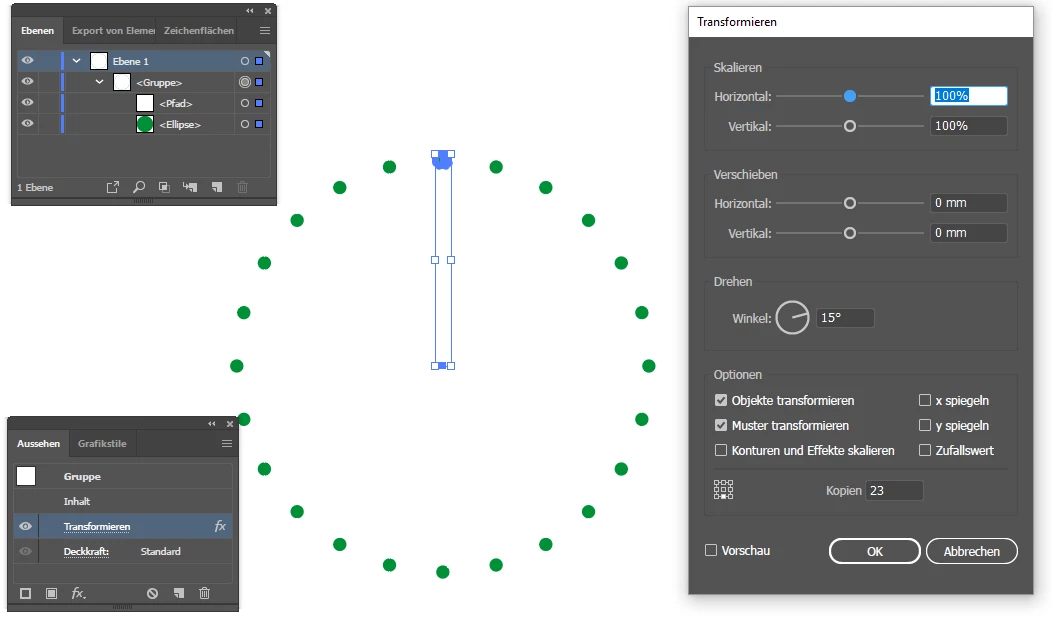
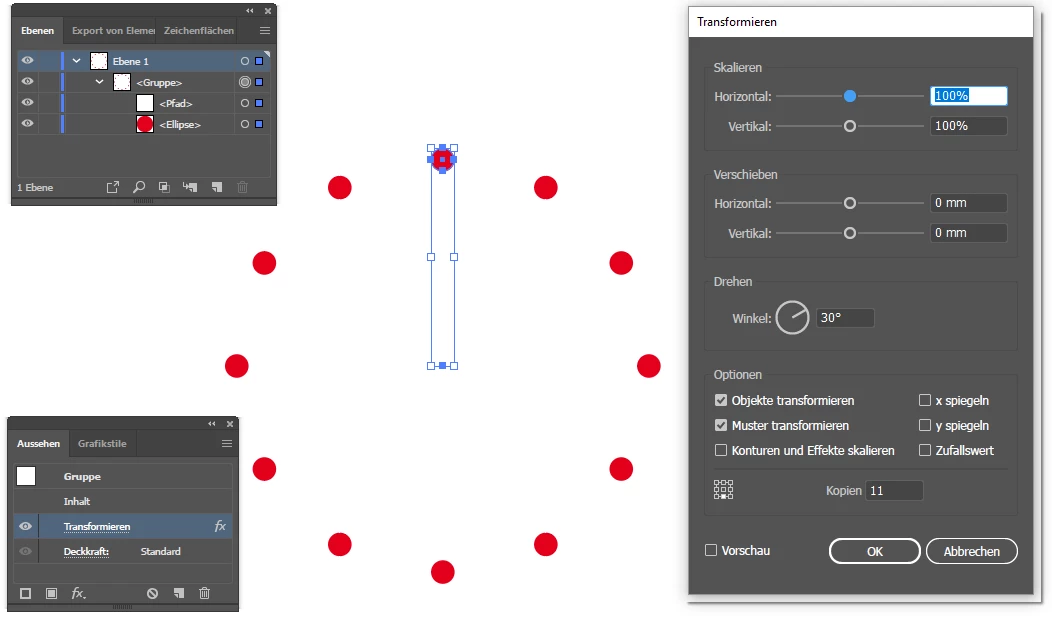
    • use Menu: Effect --> Distort and Transform --> Transform

    change your dots size or distance or amount of dots afterwards:

    Have fun

    2 replies

    Jeff Witchel, ACI
    Community Expert
    Community Expert
    February 2, 2019

    I would suggest using a Blend and Replacing the Spine with a circle.

    Here's an old video (CS4) about Blends that should help: http://www.jeffwitchel.net/2011/11/blend-tips/

    If you start watching about 2:00 into the video, you see how to replace your Blend's Spine with a circle and then make an exact number of objects go all the way around the circle.

    pixxxelschubser
    Community Expert
    Community Expert
    February 4, 2019

    Neonac​,

    do you need further assistance?

    pixxxelschubser
    Community Expert
    pixxxelschubserCommunity ExpertCorrect answer
    Community Expert
    February 2, 2019

    The way to go:

    • draw your (one) dot
    • draw a single anchor point (distance from the dot = radius of your resulting circle)
    • align them
    • group them
    • use Menu: Effect --> Distort and Transform --> Transform

    change your dots size or distance or amount of dots afterwards:

    Have fun

    rcraighead
    Legend
    February 4, 2019

    One small addition:

    To have AI calculate the angle type "360/15" (15 being the number of dots).

    =  

    Enter one less than total number in "Number of Copies" since you started with one dot.