
Participating Frequently
January 24, 2019
Question

Export of Illustrator looks pixelated no matter how I export it

  • January 24, 2019
  • 8 replies
  • 21419 views

Hey all,

have read some of the Forum threads but nothing seems to be working for me. I have created a cube design in Illustrator that I would like to use in Photoshop now.
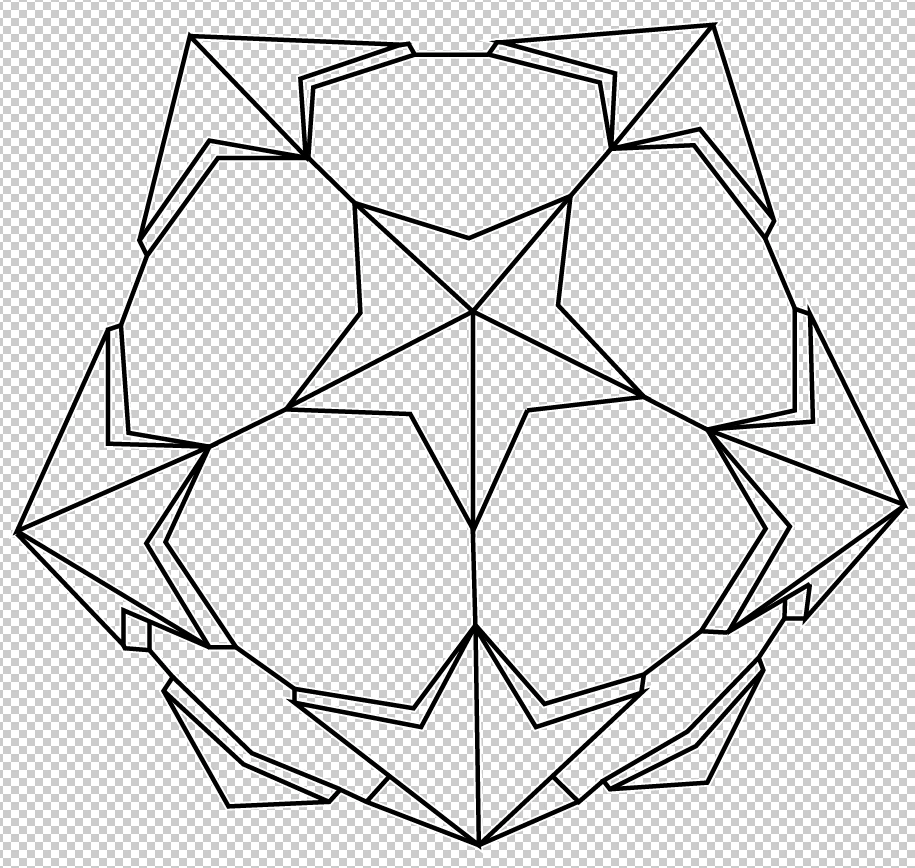
This is how it looks in Illustrator. After the export and opened in Photoshop it looks like this:
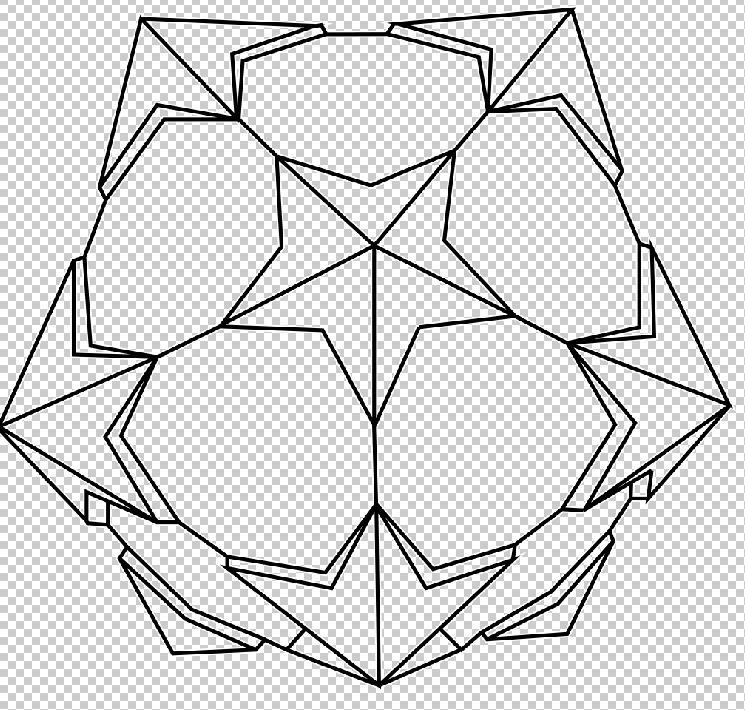
This is exported as PNG with 300 DPI (less looks even worse). Did I made a mistake with regards to the specification of the underlying Illustrator config? The graphic was sized at 4500x5400 Pixel.

Any help would be much appreciated.

Best

Martin

This topic has been closed for replies.

8 replies

Participating Frequently
March 29, 2021

Hi,

Why cant you try copy paste it to photoshop, at that point it will shop options - pixel, Smart object, path, shape layer

Choose -Smart object

Squid14
Participant
March 26, 2021

Again, was this ever fixed? I'm a different person with the EXACT same issue. Every time I save from illustrator OR photoshop, my project that I'm working on ALWAYS comes out look like the examples you've been showing us

Known Participant
March 26, 2021

Still happening for me...

Known Participant
March 18, 2020

Im experiencing something similar, but with a placed image. The placed image have more than enough resolution to be exported without pixellation. Test this: use the legacy "Save for Web" command and "Export for Screens" im getting very different results from the same adobe illustrator file.


the LEFT image is the JPG 100 quality produced using Export for Screens and the image on the RIGHT is a JPG in max quality produced by the save for web command.


I've tried changing the Anti-Aliasing options on the Export for Screens command but the results are exactly the same. The image is PLACED LINKED not Embedded.

Ton Frederiks
Community Expert
Community Expert
March 18, 2020

"The image is PLACED LINKED not Embedded"

Does it get better when you Embed the image?

Known Participant
May 3, 2023

same problem, embedding or linked, makes no difference.

Participant
July 29, 2019

Did you ever get this situated? I'm having the same issue!! I've tried outlining strokes and pathfinder etc.

Monika Gause
Community Expert
Community Expert
July 29, 2019

DRPoulos  schrieb

Did you ever get this situated? I'm having the same issue!! I've tried outlining strokes and pathfinder etc.

Exactly what are you trying to export as exactly what and can we see screenshots, please?

Jacob Bugge
Community Expert
Community Expert
January 24, 2019

Martin,

This has nothing to do with pixelation, which I am sure you will get sorted with the good help given.

You may wish to switch from Miter Join to Round Join and (maybe unneeded) from Butt Cap to Round Cap, you can just select all paths and do it once in the in the Stroke palette. This would be an easy way to get rid of the spikes sticking out everywhere you have a path with an acute (sharp) angle that is more acute than is the angle of the outer shape/another neighbouring path, such as the topmost rightmost corner of the cube design where you have two concave quadrilaterals meeting,the top one being more acute.

Or, if you wish to keep the sharp corners only without spikes, you will have to avoid such acuter angles.

You can obtain that (or should I say obtuse that) by cutting the troublesome paths in a way that lets you join a path that follows the outer shape. In the case of the upper right corner mentioned, you can select the two concave quadrilaterals and Pathfinder>Unite (presuming coinciding Anchor Points), then (re)create the missing line as straight (open) path, which you can do by ClickDragging between the relevant corners with the Line Segment Tool (Smart Guides are your friends saying anchor when you are within snapping distance from each Anchor Point).

Ton Frederiks
Community Expert
Community Expert
January 24, 2019

But maybe we misunderstand each other.

The way i explained it is for export for a screen, where 72 ppi (or double the size 144) should be enough.

You mentioned for use in Photoshop, what kind of use? Combine with other images, for print?

Than exporting at a much higher resolution or even better, Open as Smart Object or copy in AI and Paste as Smart Object in Photoshop would be better.

Remember that pixels always become visible when you zoom in.

Ton Frederiks
Community Expert
Community Expert
January 24, 2019

Something else you can do in Illustrator:

View > Pixel Preview

at 100% will give a good indication what to expect

Daniel E Lane
Inspiring
January 24, 2019

What size was it in illustrator and how did you make it 4500x5400 pixels? it looks like you are stretching it after the fact. You dont need to export it as a PNG out of illustrator at all to get it into photoshop. In illustrator, just save it as an AI file. Then in Photoshop, do File > Open and open that AI file. From there you will be able to scale it as a vector shape in Photoshop to the exact size you want and it should look perfect.

Participating Frequently
January 24, 2019

Hey Daniel,

thanks much for the answer. Even if I do that it looks like this:

So you see all the pixel cuts. I created the new Illustrator file with 4500x5400 pixels.

Ton Frederiks
Community Expert
Community Expert
January 24, 2019

martinb63168976  wrote

So you see all the pixel cuts. I created the new Illustrator file with 4500x5400 pixels.

What you show here is more like 880 px X 853 px