

Export options do not work correctly after latest updates
I'm all for creative new ways of doing things as long as they work. So far Illustrator's new export options are slowing down our department's workflow.
When we export graphics, our company has a complicated and strict filename convention and the file must be exactly 300dpi. When we export to a PNG, we expect the filename to stay the same. With Illustrators new Export for Screens option, we have to find the exported PNG and rename it. Half the time we have to crop out blank space Illustrator creates for no reason. On top of that, setting the dpi to 300 is next to impossible with the Export for Screens Scale settings.
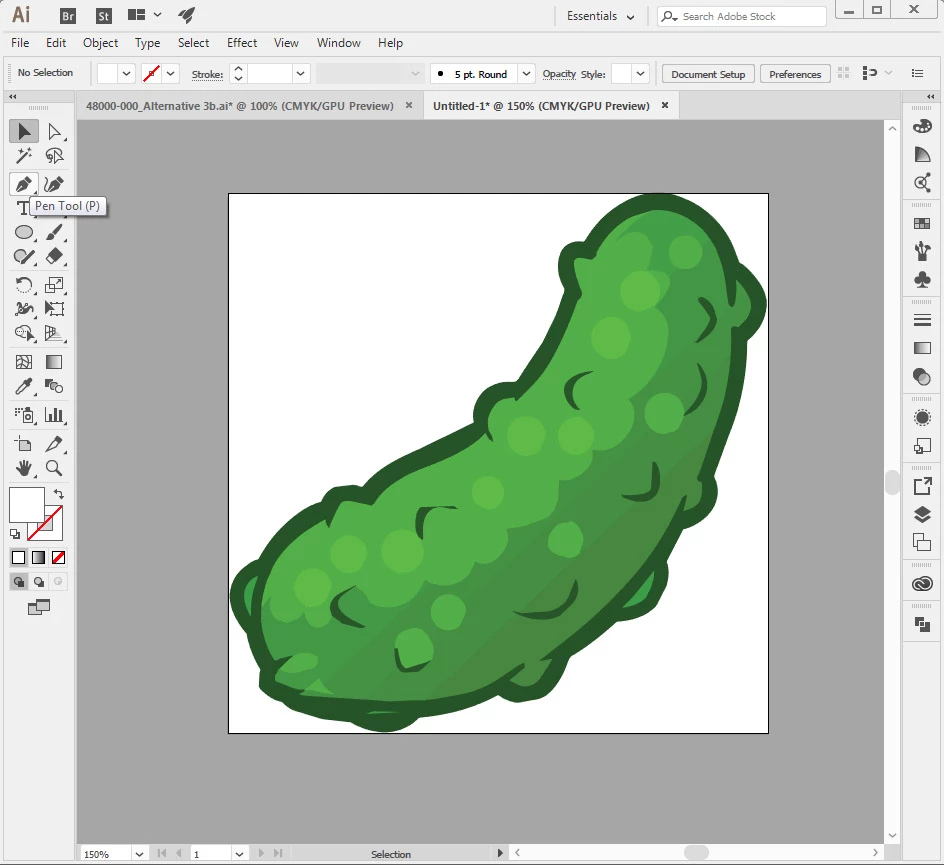
Let export Mr. Pickle here as a 5" x 5" 300 dpi PNG.
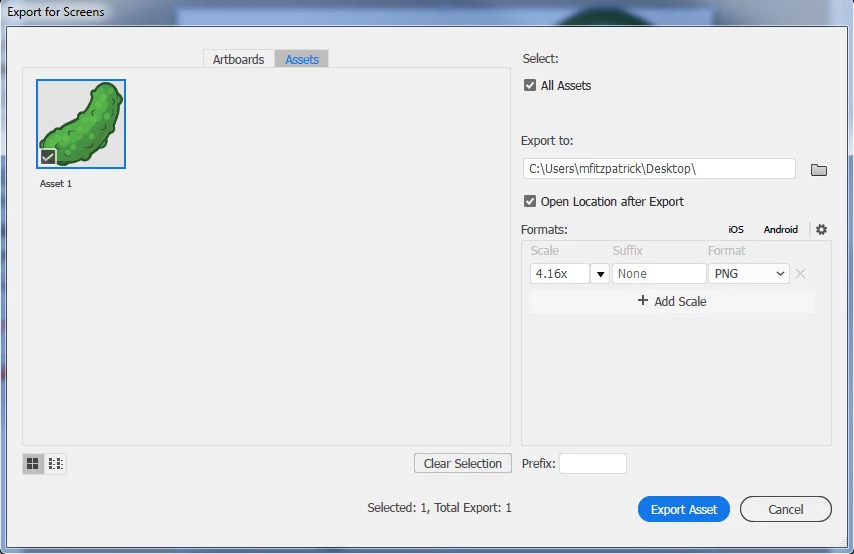
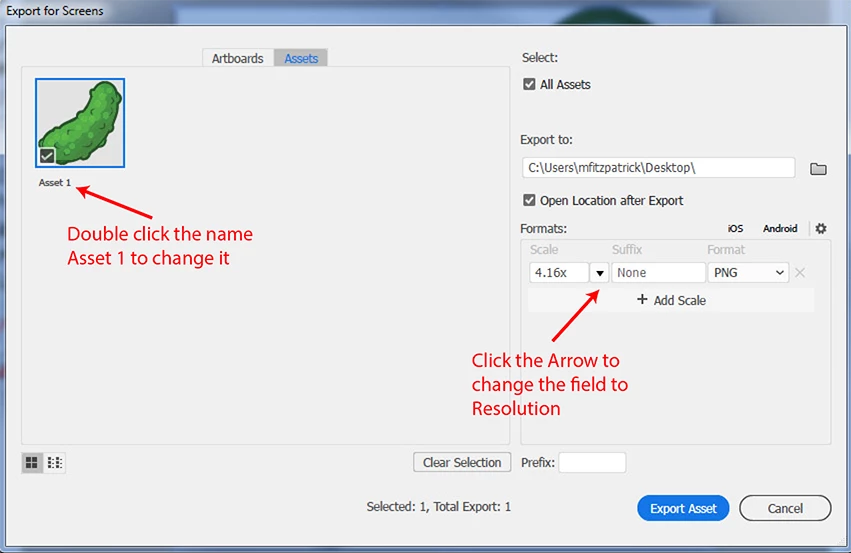
First, there is no way of saving the filename. With this option we're forced to use the "suffix" box to name files otherwise it saves the filename as Asset1.png or Artboard1.png. This is unacceptable. Second, there is no way of selecting 300 dpi. Instead we're required to enter 4.16x to get something close to that dpi size. I think 4.16X gives us 299.519 dpi. This is a ridiculous way to set the dpi.
For my company, Export for Screens is useless.
Now lets use Export As... (the option we've been using for years)
Here we have a 16.53 x 6.85 artboard.
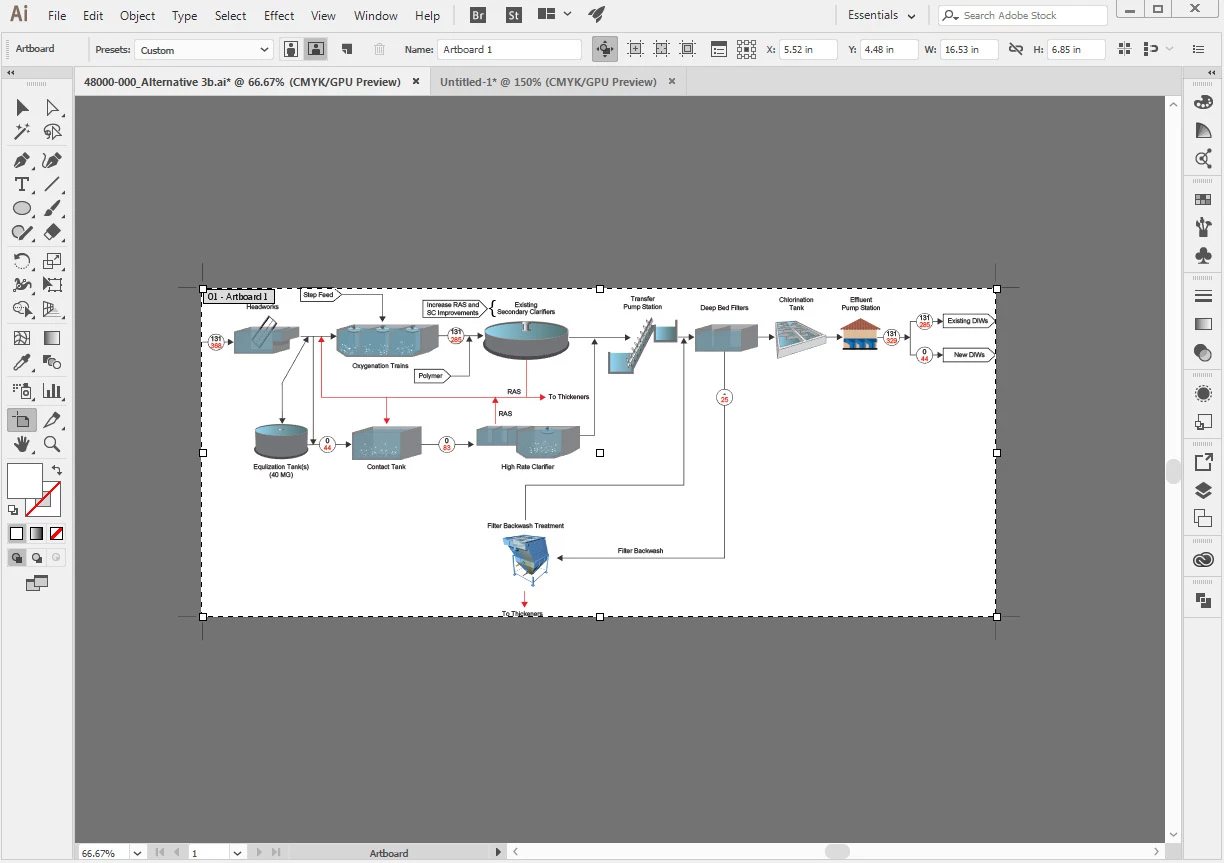
Without selecting "Use Artboards" (because it alters the filename), let see what Export As does.
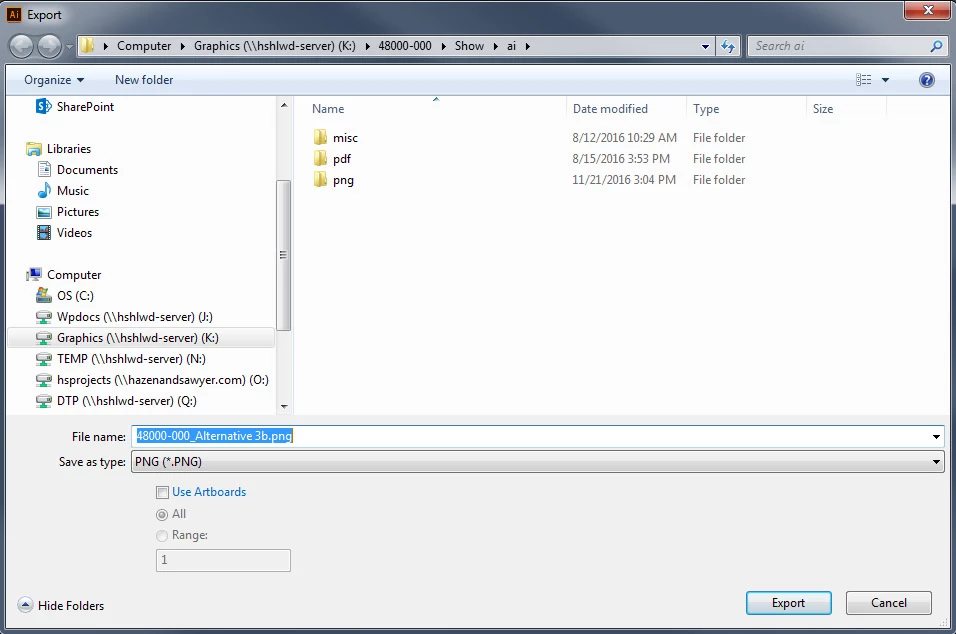
At least the filename convention is working this time. Let's export.
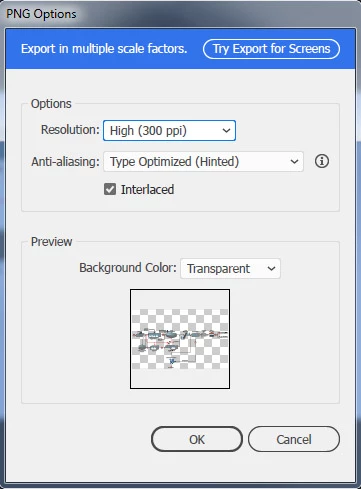
I can already see this doesn't look right. There is additional blank space being added above the artboard. I have checked this file a dozen times and there are absolutely no objects locked or unlocked above the artboard. Here's the result.
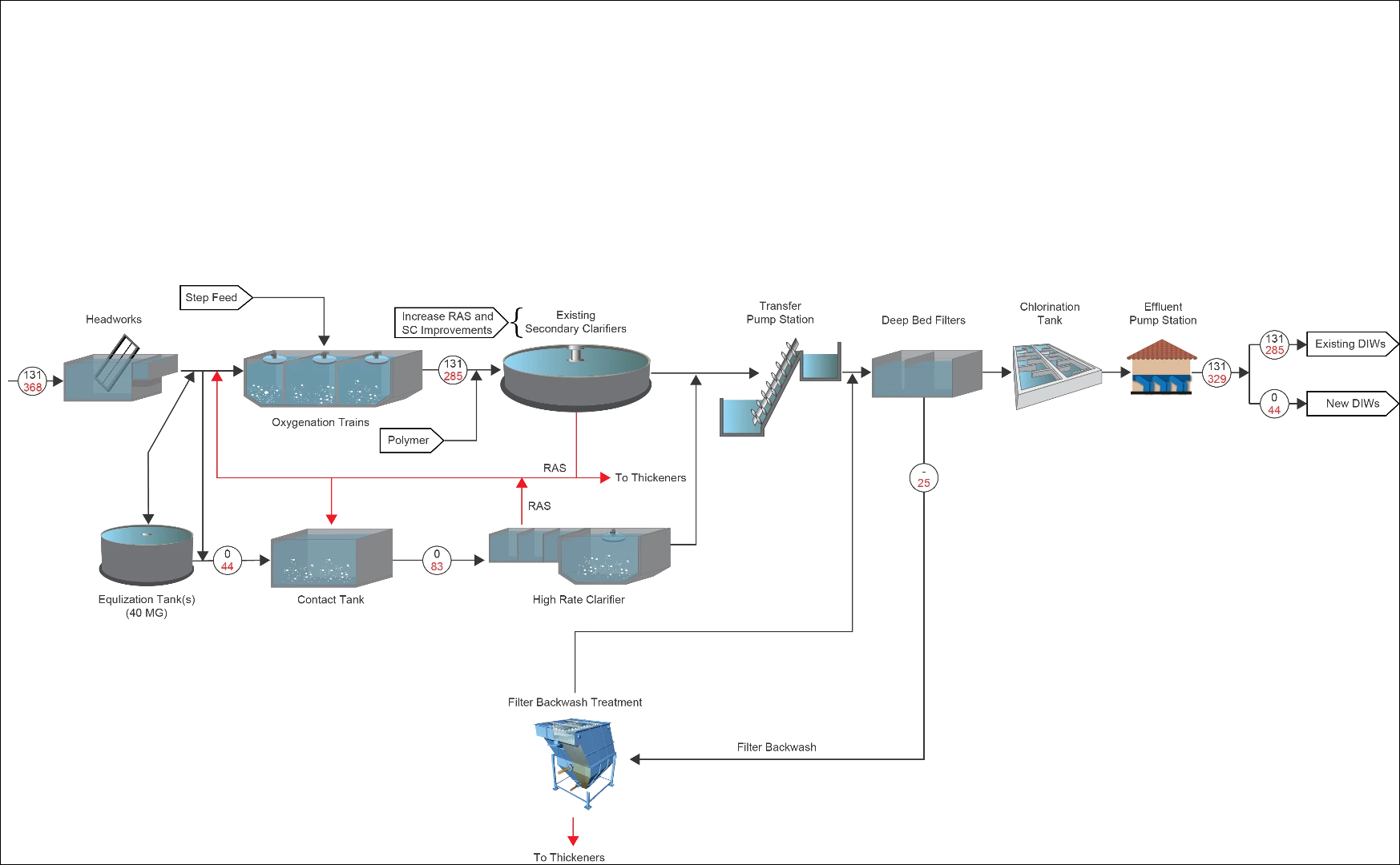
So what new Hell is this? Now the exported image needs to be cropped in Photoshop. Oddly this doesn't happen on every document, but it happens enough to annoy the Hell out of us.
As far as I'm concerned, this is sloppy programming and far from an improvement over the previous methods of exporting.
 AdChoices