sdmp1754129
Inspiring
November 21, 2019
Answered

Export PNG error

  • November 21, 2019
  • 6 replies
  • 1375 views

Hello, 

I've try to export different sizes of a logo as a PNG file. The export seems OK but when I see generated files I discover that some of  has 1px more (some of them had it in only side -up generally-, others had 1px in all sides...) and I don't know why! 

So then I opened it in PS and cut them to the correct size, but when I import in other app (for using them like icons in an app), the thumbnail in mobile version has 1px aprox. in black, and I don't know why either. 

Attached an image to show the sizes (these are from 1x folder, but happen in all)


Maybe exists other ways to proceed and create icons for app mobile, but I don't know how and I would be glad to hear suggestions or tricks or... something! 


Thanks!
 

This topic has been closed for replies.
Correct answer Ton Frederiks

I had a look at your file and found 2 icons with added pixels: 29X29 and 83X83

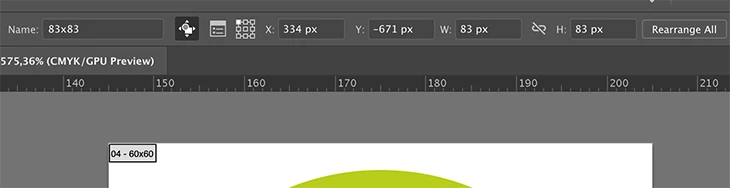
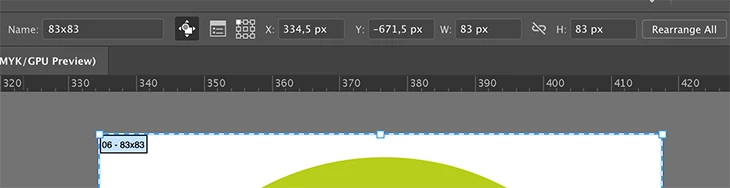
If you set the XY coordinate point to the center, it looks fine, but if you check the Upper left, you will find fractional values, causing the extra pixels. Set them to whole values and you have the correct export.

Fractional:

Corrected:

6 replies

Ton Frederiks
Community Expert
Community Expert
November 29, 2019

And the easiest way to correct it is to choose Rearrange All Artboards in the Artboards panel.

Ton Frederiks
Community Expert
Ton FrederiksCommunity ExpertCorrect answer
Community Expert
November 29, 2019

I had a look at your file and found 2 icons with added pixels: 29X29 and 83X83

If you set the XY coordinate point to the center, it looks fine, but if you check the Upper left, you will find fractional values, causing the extra pixels. Set them to whole values and you have the correct export.

Fractional:

Corrected:

sdmp1754129
Inspiring
December 2, 2019

It works! Thank you so much. 

Anyhow, when I re-order the artworks by the way you say, two artworks that have odd number, don't align without decimals. But it's fine because like I'm said before, it works and these is enough, so... Thanks again! 


I hope don't forget it : )

Ton Frederiks
Community Expert
Community Expert
December 2, 2019

Good to hear that helped!

Ton Frederiks
Community Expert
Community Expert
November 29, 2019

Can you share the Illustrator file that you show in your screendump?

sdmp1754129
Inspiring
November 29, 2019

Sure. How can I share it? 

Ton Frederiks
Community Expert
Community Expert
November 29, 2019

Do you have a stroke around your artboard, that could add additional pixels? In that case, use the "Use Artboards" option when exporting.

It can also be caused by anti-aliasing when fractional pixel values are exported (fractional pixels do not exist)

You can try this:

In Illustrator set your units to pixels or points.

Your art and artboard should not contain fractional pixels (points).

Check your Rulers, are they Global rulers?

Check the Artboard options; are the top left X/Y coordinates whole numbers (no fractions)

Select and check the art, are the width and height whole numbers, are the upper left X/Y coordinates  whole numbers?

Export at 72 ppi or a multiple thereof (144, 216, 288).

sdmp1754129
Inspiring
November 29, 2019

Hello,

I chek my file and chek all the things you say, and... yes, every looks right. 


In this artboard (specifically) that I share, you will see the size and position of my icon. There's not have any stroke... And when I export them I use the option "Use artboards"


sdmp1754129
Inspiring
November 29, 2019

Anybody knows or thought anything?

Monika Gause
Community Expert
Community Expert
November 21, 2019

Is the artwork exactly aligned to the pixel grid?

sdmp1754129
Inspiring
November 25, 2019

Hello Monika, 

Yes, the artwork is aligned to the pixel grid (at least as far as I know.. of course)


But when I exported it, for example, in this image that I share the size are 76 x 76 px and the png exported is 76x77 and I don't know why happens