
Inspiring
May 14, 2021
Answered

Exporting AI Artboards as JPG or PNGs

  • May 14, 2021
  • 2 replies
  • 706 views

I have tried various ways to create JPGs and PNGs from AI artboards and each time I run into an issue. Here is what I have tried and what went wrong:


- Save for web: This seems to shift the content down and to the right slightly. You can see below the AI artboard on the left and then the exported JPG on the right, which has a thin white line on the top and left side.
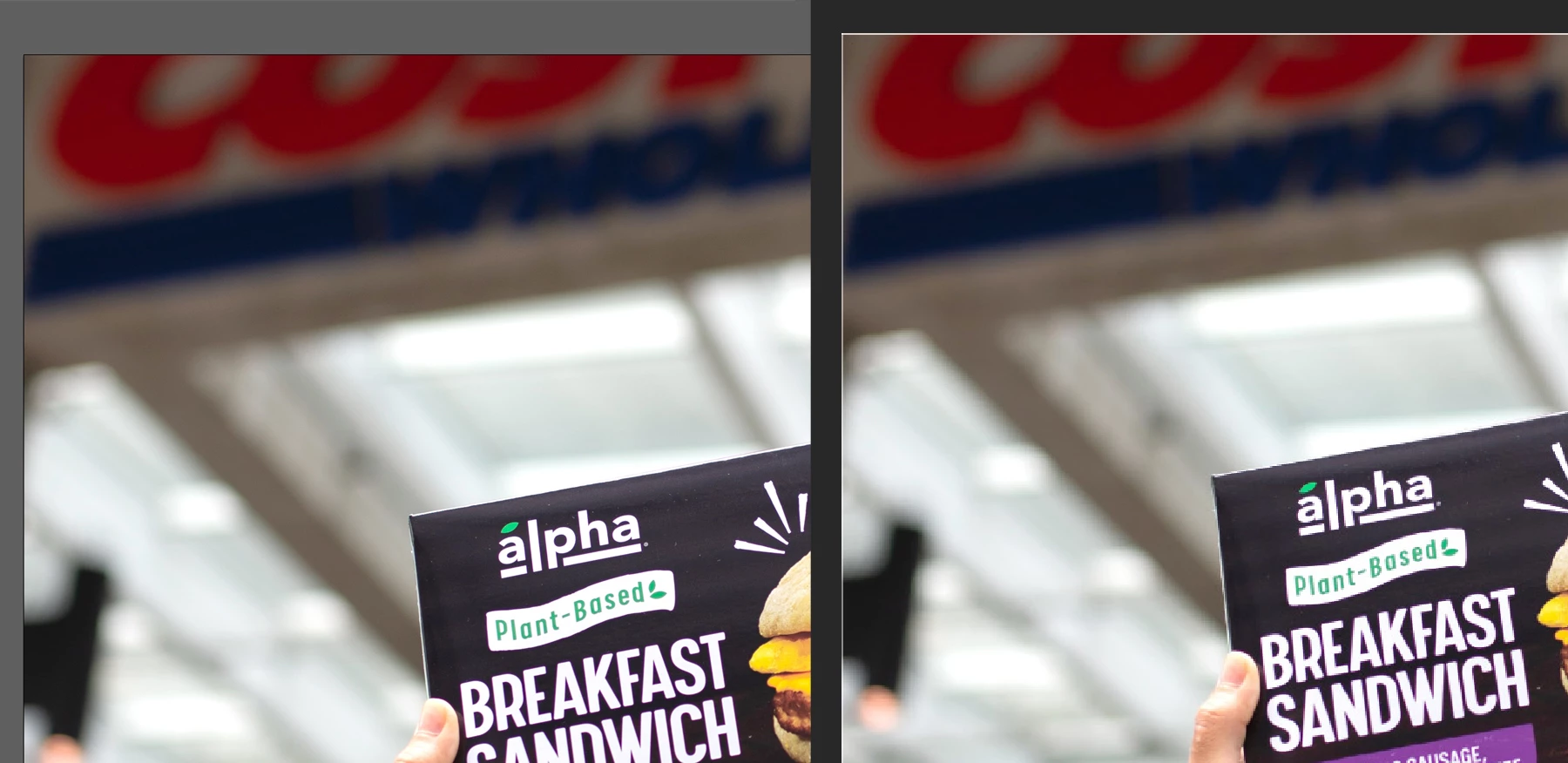
 

- Export for screens: The same thing as above happens.


- Open AI file in PS: When I open the AI file in PS, the Import PDF dialog box opens but is so slow and sometimes just freezes up entirely. It can take 20 seconds for the box to respond to my commands if at all.

Thank you!

This topic has been closed for replies.
Correct answer Ton Frederiks

Set your units as pixels.

Use Global Rulers.

Also make sure that your artboards have round pixel values for Width and Height and that the top left X Y values don't contain fractional pixels to avoid that extra pixels are added.

Check the Use Artboards option during Export > Export As...

Export at multiples of 72 ppi (144, 288, which is done by choosing 1x, 2x…) to avoid fractional pixel values that are rounded to a whole pixel.

2 replies

Ton Frederiks
Community Expert
Ton FrederiksCommunity ExpertCorrect answer
Community Expert
May 14, 2021

Set your units as pixels.

Use Global Rulers.

Also make sure that your artboards have round pixel values for Width and Height and that the top left X Y values don't contain fractional pixels to avoid that extra pixels are added.

Check the Use Artboards option during Export > Export As...

Export at multiples of 72 ppi (144, 288, which is done by choosing 1x, 2x…) to avoid fractional pixel values that are rounded to a whole pixel.

Inspiring
May 18, 2021

Thank you so much!!!

Doug A Roberts
Community Expert
Community Expert
May 14, 2021

Whatr are the x/y values of your artboard? What resolution are you exporting?

Inspiring
May 18, 2021

Solved, thank you!