
Participant
August 31, 2021
Answered

Exporting shows hidden objects

  • August 31, 2021
  • 6 replies
  • 739 views

OK, so I'm trying to export something (whether as an image or PDF) that's supposed to look like this:
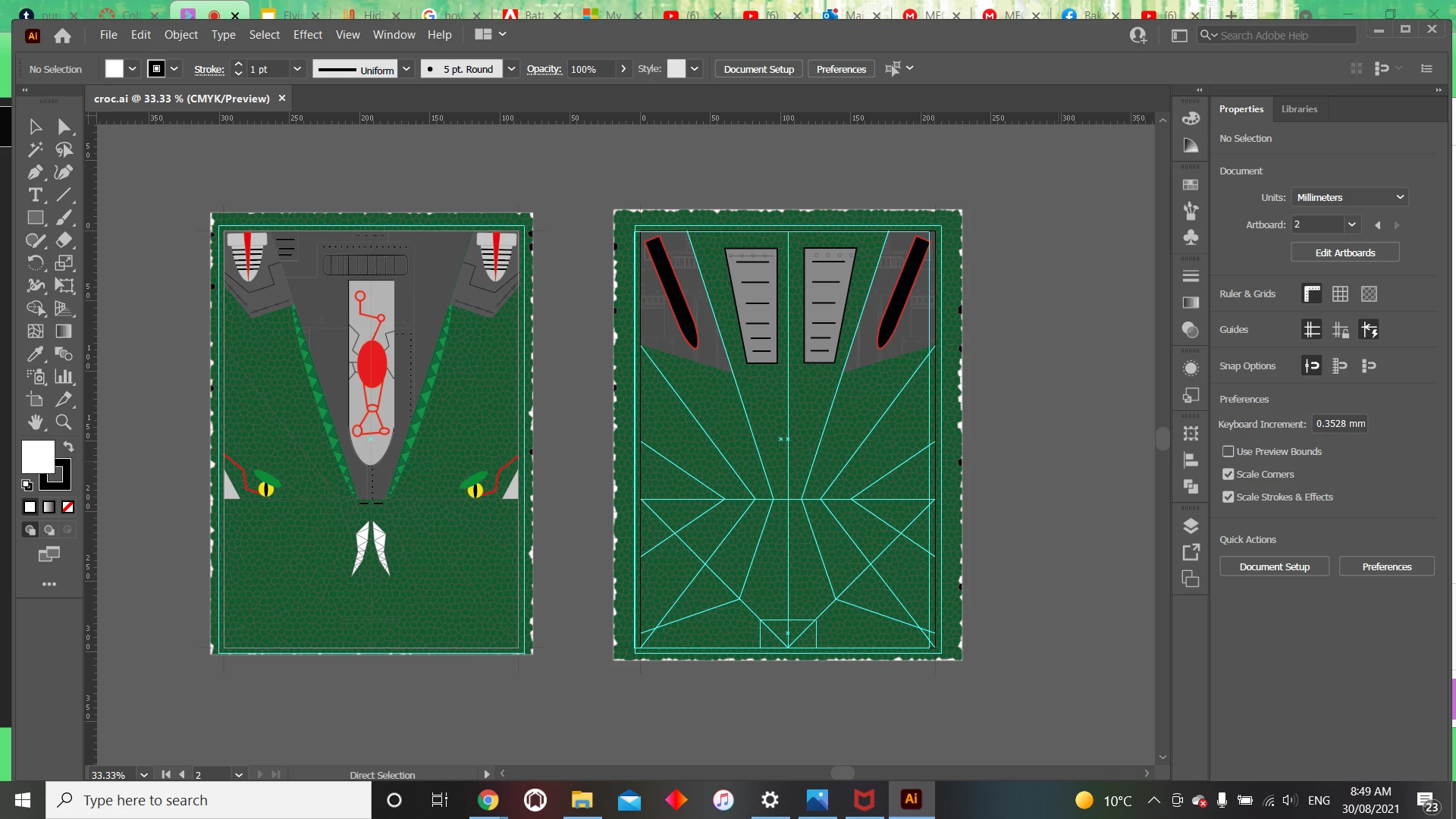
But when it's exported various artifacts show up like this:
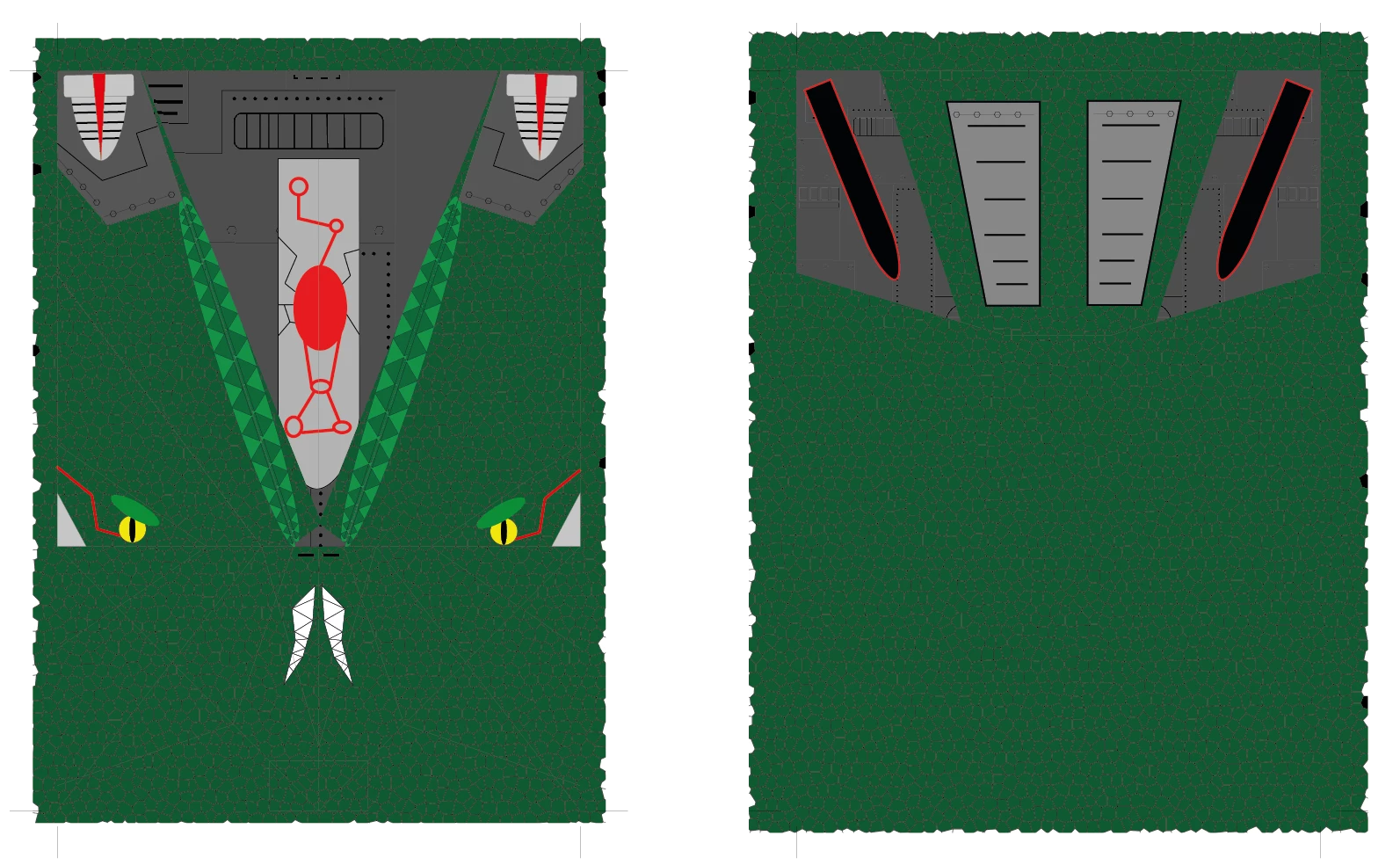
Look at the centre of the first panel, there are two spines instead of one cut in two...


How do I fix this and export everything properly?

This topic has been closed for replies.
Correct answer Kurt Gold

I recommend to clean up this foul construction.


The two zombie clipping paths I already mentioned are corrupt objects. Normally they should not even be able to clip anything, but for some unknown reason they actually do clip an area. You can see it if you locate them in the Layers palette and then hide them.


Furthermore there are two other dubious (open) clipping paths (right below the zombies) which should probably be removed as well.


6 replies

Kurt Gold
Community Expert
Kurt GoldCommunity ExpertCorrect answer
Community Expert
September 2, 2021

I recommend to clean up this foul construction.


The two zombie clipping paths I already mentioned are corrupt objects. Normally they should not even be able to clip anything, but for some unknown reason they actually do clip an area. You can see it if you locate them in the Layers palette and then hide them.


Furthermore there are two other dubious (open) clipping paths (right below the zombies) which should probably be removed as well.


Kurt Gold
Community Expert
Community Expert
August 31, 2021

I think it's some kind of corruption.


Ton Frederiks
Community Expert
Community Expert
August 31, 2021

Export for screens and use artboards (include bleed) seems to work.

Participant
September 2, 2021

Yeah thanks... but the problem is that it exports the file in relatively low quality...

Monika Gause
Community Expert
Community Expert
September 2, 2021

The quality can be adjusted when you click on the cogwheel symbol.

Anna Lander
Inspiring
August 31, 2021

There is a very complex structure 🙂
But what you can do quickly: change the order of the layers. Move the Top of Wings and Top of Wings copy layers under the Page Outline layer. Then the main gray shape ( = crocodile's head) looks fine after export.

Kurt Gold
Community Expert
Community Expert
August 31, 2021

Can you share this Illustrator file?


Also, which version of Illustrator are you using?


Participant
August 31, 2021

I'm using Illustrator 2021

You can find the file here: https://drive.google.com/file/d/1V96JaOAczIPPrBlJvF1o-JAvD8UY2VJB/view?usp=sharing

Anna Lander
Inspiring
August 31, 2021

Show please the Layers panel expended? it seems there may be some useful info.

Participant
August 31, 2021