KaylePS
Participating Frequently
April 27, 2020
Answered

Exporting with alpha channel - Help!

  • April 27, 2020
  • 6 replies
  • 10430 views

Hey! I hope one of you can help me with this. I´m a total Illustrator beginner and I´m facing a problem the Internet just couldn´t help me with.

I got a vector graphic that I need to convert to be used in Photoshop.

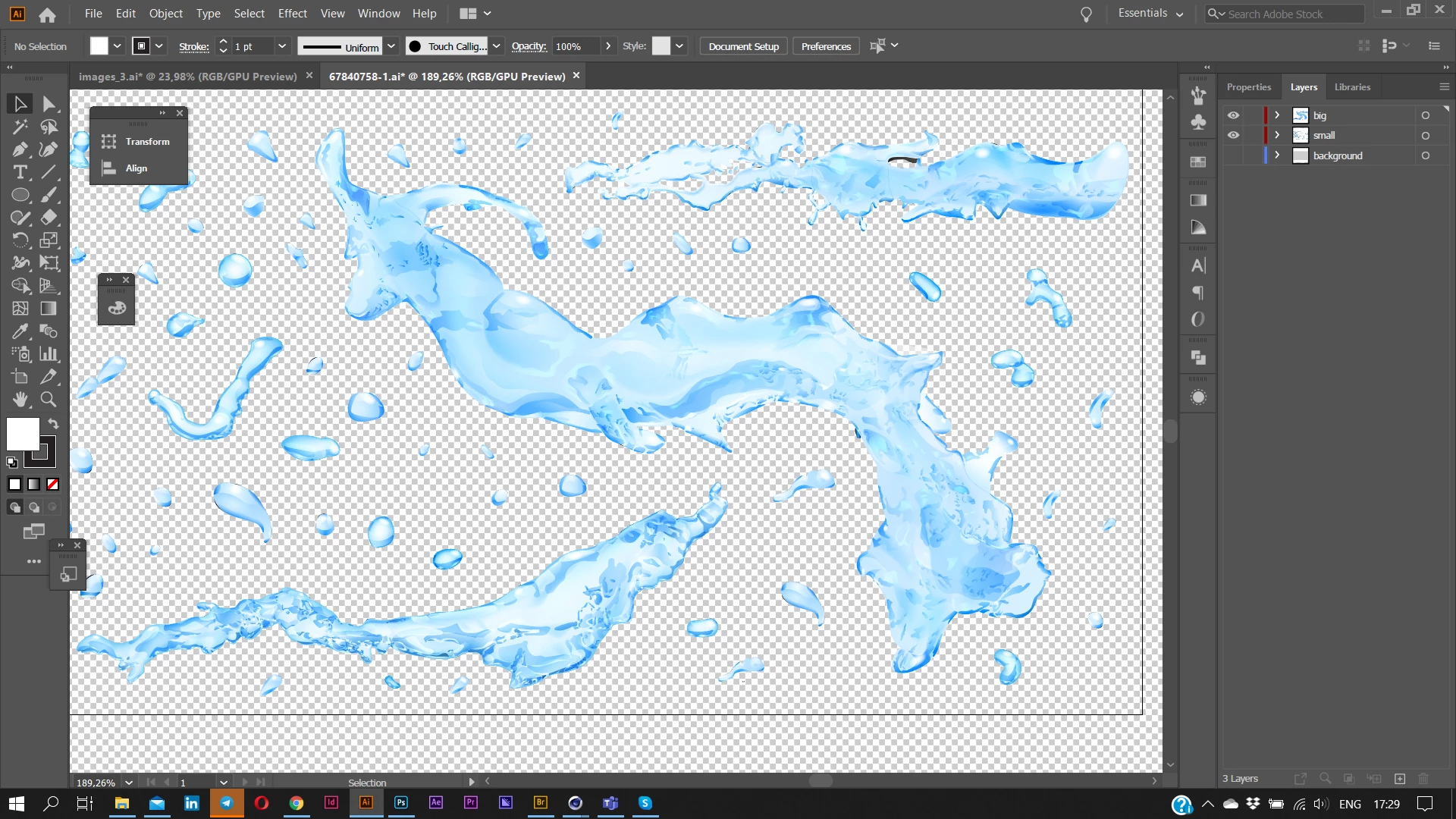
It looks like this :
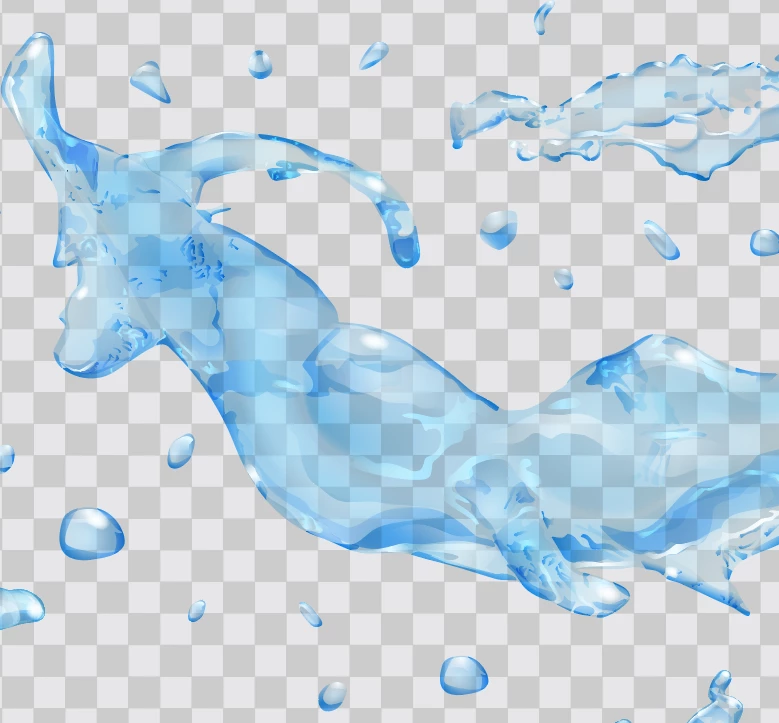
I need to find a way to either create an Alpha Channel or to export this file with it´s current opacity.

All I manage to do right now is export it with total transparency which looks like this : 
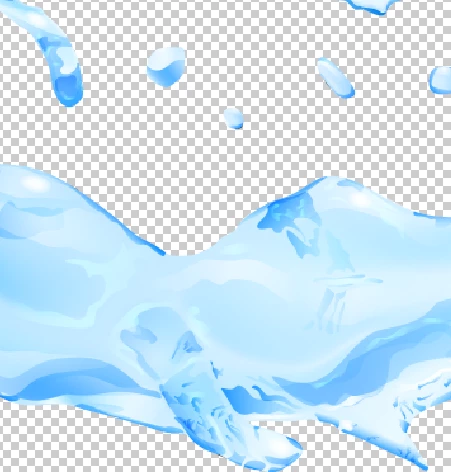
 

Can someone give me a beginner friendly way to do that? You´d make my day ❤️

Thank you very much in advance!
Correct answer Anna Lander

Yes, I see.

Well, the problem is that your objects are not really transparent. All transparency is made by blending modes, It's OK when you have something below your object to create blend (you see, if there is no content below, there is no blending)

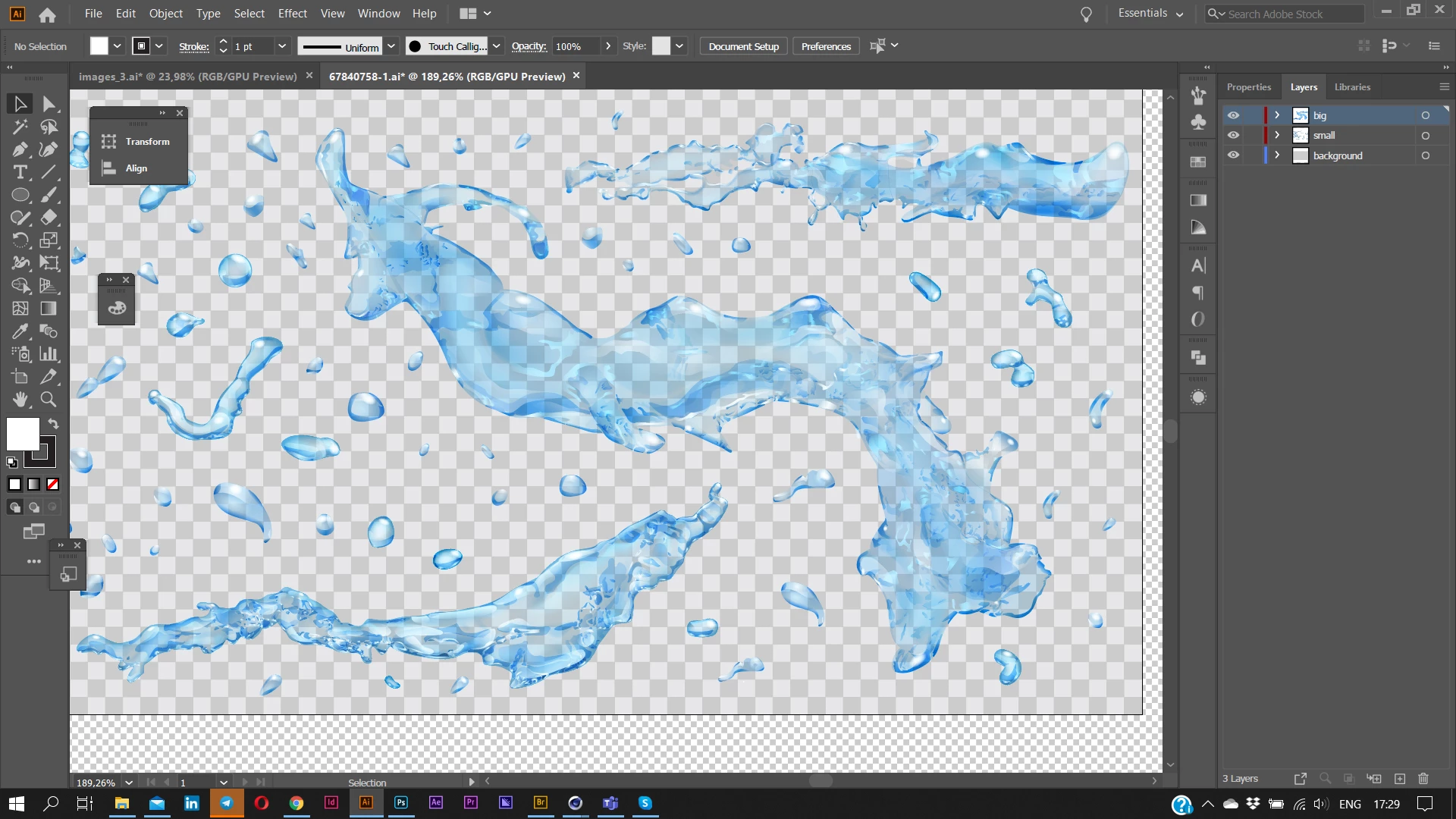
SO, when you have a fake transparency grid under the water splashes, it becomes a base for blending:

but if we hide the fake grid and look at the image on the real grid, we see another image:

All transparency has gone: there is no object to blend with it.

And the same thing takes place when you export or copy your art outside Illustrator.

So, if you don't want to change the appearance of all the splashes, the best way is to follow Ton's adbice and use the AI art as a main and add the photoshop content there.

6 replies

Oscar Curiel
Participant
April 28, 2024

I have the same situation but worst, any solution so far?

Anubhav M
Community Manager
Community Manager
May 3, 2024

Hello @Oscar Curiel,

Sorry to hear about your experience. Would you mind sharing more details about your exact workflow, the OS/Illustrator version, and public links to a sample AI file after uploading it to Dropbox/Google Drive/etc., so we can better assist you?

Looking forward to hearing from you.


Thanks,

Anubhav

Anna Lander
Inspiring
April 27, 2020

If your AI is 2020 version, you can use the Free Gradient instead Gradient Mesh (the example below is not trying to re-create exactly an original appearance but just a sample).

Left is original, right is re-created with Free gradients/

On a fake grid:

on a real transparency:

Ton Frederiks
Community Expert
Community Expert
April 27, 2020

Ton Frederiks
Community Expert
Community Expert
April 27, 2020

It is probably easier to work the other way around and bring the Photoshop content into Illustrator below the water drops and above the fake transparency grid.

KaylePS
KaylePSAuthor
Participating Frequently
April 27, 2020

Can´t do that sadly 😐 The final content is not used as an image but as part of a 3D model texture.

Anna Lander
Inspiring
April 27, 2020

What about adding as a bg layer the "diffuse" color for a texture or the texturised image if you plan create something more complex? And then export to any texture-compatible format (psd, png, jpg etc.)?

Otherwice you will need to change all fills to transparent-based form. It's not catastrofically difficult, but takes quite long time.

Anna Lander
Inspiring
April 27, 2020

could you please share a file (no need all one, you can put the part into a new file to show its structure)

I've tried to repeat the issue, and the easiest way (to open the file directly in PS) worked fine.

in AI:

in PS:


so it's difficult to say anything without seeing the working file.

KaylePS
KaylePSAuthor
Participating Frequently
April 27, 2020

Hey! I´ve send you a message with the link. Thank you for having a look!

I can open the file in photoshop directly, but the checkered background that is supposed to be transparent ends up being baked into the texture without a way to seperate the layers.

I can export it from Illustrator without the background layer but then it ends up being Picture 2.

Anna Lander
Anna LanderCorrect answer
Inspiring
April 27, 2020

Yes, I see.

Well, the problem is that your objects are not really transparent. All transparency is made by blending modes, It's OK when you have something below your object to create blend (you see, if there is no content below, there is no blending)

SO, when you have a fake transparency grid under the water splashes, it becomes a base for blending:

but if we hide the fake grid and look at the image on the real grid, we see another image:

All transparency has gone: there is no object to blend with it.

And the same thing takes place when you export or copy your art outside Illustrator.

So, if you don't want to change the appearance of all the splashes, the best way is to follow Ton's adbice and use the AI art as a main and add the photoshop content there.

Ton Frederiks
Community Expert
Community Expert
April 27, 2020

Copy in Illustrator.

Create a New File in Photoshop.

Paste?

KaylePS
KaylePSAuthor
Participating Frequently
April 27, 2020

That would have been great, but no. It looses it´s opacity as in picture two.

Legend
April 27, 2020

Why can't you just open it directly in Photoshop? If the opacity is messed up you reapply transparency to its layer.