
Participant
July 5, 2017
Answered

Eyedropper does not work properly apply fill to direct selected objects in groups

  • July 5, 2017
  • 2 replies
  • 764 views

I couldn't find a similar post on here so I made my own. Thanks in advance.

Adobe CC - Illustrator CC 2017 (OSX, latest)

I have found this to be a very irritating bug that I encounter very frequently:

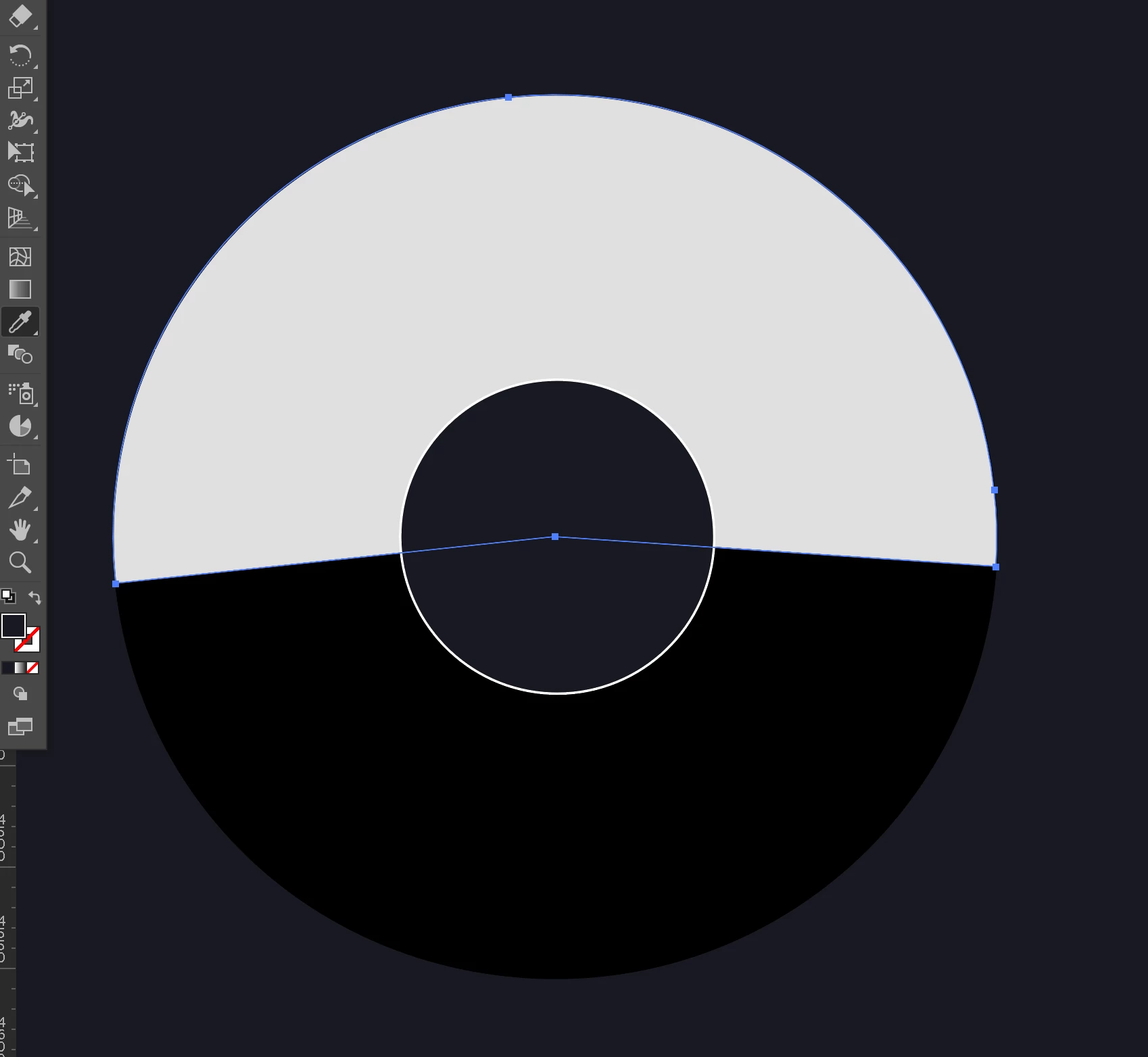
If two or more objects are grouped together, and I direct select an item from said group, and then use the eyedropper to pick up and apply a style from elsewhere in the document, the fill color change does not register (everything else does). To be clear, the UI indicates that the style has been changed (see screens), although it actually hasnt applied to the object.

Example. A red and blue square are group together. Elsewhere in the document is a black square with a white stroke. If I direct select the blue square, then select the eyedropper and click on the black square, the blue square will remain blue, though the "fill indicator" in the UI will show it as black.

NOTE: all eyedropper settings are enabled, and work with singular objects, it just does not function properly with directly selected grouped objects

    This topic has been closed for replies.
    Correct answer Bill Silbert

    I recreated what you described and found the eye dropper worked correctly. The Blue square took on the attributes of the black square with the white stroke and read correctly in the UI. See screen shot below:

    Have you tried deleting your preference files? I've found that CC 2017 does not work well with preference files picked up from previous installs.

    To delete your preferences:

    For Macintosh Users: With Illustrator closed launch a Finder Window in column view and click on your home folder. With the Option Key pressed choose Library from the Finder Go Menu. Within the Library folder find the following two files and delete them: “Adobe Illustrator <Version #> Settings” (earlier versions of Illustrator might just say “Adobe Illustrator”) and “com.adobe.Illustrator.plist”. When Illustrator is next launched it will create new preference files and the program will be restored to its defaults.

    After you’ve reset up the program (make sure that no document window is open) to your liking, it is a really good idea to create copies of your personalized “mint” preference files (make sure that you quit the program before copying them—that finalizes your customization) and use them in the future to replace any corrupt versions you may need to delete.

    For Windows Users: Hold down Ctrl + Alt + Shift when launching Illustrator and respond affirmatively when asked if you want to reset.

    I hope this helps.

    2 replies

    Bill Silbert
    Community Expert
    Bill SilbertCommunity ExpertCorrect answer
    Community Expert
    July 5, 2017

    I recreated what you described and found the eye dropper worked correctly. The Blue square took on the attributes of the black square with the white stroke and read correctly in the UI. See screen shot below:

    Have you tried deleting your preference files? I've found that CC 2017 does not work well with preference files picked up from previous installs.

    To delete your preferences:

    For Macintosh Users: With Illustrator closed launch a Finder Window in column view and click on your home folder. With the Option Key pressed choose Library from the Finder Go Menu. Within the Library folder find the following two files and delete them: “Adobe Illustrator <Version #> Settings” (earlier versions of Illustrator might just say “Adobe Illustrator”) and “com.adobe.Illustrator.plist”. When Illustrator is next launched it will create new preference files and the program will be restored to its defaults.

    After you’ve reset up the program (make sure that no document window is open) to your liking, it is a really good idea to create copies of your personalized “mint” preference files (make sure that you quit the program before copying them—that finalizes your customization) and use them in the future to replace any corrupt versions you may need to delete.

    For Windows Users: Hold down Ctrl + Alt + Shift when launching Illustrator and respond affirmatively when asked if you want to reset.

    I hope this helps.

    Participating Frequently
    October 23, 2023

    Unfortunately, even with a clean install and new preferences, I am personally having the same issue (currently running 28.0 on a Mac).

    Monika Gause
    Community Expert
    Community Expert
    October 24, 2023

    Press shift when using the eyedropper tool.

    BTW: this thread is 6 years old.

    Kurt Gold
    Community Expert
    Community Expert
    July 5, 2017

    Can you provide a sample .ai file with some instructions?

    Perhaps the issue can be reproduced.