
Participant
May 25, 2023
Answered

Farbverlauf anpassen
  • May 25, 2023
  • 4 replies
  • 571 views

Hallo Community.

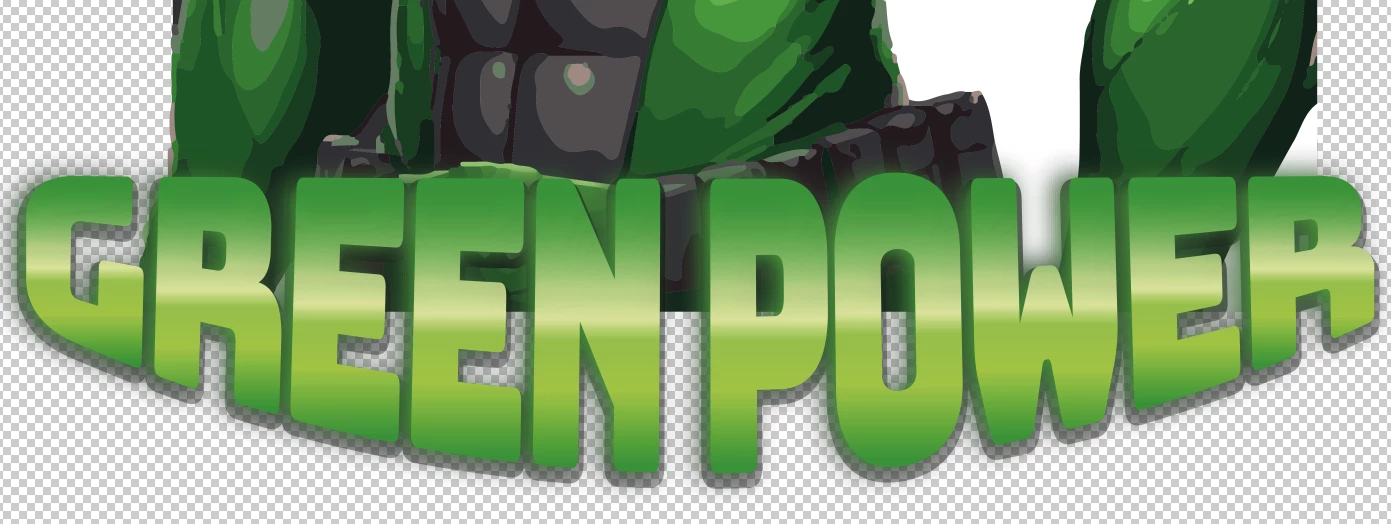
Ich habe folgendes Problem mit dem Farbverlauf des Textes. Ich hätte gerne das Highlight in der horizontalen Mitte auf einer Linie. Bei "G,R" links und "E,R" rechts ist der Abstand zum Median zu groß. Wie lässt sich das am besten Anpassen? 


Beste Grüße
This topic has been closed for replies.
Correct answer kphotopage

Liluzileo, Hi


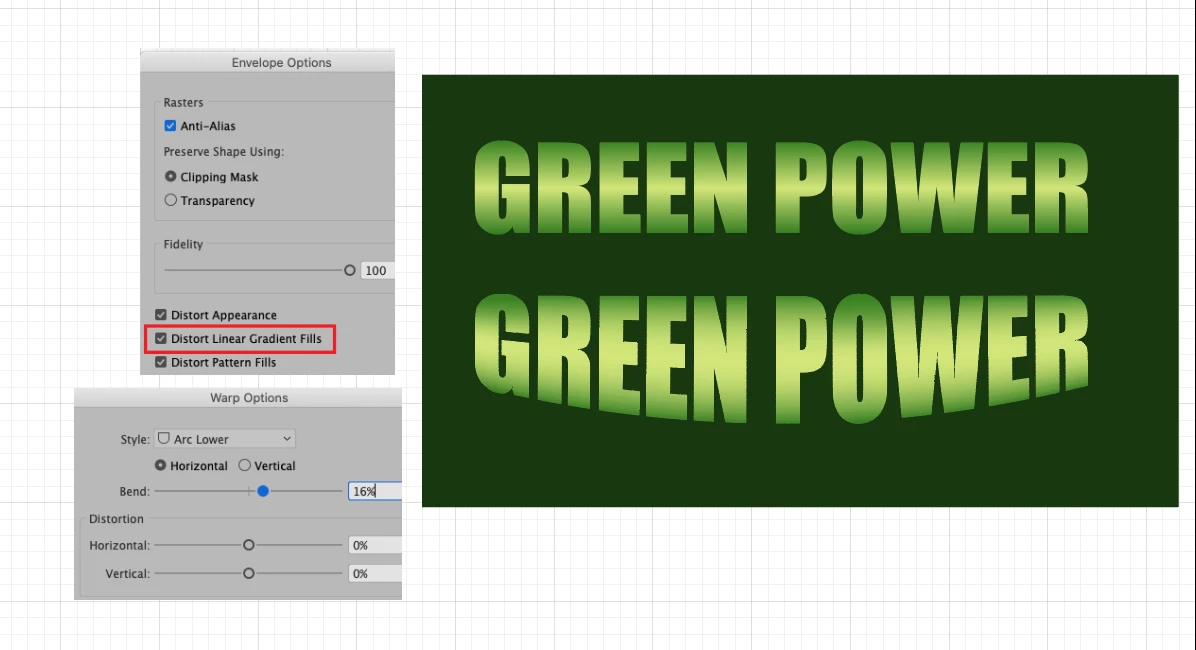
Here I am working with Live Type.

Text tool, set your type. Fill it with color None.

Switch to Black arrow, Appearance Panel, Add new Fill. Fill with your gradient green.


Next Object>Envelope Distort.

Here I gave it an Arc Lower.

Notice your Gradient Fill will distort to your Arc Lower.


Is this what you were hoping for?


K

4 replies

kphotopage
kphotopageCorrect answer
Legend
May 26, 2023

Liluzileo, Hi


Here I am working with Live Type.

Text tool, set your type. Fill it with color None.

Switch to Black arrow, Appearance Panel, Add new Fill. Fill with your gradient green.


Next Object>Envelope Distort.

Here I gave it an Arc Lower.

Notice your Gradient Fill will distort to your Arc Lower.


Is this what you were hoping for?


K

Jacob Bugge
Community Expert
Community Expert
May 25, 2023

liluzileo,


The best way to solve it depends on the exact way you wish the colour transition to look.


If you wish to have a straight transition as in a linear vertical gradient, you can only move the highlight up so the taller letters have it above middle and the lower lettes have it beneath middle.


I believe you would be happier with a curved midline highlight, and there are basically two approaches to choose between:


One approach is to have the same transition regarless of how tall the individual letters are, in other words only the tallest letters will have the full transition into the darker colours, whereas the lower letters will have less and therefore be paler at top and bottom, much like what you have in your screenshot.


This approach can be realized in the following way(s): create a large radial gradient that fits the curved midline and use the fronts of the letters as a Clipping Mask or an Opacity Mask so the gradient only shows within them; for a Clipping Mask you need to have them turned into one Compound Path, for an opacity Mask you can also have them as a Group but you need to change their colour into black or white and then apply Clip, along with Invert Mask if you have chosen black.


The other approach is to adapt the transition to the letter height so that all letters will have the full transition, in other words have the same darker colours at top and bottom.


This approach can be realized in different ways, which will undoubtedly require some adaptation of the transition.


One way is to create a gradient corresponding to the shortest letters, then Expand it to a Gradient Mesh and apply the Warp Effect Arc Lower to fit the height of the tallest letters at the middle, and then masking with the fronts of the letters as mentioned earlier.


Another way, or rather set of ways, is to work with Blends, maybe starting with a straight line corresponding to the top of the letters and a curved line corresponding to the bottom of the letters and create intermediate Steps as the basis for the transition which can be made in different ways.


Monika Gause
Community Expert
Community Expert
May 25, 2023

Gruppieren funktioniert nur, wenn man der Gruppe im Aussehen-Bedienfeld eine neue Fläche zuweist. 

ANsonsten: zusammengesetzten Pfad erstellen und dann Verlauf zuweisen

Mylenium
Legend
May 25, 2023

Objekte gruppieren, den Verlauf global auf die Gruppe anwenden, nicht die einzelnen Buchstaben.


Mylenium