Known Participant
August 24, 2017
Answered

Filling an drawing with two different color

  • August 24, 2017
  • 3 replies
  • 708 views

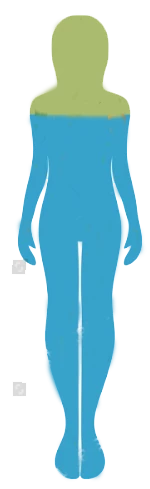
I searched the forum on how to fill objects with two different colors, but what I need to do is a little different.  I'd like to create 12 images that illustrate the ratio of two different hormones depending on the time of day, so the green-blue ratio will keep changing.  What I was hoping to be able to do is create a green square and a blue square, then lay them underneath an inversed shape so that the colors sort of "fill" the empty space.  By inversed, I'm referring to a possible technique whereby I could draw the image but only the outline would be there (i.e., like a cutout).  Would a mask be helpful for something like this?

I apologize if this sounds confusing ...

Robyn
    This topic has been closed for replies.
    Correct answer JonathanArias

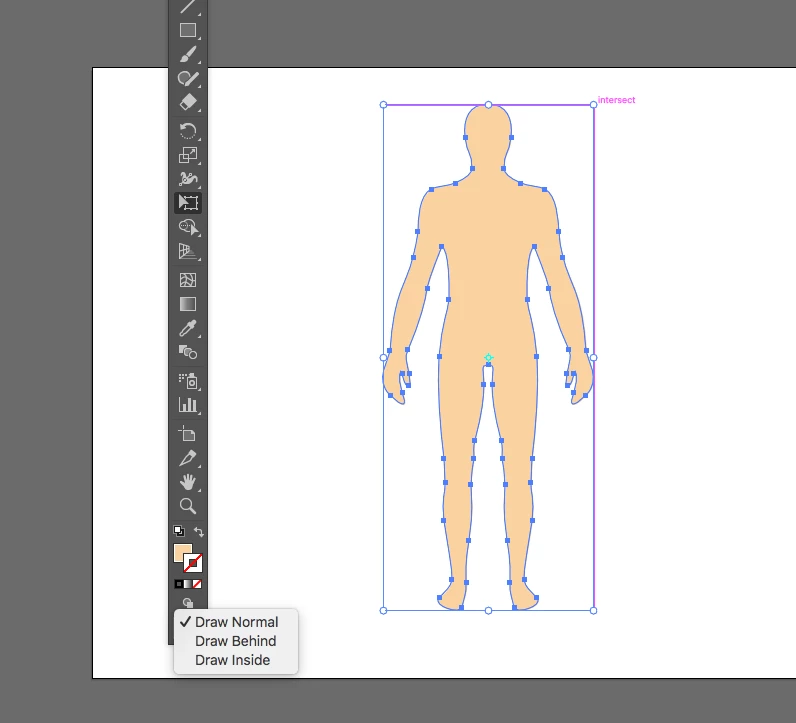
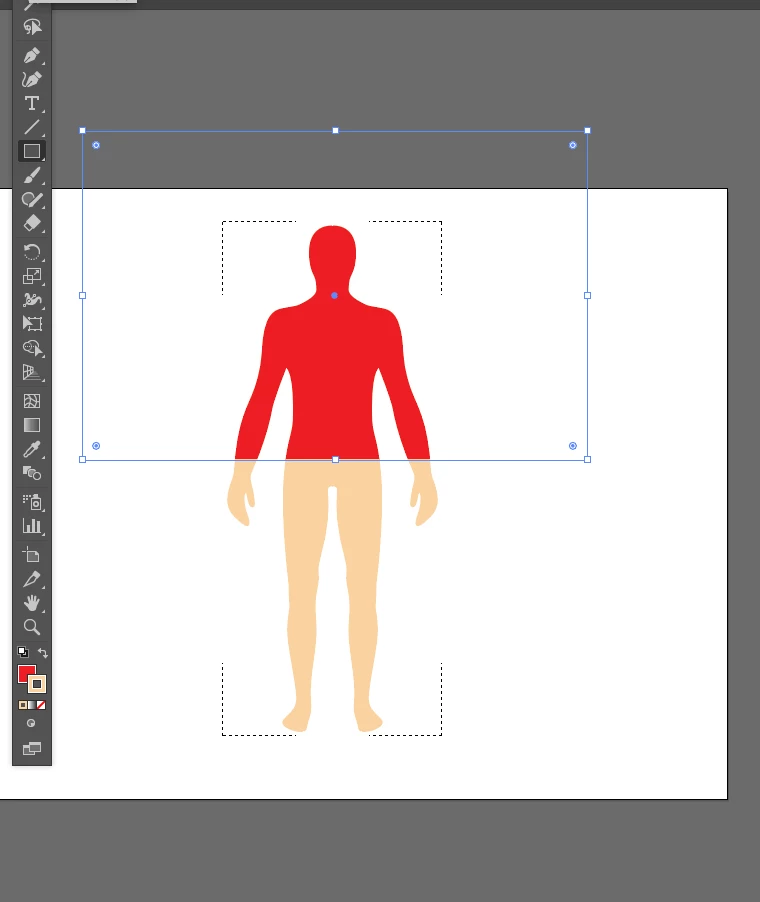
    Select your person shape. On your tool bar, look at my screenshot, select, "draw inside". Now that shape of the person will have a dotted line on the corner, you are now inside of it. .. now draw your square with the color you want. see my other screenshot.

    3 replies

    Jacob Bugge
    Community Expert
    Community Expert
    August 24, 2017

    Robyn,

    As I (mis)understand it, I would suggest the following approach:

    0) Place the body where you want it on the Artboard;

    1) Create the green square, or rather the green rectangle with a sufficient width at least the width of the body and a height exactly that of the body, then Ctrl/Cmd+X+B to bring it to the back;

    2) Move a copy vertically down (Object>Transform>Move) by the height, select both and Ctrl/Cmd+G to Group them;

    Now you have the two rectangles abutted and grouped, beneath the body in the stacking order;

    3) Select both the body and the rectangle group, click the body again to keep it from moving (key object), then in the Align palette click Horizontal Align Center and Vertical Align Bottom (or Top);

    This will place the rectangles behind the body corresponding to 100% blue (or green) hormone;

    4) Select everything and Ctrl/Cmd+7;

    This will make everything into a Clipping Mask where you see the rectangles within the body shape in a well defined state, ready for the 12 images;

    5) Create copies of 4 in different Layers or whatever, and then for each of the 12 states move the rectangle group up/down by the desired amount (you may select the Group withing the Clipping Mask and use Object>Transform>Move to move an exact amount/proportion each time.

    This means that you can work on that one setup instead of your having to create independent images.

    Known Participant
    August 25, 2017

    Thank you, Jacob. I read it through quickly and it makes a lot of sense. I'll give it a try tomorrow.

    Thanks for taking the time to clarify the steps.

    Robyn

    >

    Jacob Bugge
    Community Expert
    Community Expert
    August 25, 2017

    You are welcome, Robyn.

    I hope you will report your findings.

    Known Participant
    August 24, 2017

    Thank you everyone for all the tips you've provided.  Once I have someone draw the image, I'll try out your suggestions.  Very much appreciated!

    JonathanArias
    JonathanAriasCorrect answer
    Legend
    August 24, 2017

    Select your person shape. On your tool bar, look at my screenshot, select, "draw inside". Now that shape of the person will have a dotted line on the corner, you are now inside of it. .. now draw your square with the color you want. see my other screenshot.

    Known Participant
    August 24, 2017

    Thank you, Jonathan. I actually don't have the shape drawn yet. (I was wanting to understand the "how" before posting the request on a job board to have someone draw it.) I see now that I'll be able to do the various fill ratios myself once the drawing is complete. Thank you for settling the question for me.

    Robyn

    >