juliam56342833
Inspiring
Nov 2, 2026 2:37 PM UTC
Question

Fix hard lines and broken points in a gradient mesh

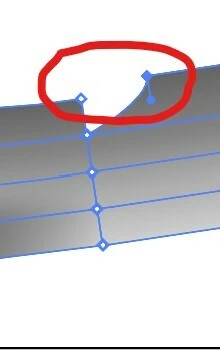
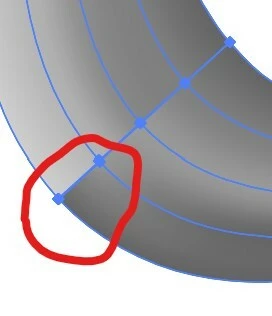
I created a path with a gradient across the stroke and expanded the appearance to convert it into a gradient mesh.  When trying to change some of the points colors, I tend to get harsh lines or if I move an anchor point, it breaks the mesh and I cannot merge the points (see images attached.)  Is there a way I can fix or work around this?
How to give the circled points a smooth blend like the 3 points above them?
What to do if these mesh points can’t be joined together?


    3 replies

    juliam56342833
    Inspiring
    Nov 2, 2026 3:36 PM UTC

    Thank you.  I think as a work around, I will change the color of one point, and if it’s overlapping with another point, I’ll move the top point out of the way then change the color of the bottom point then move the top point back into place.

    Translate
    Monika Gause
    Community Expert
    Community Expert
    Nov 2, 2026 5:47 PM UTC

    You can use the Lasso tool to select both mesh points together and then color them in one go. Just circle them with the lasso.

    Translate
    CORCTON34033231
    Community Expert
    Community Expert
    Nov 2, 2026 3:02 PM UTC

    Hi! Mesh points can't be joined together like regular anchor points — that's normal for a mesh, so you don't need to merge those two points.


    For the hard line, try this with the Mesh tool (U):

    1. Click the circled point to select it, then give it a color between the two sides — for example, a mid-grey between the light grey and the dark grey. You can also drag a color from the Swatches panel directly onto the point.

    2. If the jump is still too abrupt, add an intermediate point between the contrasting points: Shift-click with the Mesh tool to add a point without changing the color, then color that new point with the in-between shade. That extra step is what creates a gradual blend.

    3. If a stray point is causing a kink, you can remove it with the Mesh tool by Alt/Option-clicking it.


    Move mesh points with the Mesh tool rather than the Direct Selection tool, so the mesh lines stay connected. Adobe's guide on editing mesh objects is here: https://helpx.adobe.com/illustrator/desktop/paint-and-fill/create-and-edit-meshes/edit-mesh-objects.html


    Hope that smooths it out!

    Translate