Participating Frequently
May 8, 2020
Answered

glowing spots triangle

  • May 8, 2020
  • 3 replies
  • 1593 views

I am new to adobe community, 

I would like to create a Triangle and then apply a non uniform glowing effect

I would be thankful if someone could provide a link to tutorial or give me an advice.

Thank you

This topic has been closed for replies.
Correct answer federicoh31997127

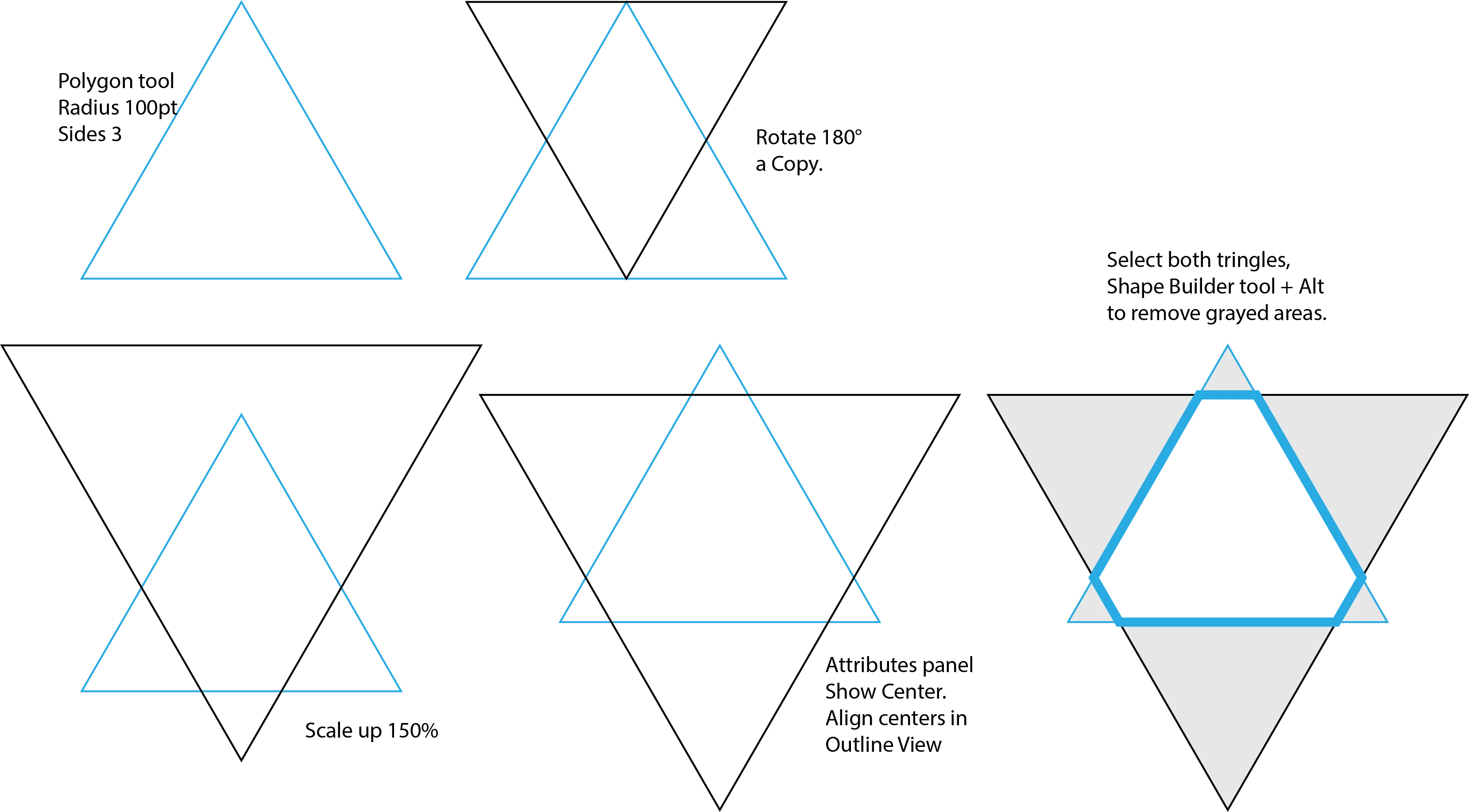
Select the Polygon Tool (Hidden below the Rectangle Tool, Click on the artboard enter a radius value, Sides 3.

Select the triangle and use the Rotate tool, press return and set angle to 180 degrees and press COPY.

Scale it up (Scale Tool+return) opening the Scale panel about 150%

Open the Attributes panel

Click the icon that shows the center of the triangles,drag one on top of the other center point. (try it in Outline view).

Select both trinagles. Now select the Shape Builder tool, hold Alt (Option) to remove the exterior pieces.
3 replies

federicoh31997127
federicoh31997127Correct answer
Participating Frequently
May 8, 2020

Select the Polygon Tool (Hidden below the Rectangle Tool, Click on the artboard enter a radius value, Sides 3.

Select the triangle and use the Rotate tool, press return and set angle to 180 degrees and press COPY.

Scale it up (Scale Tool+return) opening the Scale panel about 150%

Open the Attributes panel

Click the icon that shows the center of the triangles,drag one on top of the other center point. (try it in Outline view).

Select both trinagles. Now select the Shape Builder tool, hold Alt (Option) to remove the exterior pieces.

vatech20Author
Participating Frequently
May 9, 2020

Thank you for you time. i followed you instructions . Thank you so much that

Monika Gause
Community Expert
Community Expert
May 9, 2020

Oh, it's about the cut corners that you can't do?

Open Window > Transform and just enter the options:

federicoh31997127
Participating Frequently
May 8, 2020

If you are new too to Illustrator, take notice you can apply gradients to strokes (lines) (Gradient Panel) within, along and across stroke.

Apply several colors, gradients as duplicated strokes of varying width using the Appearance panel, you can tweak opacity and belnding modes too.

You can also use the Blend tool, or combine with Effectsa like blur,...

Maybe something like this?:


vatech20Author
Participating Frequently
May 8, 2020

i need an non uniform result, like the picure attached in first post

federicoh31997127
Participating Frequently
May 8, 2020

Excuse me, what I saw was a triangle and and cricle intertwined. That's not waht you posted?


Well, what you have here is a gradient along the three sides. So you can, cut in the corners or anchor points of the three sides, to separate them and aplly basically the same gradinet ALONG each segment.

The easy way to do it, is:

Using the Direct selection Tool drag aroung each node or corner. then click in a icon on the top control bar that says:Cut Path at selected anchor points. (An arc and a scissor)

The gradient goes from white to blue to white in the center, blue and white again on the other end.

On the anchor popints is a light reflection, Illustrator has a Fare tools it does not get close to waht is shown, because it's a Photoshop work probably., where instead of a gradient a color transition has been dodged. 

Monika Gause
Community Expert
Community Expert
May 8, 2020

The glowing would need additional objects. You could start with a gradient in the triangle to achieve basic shading and then adding shapes and overlaying them to get that glow. Blur the additional shapes, add blending modes etc.

vatech20Author
Participating Frequently
May 8, 2020

Thank yoy for answering. Firstly i do not know how to create the 3-edges triangle (1422947.png attached). Could you guide for that?

Monika Gause
Community Expert
Community Expert
May 8, 2020
