Inspiring
April 19, 2018
Question

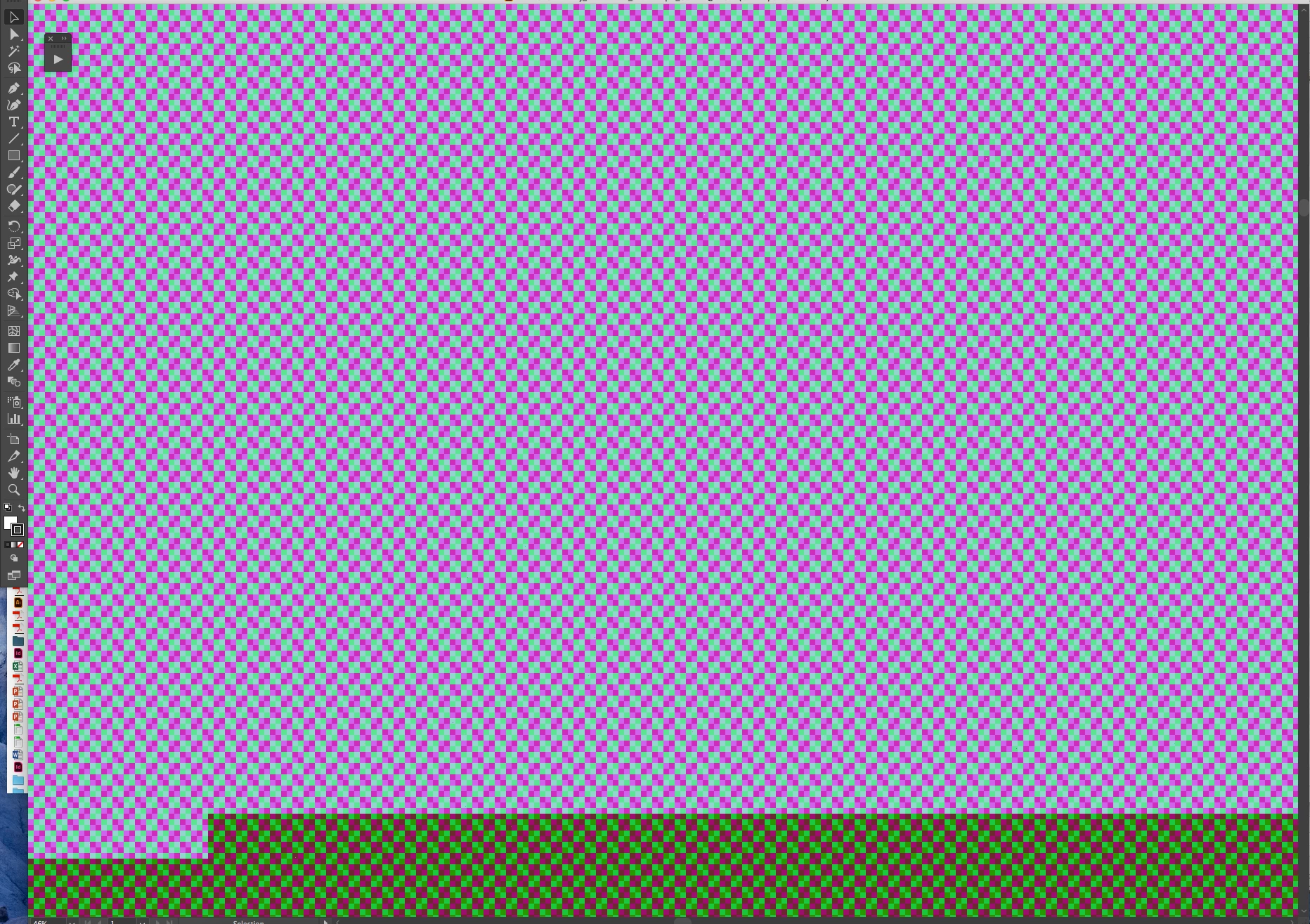
GPU Performance corrupts display in new (22.1) update

  • April 19, 2018
  • 1 reply
  • 1205 views

Hi all,

Just updated AI to 22.1 via CC. Files now open with 'corrupt' window contents when window is viewed on (non-retina) 27" Apple Thunderbolt Display. Files display correctly on (retina) laptop screen. This can be fixed by switching off 'GPU Performance' in preferences.

Work-around is acceptable but not ideal. Any advice or suggestions? Thanks.

MacBook Pro (Retina, 15-inch, Mid 2015)

2.8 GHz Intel Core i7

16 GB 1600 MHz DDR3

Illustrator Version: 22.1.0

OpenGL Version: 4.1 ATI-1.42.15

Number of Displays: 2

Number of Drivers: 2

Vendor: ATI Technologies Inc.

Renderer: AMD Radeon R9 M370X OpenGL Engine

ActiveDriverIndex: 1

Driver[0] Name: Renderer-24500

Driver[0] Adapter RAM: 1536

Driver[1] Name: AMD Radeon R9 M370X OpenGL Engine

Driver[1] Adapter RAM: 2048
    This topic has been closed for replies.

    1 reply

    Om Nath Jha
    Legend
    April 25, 2018

    Hi denbykev,

    This seems to be a graphics rendering issue. As you mentioned, disabling the GPU is one of the workarounds. Apple recently updated the OS and this has been fixed with that update (macOS 10.13.4). Please check this link for more details:

    High Sierra (macOS 10.13) GPU rendering issues with RGB document - Intel Graphics – Adobe Illustrator Feedback

    Regards,

    Om

    denbykevAuthor
    Inspiring
    May 17, 2018

    Thanks for the reply and link.

    1. I am not using High Sierra - I am still on El Capitan.

    2. 99% of documents I work on are CMYK not RGB.

    3. As posted above, this is using AMD graphics, not Intel.

    I have found that if I toggle 'preview on GPU / CPU' via command-E then it seems to view correctly using the GPU - although it usually reverts back to being corrupt when opening a documents or when restarting Illustrator. Not ideal, but at least I can get back to working a little faster now…  

    denbykevAuthor
    Inspiring
    May 24, 2018

    UPDATE:

    OK - so the workaround I have found that works is that you need to have a second GPU window open - can be a new document.

    So I open the file I want (GPU on in preferences) - appears visually corrupt.

    Make new document using apple-N (This views correctly (Blank artboard))

    Return to my first document (Still views corrupt).

    Apple-E to switch GPU off / CPU on.

    Apple-E to switch CPU off / GPU on.

    Boom. Very odd, but it seems to work all the time.