
Known Participant
August 6, 2022
Answered

Gradient Fill filling in gaps of outlined text

  • August 6, 2022
  • 4 replies
  • 301 views

Hi there,


I am having an issue when trying to fill a shape that has text cut out of it.


If I fill it with a solid colour, it works fine like this:



However, if I use a gradient, it is filling in the parts of the "o" and "e" which I don't want.


This is what is happening:
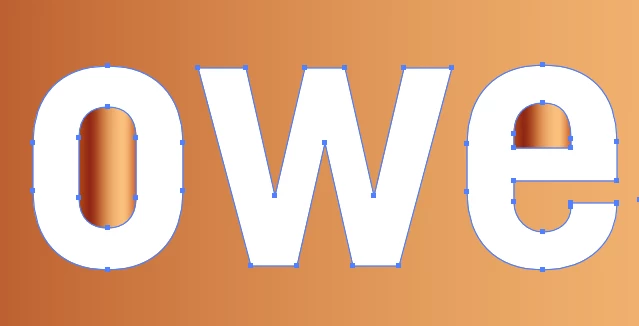


Can anyone tell me how to stop this happening?


Many thanks!

This topic has been closed for replies.
Correct answer Jacob Bugge

toolman,


If you start over (now or next time), you can:


1) Create the background path,

2) Create the letters on top of 1),

3) Select everything and Pathfinder>Minus front/Subtract from shape area.


That will create the Compound Path from the start.


Or you can create a reversible apparent cutout:


1) Create the background path,

2) Create the letters on top of 1) and give them a black fill,

3) Select everything and in the Transparency panel click Make (Opacity) Mask.


That will hide the parts of the background behind the letters, keeping the background as one path, and you can move the text round edit/replace/remove it.


4 replies

Jacob Bugge
Community Expert
Jacob BuggeCommunity ExpertCorrect answer
Community Expert
August 6, 2022

toolman,


If you start over (now or next time), you can:


1) Create the background path,

2) Create the letters on top of 1),

3) Select everything and Pathfinder>Minus front/Subtract from shape area.


That will create the Compound Path from the start.


Or you can create a reversible apparent cutout:


1) Create the background path,

2) Create the letters on top of 1) and give them a black fill,

3) Select everything and in the Transparency panel click Make (Opacity) Mask.


That will hide the parts of the background behind the letters, keeping the background as one path, and you can move the text round edit/replace/remove it.


Mohammad.Harb
Community Expert
Community Expert
August 6, 2022

Another way to achive the result, select all object , then press Devide from the pathfinder , then delete the letter

Ton Frederiks
Community Expert
Community Expert
August 6, 2022

You can also select the group and use the Gradient Tool to drag across the selection.

Monika Gause
Community Expert
Community Expert
August 6, 2022

Is that shape a group?

Ungroup it and amke a compound path instead.