Participant
April 15, 2018
Answered

halftone / gradient /solid
  • April 15, 2018
  • 6 replies
  • 29073 views

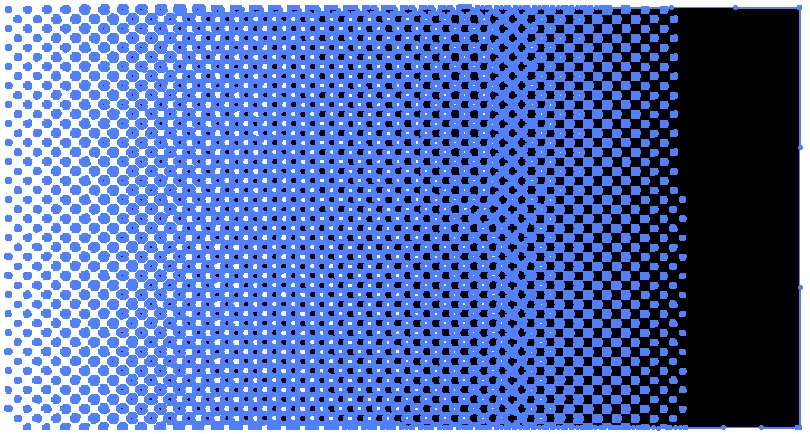
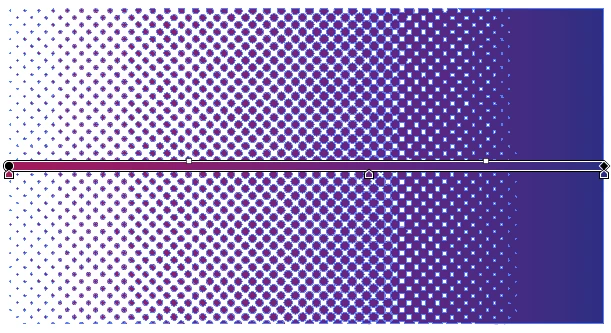
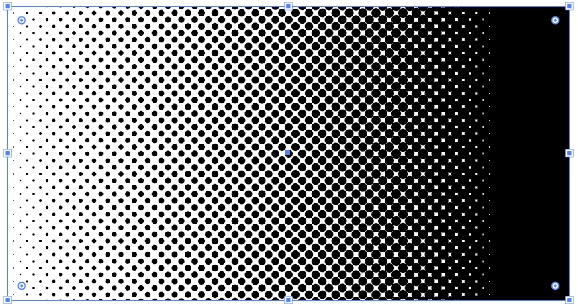
Hi all, I'm looking to recreate this - a halftone gradient that ends in solids on both sides. Wonder if this is possible without having to get Phantasm?

Correct answer Lhemz0527

To complete the steps as suggested by

6 replies

anabelhAuthor
Participant
April 26, 2018

Follow-up question:

even though I've extended the black area, it still appears with dots when converted to half tone?

Doug A Roberts
Community Expert
Community Expert
April 26, 2018

what colour mode are you working in? is it RGB black (0/0/0)?

anabelhAuthor
Participant
April 26, 2018

awesome, thank you everyone!! Just putting it together now

Lhemz0527Correct answer
Participating Frequently
April 16, 2018

To complete the steps as suggested by
Inspiring
April 15, 2018

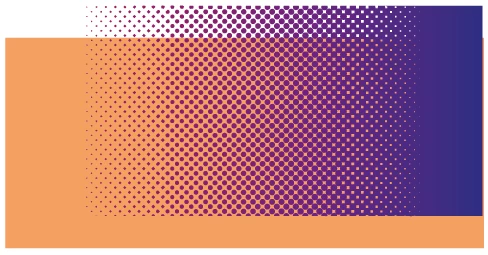
Sorry.  I forgot to mention I enlarged your PNG 200% and used it as a template Layer.  All work was done on a separate draw layer.  The size of the Blend dots can be different, as the number of steps in the Blend, too. 

Inspiring
April 15, 2018

It is possible, but there is a few steps involved.  I recreated the halftone pattern using a Blend ( first dot .0625"; create a second dot .125" about half way up the pattern, Blend using 14 steps ) > after you've created a row of dots, select it and step it ( Move vertical +.125"; horizontal .125"; Copy ) > you should have 2 rows of dots, the second row is stepped, now select both rows of dots and duplicate it by moving them both .25" horizontally ( remember to copy ); continue by hitting command D ( duplicate ) as many times is necessary to make the width of the background.  Next, select all of the dots and group them > Reflect Horizontally; Copy.  So now you have the bottom half of the gradient and the top half of the gradient > Align the top pattern to appear there is no seam.  You will need a gradient for the background and for the halftone dot pattern ( you will use the same gradient for both ).  I created the halftone dot pattern using a ninety degree angle, so now you can use the rotate tool to angle the dots -28 degrees.  Create a ( linear ) gradient using Orange and Purple.  With the Gradient tool, create the ( background ) gradient angle direction to match the dot angle.  Apply the same gradient to the dot pattern ( both bottom and top should be grouped ).  If you need them, I can submit screen shots of the steps.

barbara_a7746676
Community Expert
Community Expert
April 15, 2018

You could try these steps.

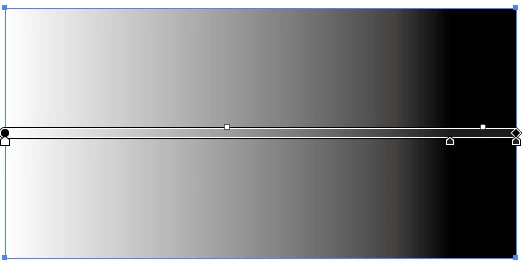
Draw a rectangle and fill it with a black to white gradient.

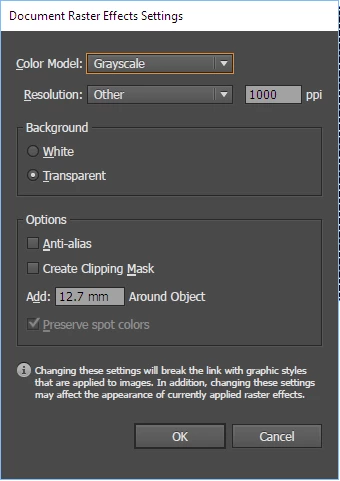
Effect > Rasterize.

Effect > Pixelate > Color Halftone.

To make the white appear transparent, change to Darken mode in the Transparency panel.

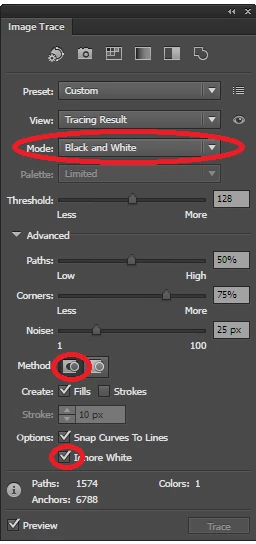
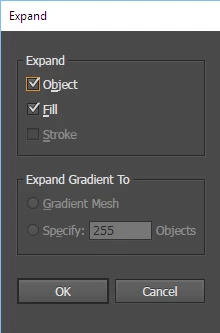
Optional: If you don't want the object to remain an effect, you can Object > Expand. Then you may want to Image Trace the expanded object. Experiment with Threshold and turn on Ignore White.

tromboniator
Community Expert
Community Expert
April 15, 2018

Barbara, I'm curious about why you're using the Rasterize effect. As far as I can see, it only affects the size of the halftone dots, which you can adjust in the halftone effect anyway.

Peter

barbara_a7746676
Community Expert
Community Expert
April 15, 2018

Hi tromboniator -- you're right, that step is not necessary. Thanks for your eagle eye.