Answered

This topic has been closed for replies.
Illustrator supports Arabic.
Kindly follow these steps in order to acquire the Middle Eastern version of Illustrator
If you have installed Adobe applications and found that it doesn’t support Arabic, then follow all steps from step#1.
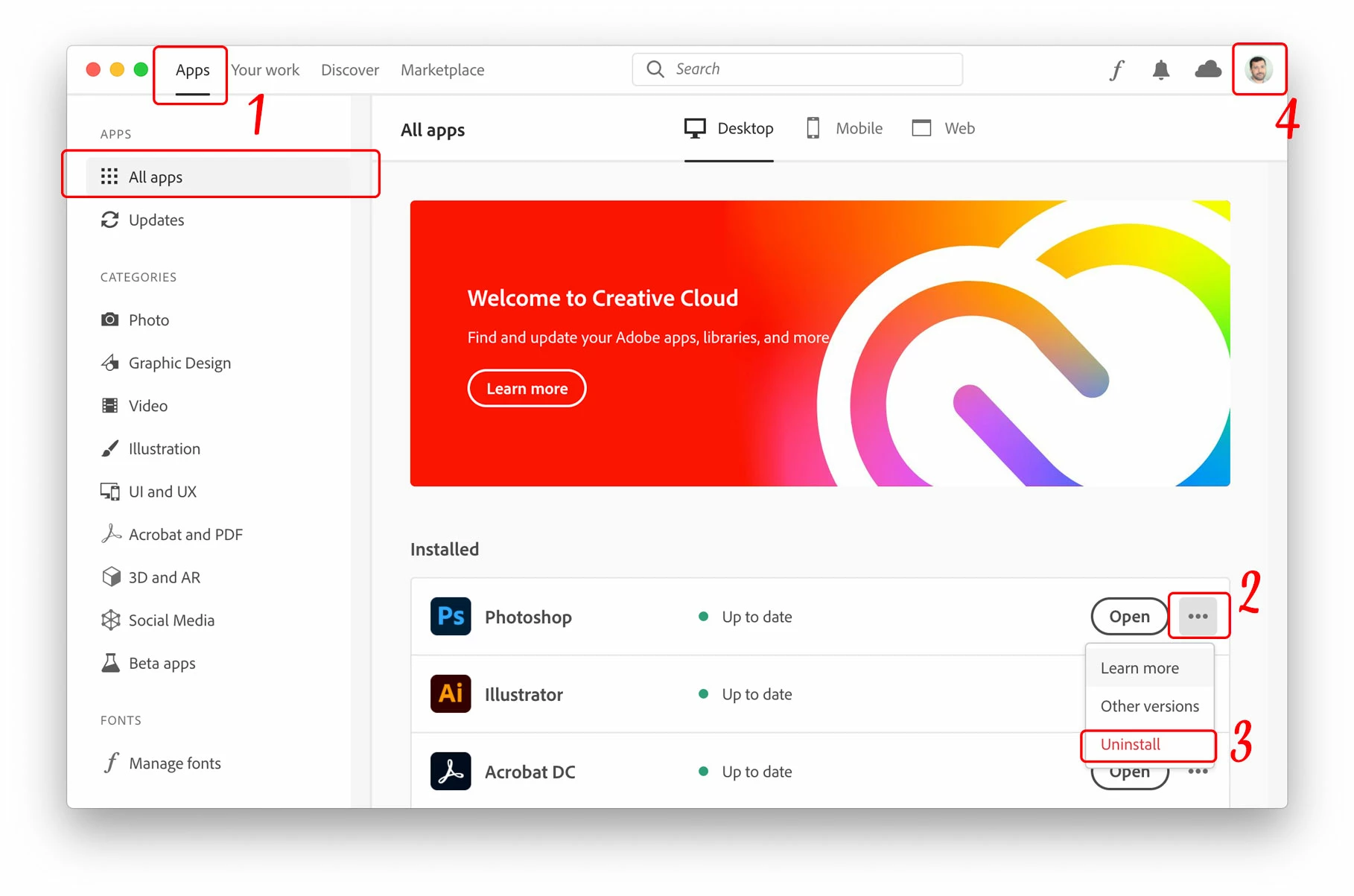
- From the Adobe Creative Cloud Desktop menu, click on All Apps to view a list of installed Adobe applications
- Click the three ellipses shown beside each installed application
- Choose Uninstall to remove the non-Arabic application and remove Preferences when prompted
- Once ALL existing applications have been uninstalled/removed successfully, click on the “Account” icon found on the top-right corner of the Creative Cloud desktop application and choose “Preferences”
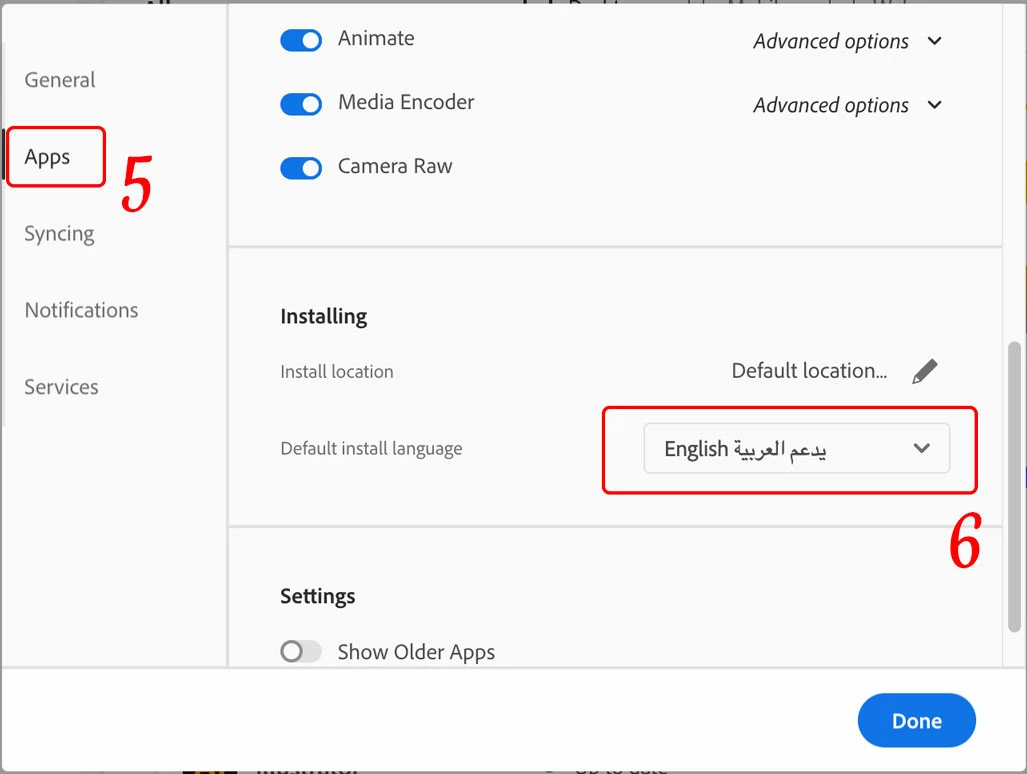
- In the newly opened Preferences dialogue window, click on “Apps” on the left pane
- Scroll down to the bottom of the window, from the “Default install Language” drop menu choose English يدعم العربية in order to have Arabic support in Adobe applications, then click the “Done” button.
Now you may proceed to install Adobe applications once again.


Sign up
Already have an account? Login
To post, reply, or follow discussions, please sign in with your Adobe ID.
Sign inSign in to Adobe Community
To post, reply, or follow discussions, please sign in with your Adobe ID.
Sign inEnter your E-mail address. We'll send you an e-mail with instructions to reset your password.
 AdChoices