Evan vR
Inspiring
August 26, 2026
Answered

Help cleaning up a supplied pdf

  • August 26, 2026
  • 10 replies
  • 65 views

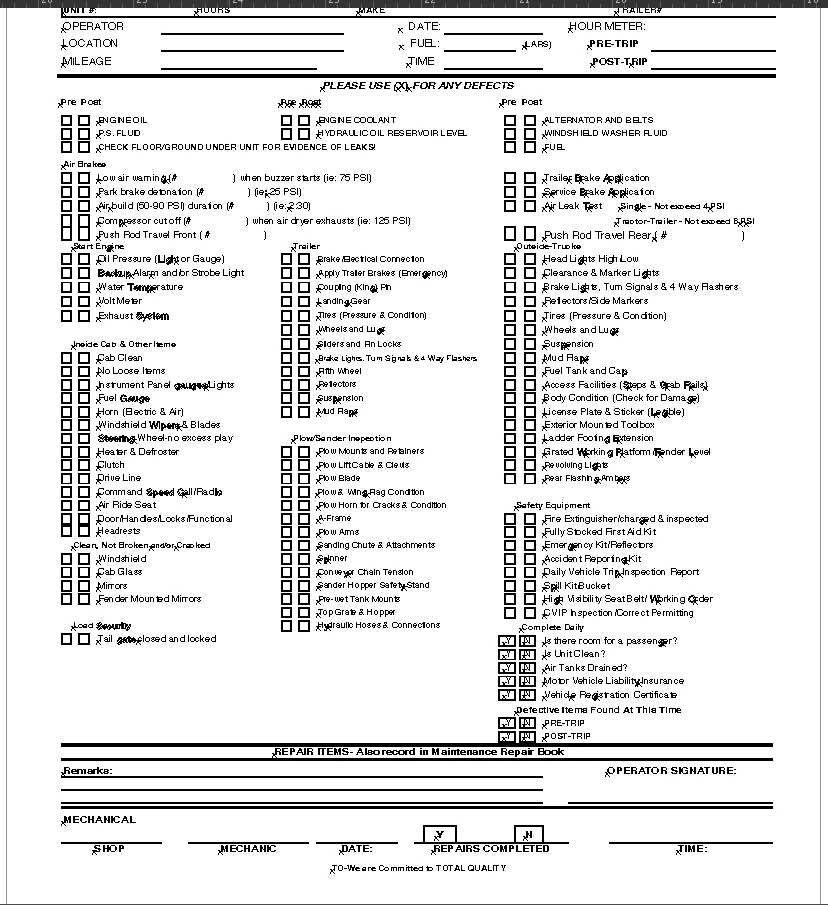
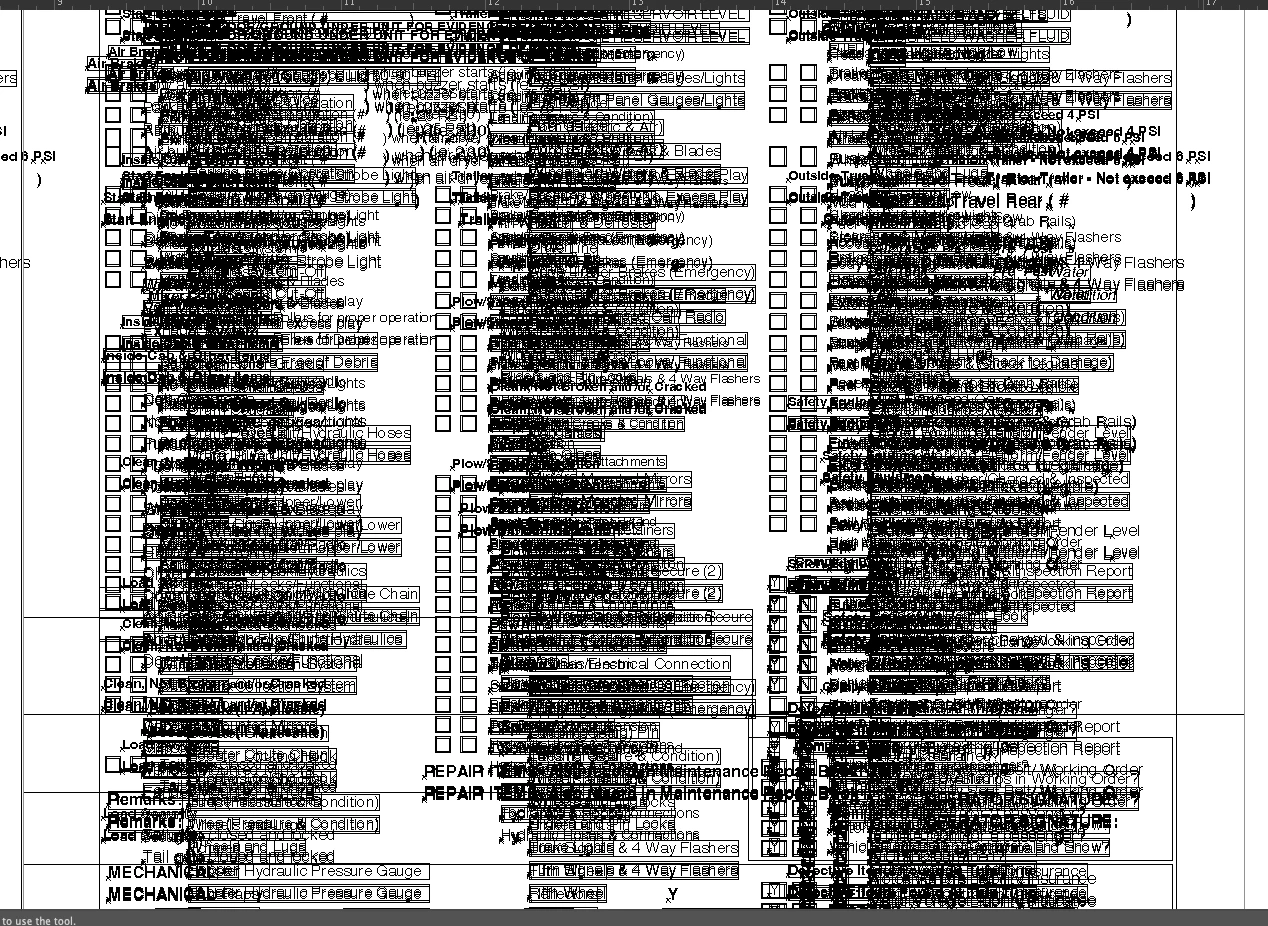
I work with supplied files a lot and not infrequently will I get files like the screenshots. Version after version is placed on top of the old and end up hidden underneath white solids or in clipping masks. The issue is that these are all live type in the same fill. Are there any solutions to removing everything except what is visible? If possible I'd also like to maintain the live text I can see so that I can continue to make changes in the future.
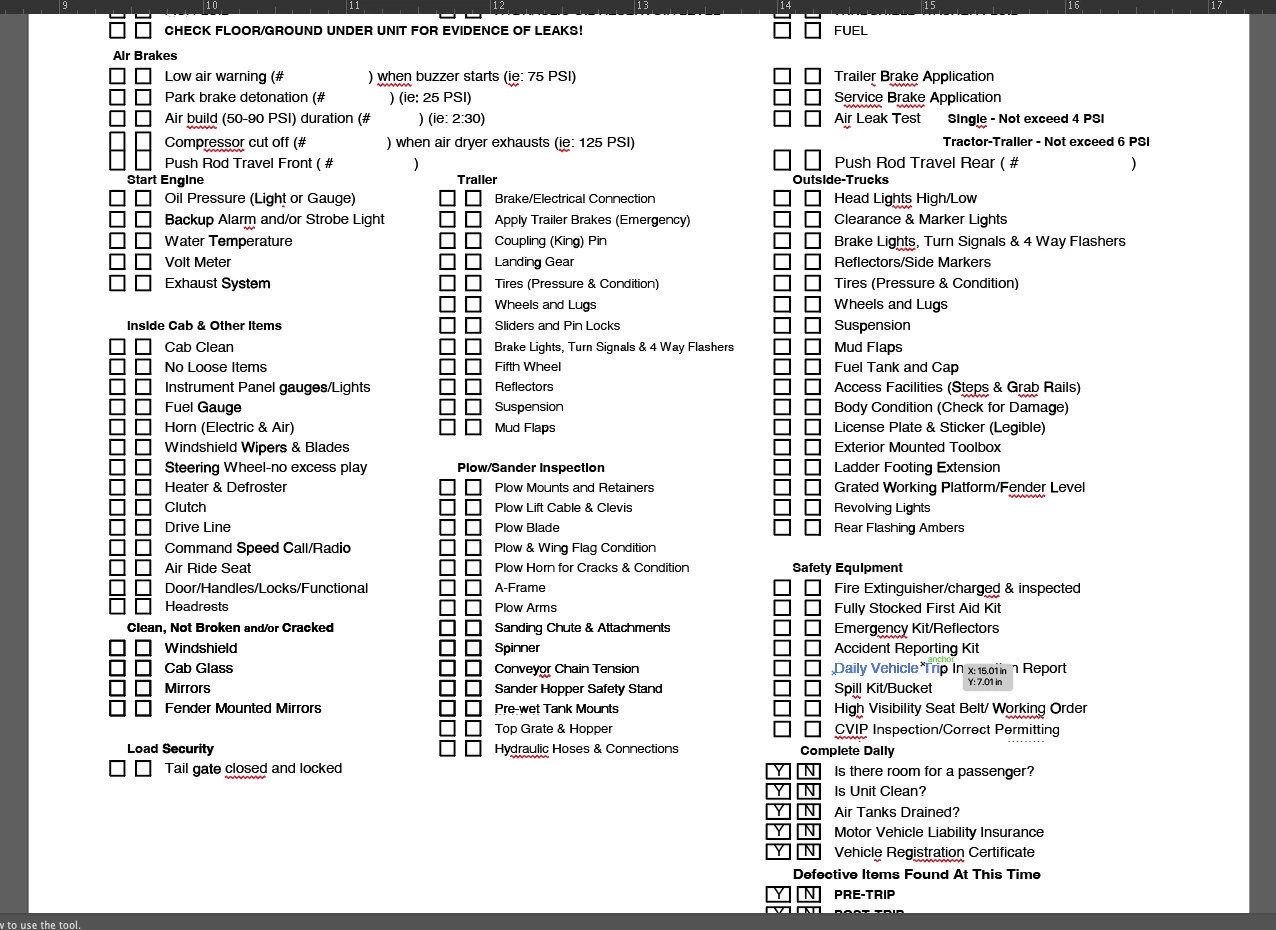
GPU Preview
Outline Preview


    Correct answer Evan vR

    Still not the greatest file setup in the world but I managed to clean it up by searching for clip groups and figuring out what was what and get rid of everything I didn't need. No silver bullet but at least I can work with this now.

    10 replies

    Community Expert
    August 28, 2026

    It’s situations like this where Astute Graphics’ Vector First Aid plugin can be pretty handy (and a major time-saver). Technically, from a purist point of view, PDF files are not meant for further editing. They’re only meant for document viewing and printing. However, we don’t live in a perfect world and clients are going to still provide artwork assets as PDF files or documents that need further editing as PDF files.

    Some applications create PDF files that are more edit-friendly than others. Illustrator PDF files behave like a normal .AI file if the PDF file is saved with Illustrator’s default settings. PDF files from other graphics applications can be a real mess to open and edit. I don’t like opening PDF files that were created by Adobe InDesign. Artwork exported from Canva using the “PDF for Print” filter is often pretty bad, but not as bad as Canva-generated SVG files.

    What makes matters worse is when the person who generated the PDF missed some critical steps along the way. An Illustrator PDF would be easy to work with, but if the person sharing the file forgot to embed linked images or forgot to outline live text objects that would force to me to work with the PDF data in the document rather than the Illustrator data that was appended to it. You have to place the PDF as a linked file, use the Flatten Transparency trick to outline live text objects and then dive in the mess of clipping masks and various sliced and shredded objects to organize it and attempt editing it. Vector First Aid can eliminate a lot of extraneous trash, such as unnecessary clipping groups and clipping masks or duplicate objects that are invisible. It can’t fix everything though.

    Evan vR
    Evan vRAuthorCorrect answer
    Inspiring
    August 27, 2026

    Still not the greatest file setup in the world but I managed to clean it up by searching for clip groups and figuring out what was what and get rid of everything I didn't need. No silver bullet but at least I can work with this now.

    Brad @ Roaring Mouse
    Community Expert
    Community Expert
    August 27, 2026

    Yoiks. Good luck.

    Outside of doing it manually to sort out whatever the heck they did, I would just render it to an image, OCR it, then rebuild.


    creative explorer
    Community Expert
    Community Expert
    August 26, 2026

    @Evan vR that looks nasty. As per ​@Monika Gause if there are no groupings and clipping masks, personally, I would just create a new document all together. I would probably do it in InDesign and create a PDF from it, and then run a form on it. 

    And next time it happens again, you will always have the originally file to use and export. It may take time, but it would be cleanest and easiest way versus manually going in and deleting what is not needed

    m
    Monika Gause
    Community Expert
    Community Expert
    August 26, 2026

    So there is no group? Or clipping masks that contain certain versions?

    Evan vR
    Evan vRAuthor
    Inspiring
    August 26, 2026

    No, that would've been too easy. This is a hodgepodge of lazy fixes that I've now inherited. This also isn't a uncommon thing to run in to.

    Ton Frederiks
    Community Expert
    Community Expert
    August 26, 2026

    Without seeing the Layers panel, can you select the top white object, hide it and everything above it.

    Select all, delete it and Show All?

    Evan vR
    Evan vRAuthor
    Inspiring
    August 26, 2026

    Here's the rub. In theory I can go in, find things one by one, and delete as needed, but I was hoping for an easier solution. Because it's an imported PDF technically the whole thing is also inside another clipping mask.

    graphics_4075
    Inspiring
    August 26, 2026

    So does each clipping group have multiple iterations of text, or is each clipping group it’s own instance of text?


    If it’s the latter, you could probably use the filter (next to search bar in layers), filter out visible layers, and then delete all hidden ones. This issue is more complicated if each clipping group has multiple layers of text. My answer may be misunderstood but I think I am confused by the nightmarish construction of this file. 

    Cheers