Participating Frequently
August 16, 2017
Question

Help creating a thick-lined map

  • August 16, 2017
  • 3 replies
  • 731 views

Hello hello. I'm seeking to create a graphic map/outline of Costa Rica which I can achieve decently enough for the look I'd like but with very thin lines. What I'd like is a thicker border line for the overall look, but when I try to increase the stroke the more detailed areas or thinner sections of the border get all jumbled, overlap and just looks ugly.

I'm hoping that someone may have a technique or suggestion to be able to get the right look with the thicker lines, and still be adjusted. It does not have to be exact or overly detailed but. I believe in the end the design would be 4-6 inches tall. I am attaching 2 map images I tried to use as reference. I will also include a link to this graphic version of an Alaska map/image that is kind of on the right track for the lines I'm looking for. https://cdn.shopify.com/s/files/1/0535/8649/products/Heart_in_Alaska_Sticker_1024x1024.png?v=1500271474
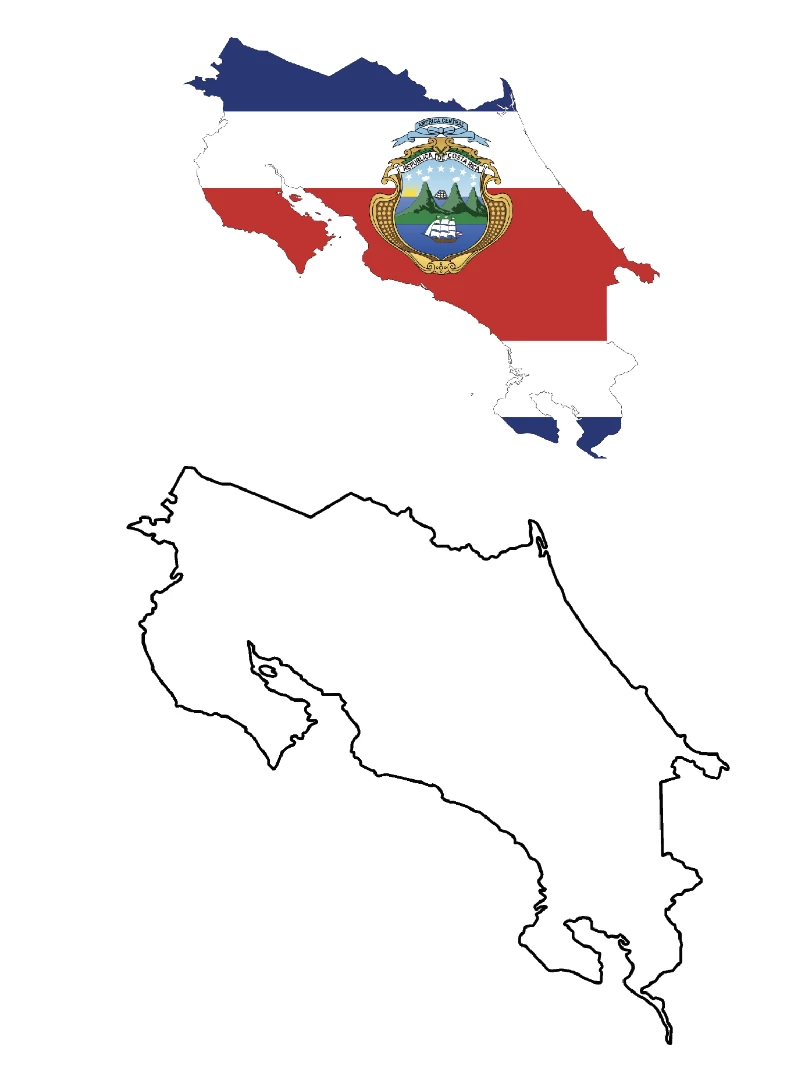
Thank you all, in advance!

    This topic has been closed for replies.

    3 replies

    JonathanArias
    Legend
    August 16, 2017

    that is the flag of the most beautiful country in the world.

    Pura vida tico!!

    Yo so  tico tambien

    barbara_a7746676
    Community Expert
    Community Expert
    August 16, 2017

    Select the shape of the map. In the Appearance panel, add a new stroke.

    Make the added stroke thicker and move it underneath the thin stroke.

    In the Stroke panel, set the thick stroke to align outside.

    Mike_Gondek10189183
    Community Expert
    Community Expert
    August 16, 2017

    When you thicken a stroke in illustrator that stroke goes half in and half out. You may want to try the other settings (e.g.; Stroke to Outside). Note: this will only work on closed shapes.

    Otherwise you would have to use the simplify command on the art to reduce that amount of crevices, so that the bay areas  do not close up.

    Participating Frequently
    August 16, 2017

    I had tried adjusting the Align Stroke, but it did not ever seem to resolve the issue. It kind of just jumbles or "scrunches" on itself.

    Perhaps I can just try redrawing the shape with the stroke alignment already changed.

    Thanks for your replies.

    michelew83603738
    Community Expert
    Community Expert
    August 16, 2017

    Before you re-draw the whole thing, try playing with a copy of your shape. Try re-aligning the stroke on the copy with no fill. If that doesn't work, maybe try Object>Path>Offset and you might get a line that you like better that way. Re-drawing the whole thing before experimenting a little more seems like a lot of work when there are some other options to try first.